> ## Content Index
> Fetch the complete content index at: https://www.magicpages.co/llms.txt
> Use this file to discover other available public pages before exploring further.
# How to add a contact form to your site
- URL: https://www.magicpages.co/help/features/how-to-add-a-contact-form-to-your-site/
- Published: 2026-10-25T12:02:13.000Z
- Updated: 2026-10-25T12:02:13.000Z
- Description: Put a contact form on any page of your site and answer readers from your own inbox. How to set it up, style it, and handle what readers send.
- Author: Jannis Fedoruk-Betschki
- Tags: Help Center & Guides, Features and Benefits
You can put a contact form on any page of your site. Readers write to you without seeing your email address, and you answer from your own inbox. The form runs on your own domain, we email you every message, and your customer portal keeps a copy until it's deleted.
You stay responsible for the messages: you decide what happens with them, and we process them on your behalf. This article explains how we built the form and what we suggest for your privacy policy. That isn't legal advice, and whether the form meets the requirements for your site is up to you. If you're unsure, ask a lawyer.
## What your readers see
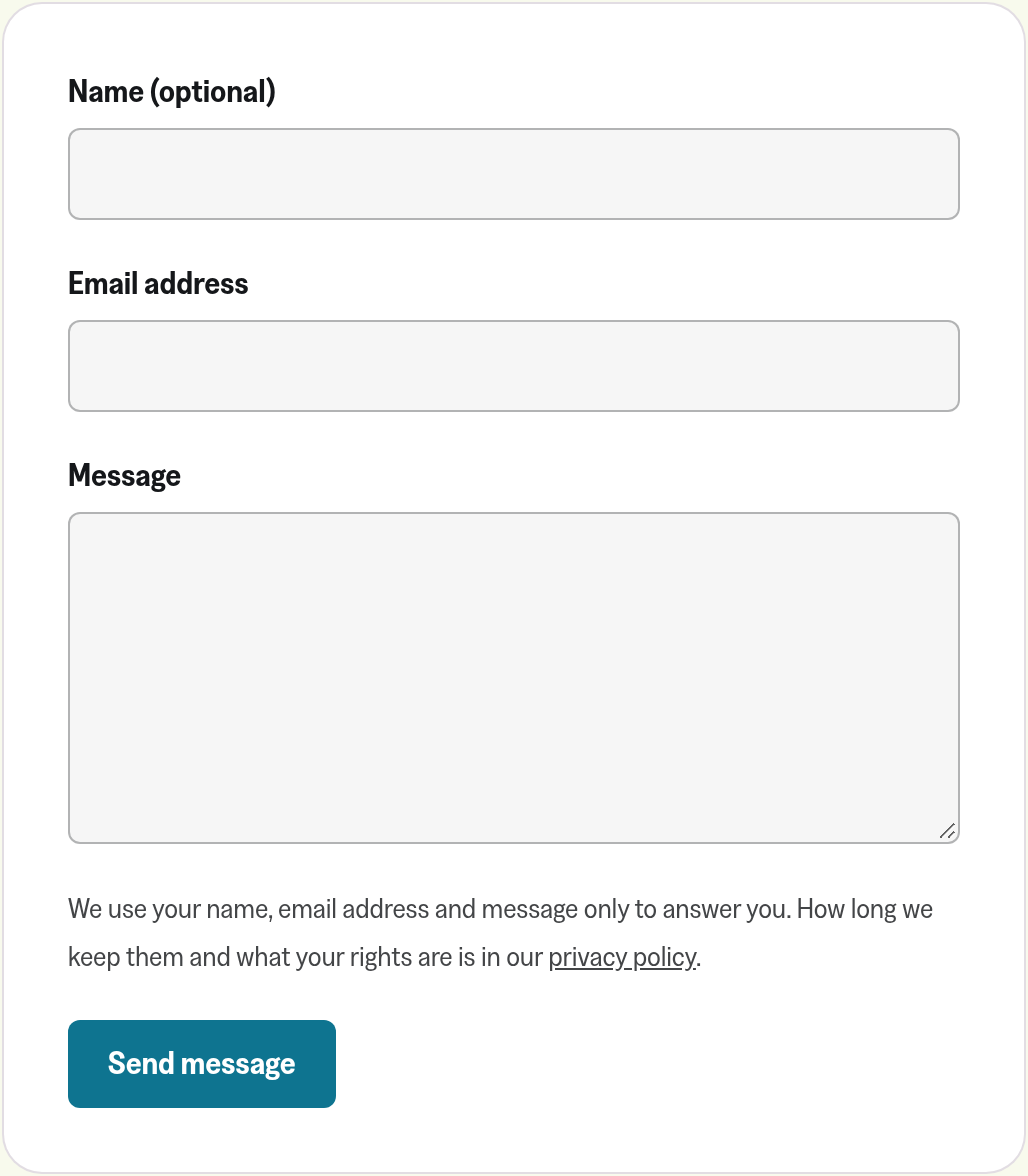
The form uses your theme's font, size and text colour, and the button takes the accent colour you set in Ghost. Dark themes work too, with nothing to set.
Readers fill in their email address and their message, and their name if they want to. A short note under **Send message** links to your privacy policy. No checkbox, no puzzle, no cookies.
After they send it, the form thanks them in place. They don't get a copy of their message by email.
## What you need
- The data processing agreement and the Forms Addendum, signed by the account owner. More on that below.
- A link to your privacy policy. The form can't go live without it.
- A page on your site for the form, usually your contact page.
## The Forms Addendum
Before the form can go live for the first time, the account owner signs two agreements under **Account** → **Legal agreements**: our data processing agreement, if they haven't signed it yet, and the [Forms Addendum](https://www.magicpages.co/forms-addendum/). It takes a few minutes, and you can switch the form on as soon as the owner has signed. You don't have to wait for our signature.
The data processing agreement covers what your readers do in Ghost. A contact message doesn't go to Ghost, though. It goes to your customer portal. The addendum covers what readers send through the forms we host for you: what we store, for what purpose, and for how long. It also covers the withdrawal and cancellation pages.
If you switch the form on before both are signed, the section shows **Sign the agreements first**. The account owner gets a button straight to **Open legal agreements**. If you aren't the account owner, ask them to sign. Only they can.
## Setting up the form
Log in to your Ghost admin and click **Customer portal** in the left sidebar. If you can't find it, here's where it lives:
[Where can I find the Magic Pages Customer Portal?Your Magic Pages Customer Portal is built right into your Ghost admin.Magic PagesJannis Fedoruk-Betschki](https://www.magicpages.co/help/trial/where-can-i-find-the-magic-pages-customer-portal/)
1. Open **Configuration** and scroll to **Contact form**.
2. Switch on **On your site**.
3. Under **What readers without JavaScript see**, pick what goes in place of the form. More on that below.
4. Under **Where we send messages**, enter the **Email address** that should get every message.
5. Under **Privacy**, enter the link to your **Privacy policy** and choose how long to **Keep messages for**.
6. Click **Save changes**.
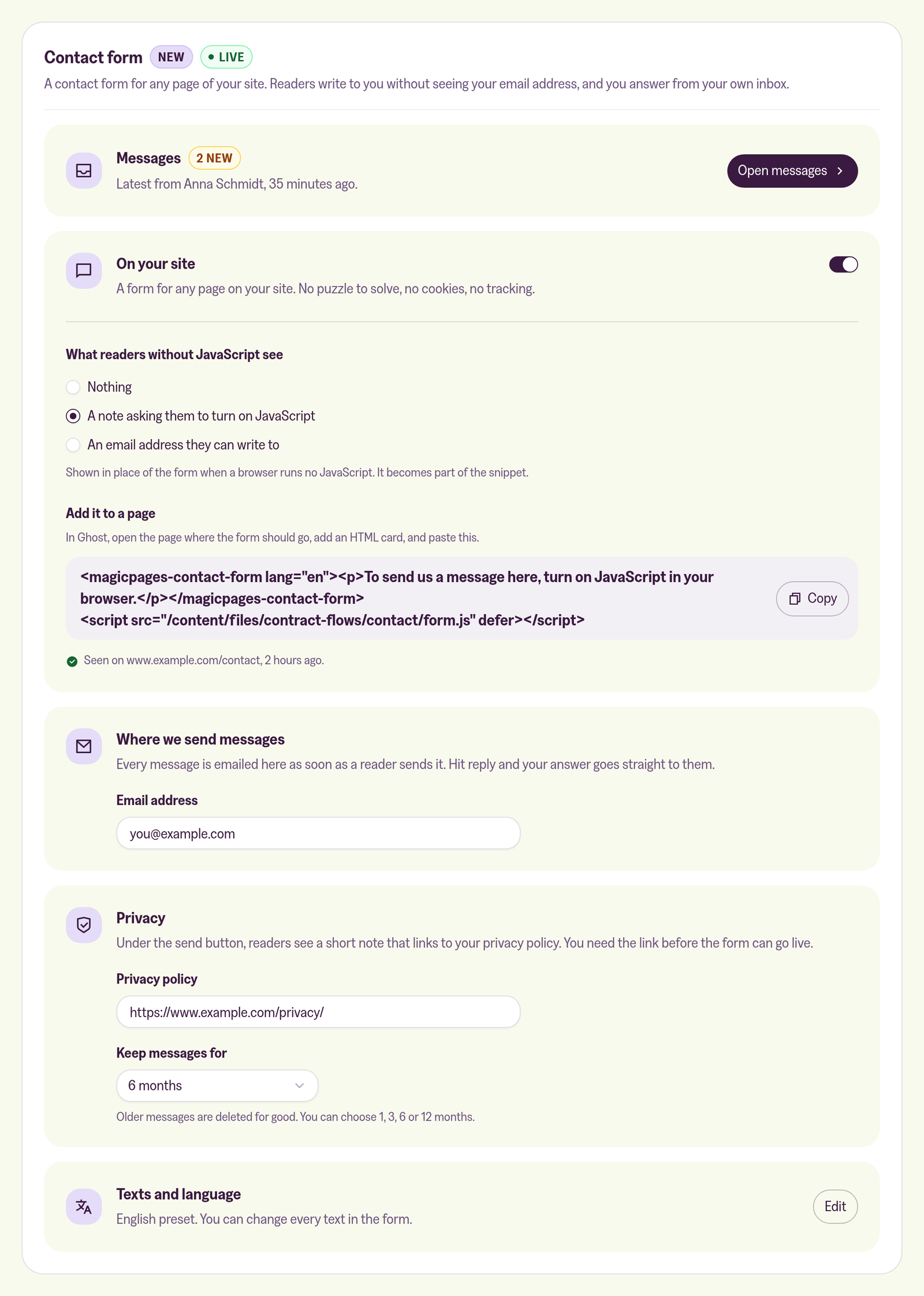
To change the wording or the language of the form, click **Edit** next to **Texts and language**. **Start from** picks the language, and every text under **Form texts** can be changed. The **Preview** underneath shows the form with your texts and your accent colour. On your site, it also takes your theme's font.
If you use the standalone customer portal instead, open your site under **All sites** and choose the **Contact form** tab. The messages are under **Messages**. The settings are under **Settings**, where the email address is in **Notifications** and the wording in **Texts**.
### Adding the form to a page
Once the form is on, the portal shows a **Snippet** under **Add it to a page**. It looks like this, with your settings:
```
To send us a message here, turn on JavaScript in your browser.
```
1. Click **Copy** next to the snippet.
2. In Ghost Admin, open the page where the form should go.
3. Add an **HTML** card and paste the snippet into it.
4. Publish or update the page, and open it once in your browser.
The portal then shows where and when it last saw the form, for example `Seen on www.example.com/contact, 2 hours ago.` Until then, it says **Not seen on your site yet**.
What readers without JavaScript see is written into the snippet itself. So when you change that choice, copy the snippet again and replace the old one in your HTML card.
## Readers without JavaScript
The form needs JavaScript. For readers whose browser runs none, you choose what the snippet shows in its place:
- **Nothing**
- **A note asking them to turn on JavaScript**, which is the default.
- **An email address they can write to**, which you enter. It's shown as a link.
If you show nothing, readers without JavaScript only have whatever other way to contact you your imprint offers. In some countries, including Germany, the imprint needs a second fast way to reach you next to your email address, and a contact form can be that second way. If that applies to you, make sure your imprint still has one for those readers, or pick one of the other two options.
## Matching your theme
You can change how the form looks with CSS, for example in **Settings** → **Code injection** → **Site header** in Ghost Admin. Set these custom properties on `magicpages-contact-form`:
- `--mp-contact-accent`: the button colour. Your Ghost accent colour by default.
- `--mp-contact-button-text`: the text colour on the button.
- `--mp-contact-gap`: the space between the fields.
- `--mp-contact-radius`: the corner radius of fields and button.
- `--mp-contact-border`: the border of the fields.
- `--mp-contact-field-bg`: the background of the fields.
- `--mp-contact-field-padding` and `--mp-contact-button-padding`: the padding inside fields and the button.
- `--mp-contact-label-weight`: the font weight of the labels.
- `--mp-contact-error`: the colour of error messages.
- `--mp-contact-max-width`: the widest the form gets. No limit by default.
For anything else, style the form's parts with `::part()`. The parts are `form`, `field`, `label`, `input`, `textarea`, `error`, `privacy-notice`, `notice`, `button` and `confirmation`.
```
```
## If your site has its own Content Security Policy
Ghost doesn't send a Content Security Policy, so most sites don't need to do anything here. If you added one yourself, the form needs a few things from it.
To keep out spam, the reader's browser solves a small computing task in the background when they first touch the form. The script for that comes from your site's own address, like the form itself. It runs as WebAssembly in a web worker, so your policy needs:
```
script-src 'self' 'wasm-unsafe-eval';
connect-src 'self';
worker-src blob:;
```
Add these to the directives you already have. The form doesn't load anything from other addresses.
## Answering messages
Every message arrives at the address under **Where we send messages**, as soon as the reader sends it. The reader's address is set as the reply address, so hitting reply in your mail client answers them.
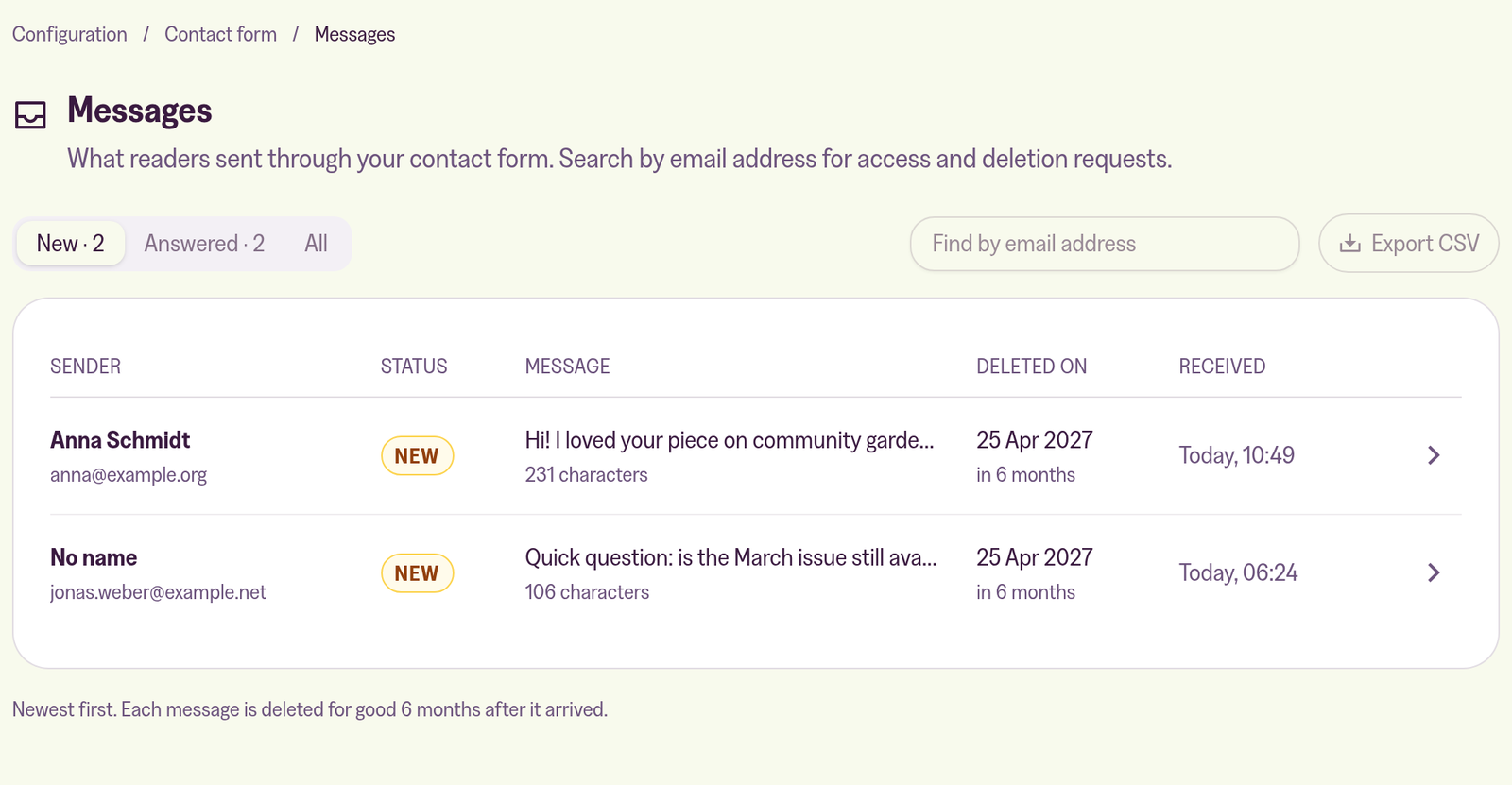
The portal keeps every message too. The **Contact form** section shows how many are new and who wrote last. Click **Open messages** to see them all. The list opens on **New**, and **Answered** and **All** show the rest. In the standalone portal, it's the **Messages** tab.
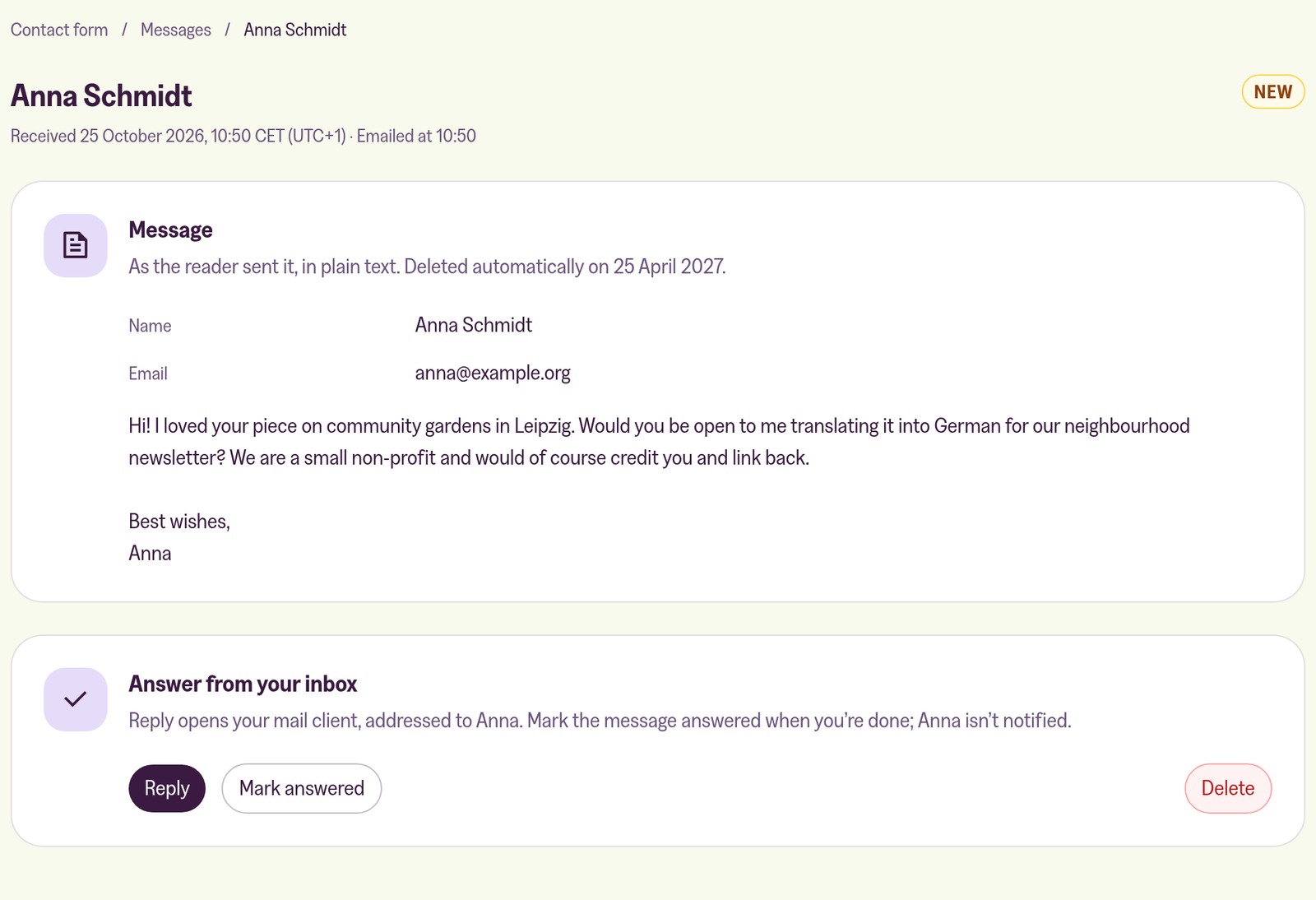
Open a message and click **Reply** (**Reply by email** in the standalone portal) to write back from your own mail client.
When you're done, click **Mark answered**. The message moves to your answered messages. The reader isn't notified. If you marked one by mistake, click **Mark new again**.
## Deleting messages
Messages are deleted for good when the time under **Keep messages for** runs out: 1, 3, 6 or 12 months after they arrive. Six months is the default. Each message shows the date it will be deleted.
To delete a message earlier, open it and click **Delete**. It's deleted for good, in both portals. Emails you already received or sent stay in your inbox. Delete those there.
## Requests to see or delete a reader's messages
Readers can ask what you have stored about them, or ask you to delete it. To find their messages, type their email address into **Find by email address** on the messages page. Upper and lower case don't matter.
- **Export CSV** downloads every message from that address, with all we store about it. Send the file to the reader. In the standalone portal, you may be asked to confirm it's you first.
- **Delete all** deletes every message from that address, after you confirm.
Don't forget the copies in your own inbox.
## Health and other sensitive data
The form asks for a name, an email address and a message, nothing more. Readers can still write anything into the message, including information about their health, religion, political views or other special categories of data under Art. 9 GDPR.
Don't ask readers for that kind of information, for example in the text around the form. If a message contains it anyway, answer if you need to, then delete the message in the portal and in your inbox.
## What to put in your privacy policy
Readers who click the link in the note under the form land on your privacy policy. That's where they learn what happens to their message. Here's the paragraph we suggest. Fill in the parts in square brackets:
****Contact form**
If you write to us through the contact form, we process your name (if you give it), your email address and your message to answer you. Our legal basis is our legitimate interest in answering inquiries (Art. 6(1)(f) GDPR). If your message is about a contract with us, or one you want to enter into, it is the performance of that contract (Art. 6(1)(b) GDPR).
Our hosting provider, Magic Pages e.U., Wiesingerstraße 2, 4820 Bad Ischl, Austria, runs the form and processes your message on our behalf under a data processing agreement (Art. 28 GDPR). Your message is stored on servers in Germany (Hetzner Online GmbH) and sent to us by email through Mailgun (Sinch) in its EU region. Mailgun may access data from the United States for administration; that transfer is covered by the EU Standard Contractual Clauses.
Your IP address is not stored with your message. To keep out automated spam, your browser solves a small computing task when you start filling in the form; to size it, the form reads how many processor cores your device has. Nothing is stored on your device.
Your message is deleted from the form automatically \[6\] months after it arrives. If we answer you by email, we keep that correspondence \[for as long as we need it to handle your request\].
Change the \[6\] to the period you chose under **Keep messages for**.
### A note on the spam protection
The task the browser solves reads the number of processor cores. In Germany, reading information from a visitor's device is covered by § 25 TDDDG. We think no consent is needed. Our reasoning is the note below, and you can keep it with your records of processing:
****Spam protection of the contact form: access to the visitor's device (§ 25 TDDDG)**
****What happens.** When a visitor first interacts with the contact form, their browser loads a proof-of-work script (CAP.js) from this site's own host. The script reads `navigator.hardwareConcurrency` (the number of processor cores) to size the task, computes a solution and sends it with the message. Nothing is written to or read from cookies or Web Storage, and nothing loads before the visitor interacts with the form.
****Assessment.** Reading `navigator.hardwareConcurrency` is access to information in the visitor's terminal equipment (§ 25 Abs. 1 TDDDG). It is strictly necessary to provide the contact form the visitor expressly asked for (§ 25 Abs. 2 Nr. 2 TDDDG): using the form is the request (DSK guidance for providers of digital services, Rn. 76), security measures that protect the requested service belong to it (Rn. 74), and the access starts only once the visitor uses the form (Rn. 95). Consent is not required.
****Personal data.** The challenge and its solution contain no personal data. The IP address is used briefly, in memory, to limit how many messages one address can send, and is not stored with the message. Legal basis: legitimate interest in protecting the form from spam (Art. 6(1)(f) GDPR).
****Open point.** No German supervisory authority has ruled on a specific captcha. Recheck when the DSK guidance changes.
## What we don't do
Readers don't get a copy of their message. Anyone can type a stranger's address into the form, and a copy would deliver whatever they wrote to that stranger's inbox.
There's no spam folder to check. A message that fails our spam checks is dropped before it's stored, so we don't have it either. If one gets through anyway, delete it like any other message.
We don't reply to readers for you, and we can't see whether you did. That's why you mark each message answered yourself.