
Magic Pages has always taken daily backups of every site, available in the Support tab of your Customer Portal. Those backups live on our infrastructure, which is exactly where most people want them. Until the day they'd rather have a copy somewhere else entirely, mostly for peace of mind.
Starting today (in beta) you can send your backups offsite: to your own storage, or to a cloud drive you already use.
What you can back up to
There are two paths, depending on how you work:
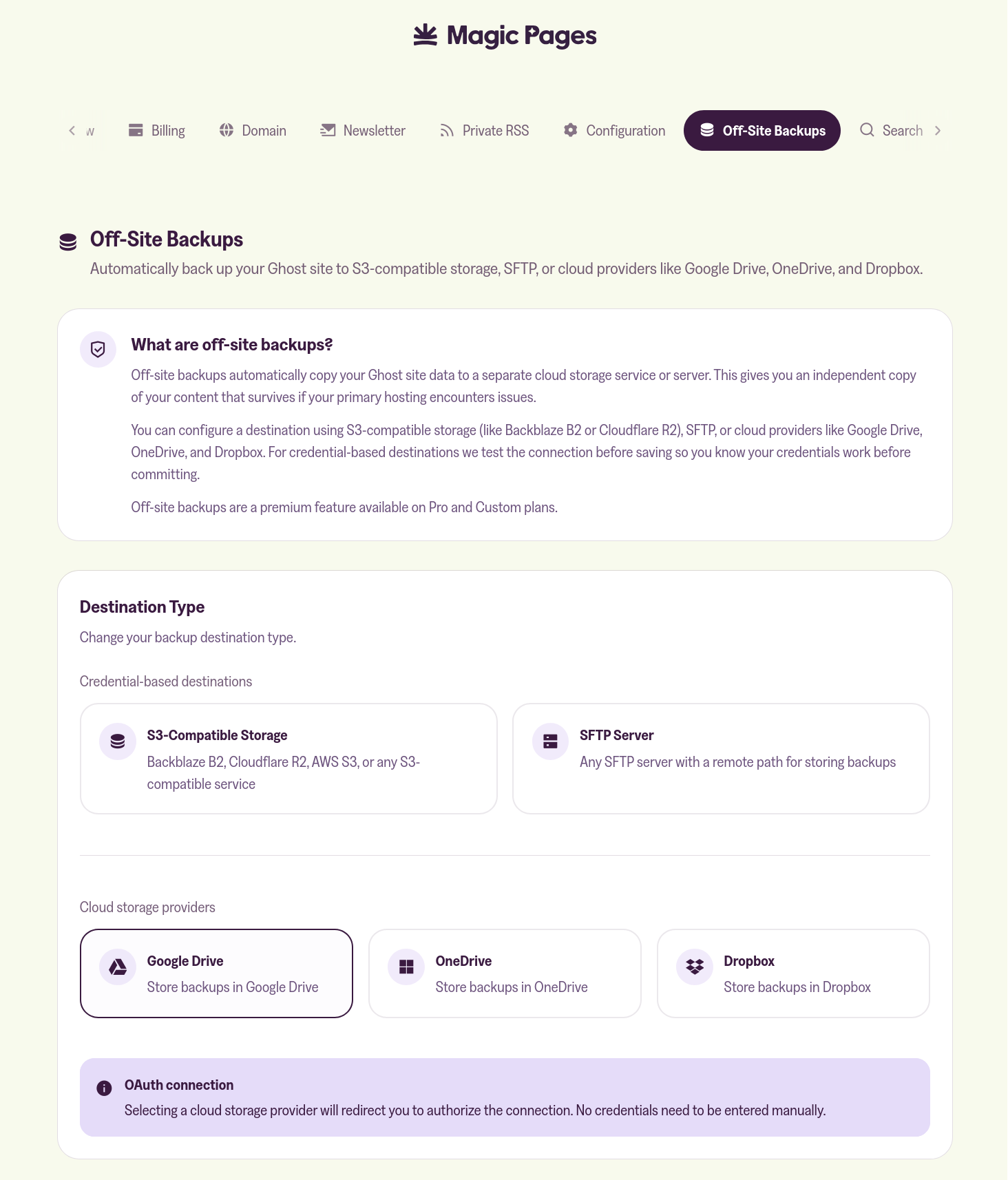
For teams and developers, we support SFTP and any S3-compatible storage. Point us at a bucket or a server, drop in your credentials, and your backups land there on every run. This covers the usual suspects − AWS S3, Backblaze B2, Wasabi, Hetzner Object Storage, your own SFTP box − anything that speaks the protocol.
For everyone else, there's one-click authentication to Google Drive, Dropbox, and OneDrive. Authorise, pick a destination, done. No keys to generate, no config files to maintain.
All credentials and tokens are stored fully encrypted on our server.
What gets backed up
Each run includes both your MySQL database and your content folder − so you have everything needed to restore a site, not just part of it.
Retention is yours to set
You choose how many days of backups to keep. Set it to 7, and on every run we clean up anything older than seven days, leaving you with a rolling set of seven full backups. Set it higher or lower to match how much history you want to hold.
What it costs
Right now, nothing. The feature is free while it's in beta.
We do want to be upfront about the longer term, though. Sending backups outside our own network has a real cost, and as adoption grows that cost grows with it. Depending on what we actually see, there may eventually be a usage-based fee. If there is, it will reflect our costs and nothing more − relayed 1:1. This isn't a feature built to make money.
We'll watch how the beta is used and share specifics before anything changes.
How to enable
Since this feature is in beta, send a quick email to help@magicpages.co, if you want to take part in it.
Once it's enabled, open the Customer Portal from inside your Ghost Admin, head to the new Offsite Backups tab, and connect your storage destination − either by entering your SFTP/S3 details or authenticating your cloud drive in one click. Set your retention, and your next backup run will include an offsite copy.
