When someone lands on a page that doesn't exist on your site, whether from a deleted post, a mistyped URL, or an old link that no longer works, Ghost shows a default "Page not found". That's a 404 error, and it's a normal part of running any site on the web. What matters is how that page looks when a visitor lands on it. Ghost's default page works, but it's disconnected from everything else on your site: no branding, no navigation, nothing that says "you're still here".

The solution for this is a single file inside your theme: error-404.hbs. And since recently, you can create it straight from the browser in Ghost admin, without re-uploading your theme. The examples below show what's possible with custom illustrations and simple layouts, small changes that make your 404 feel alive and give visitors a clear next step. These are five templates you can grab from the GitHub repository linked at the end of this article, so feel free to download them all and experiment.
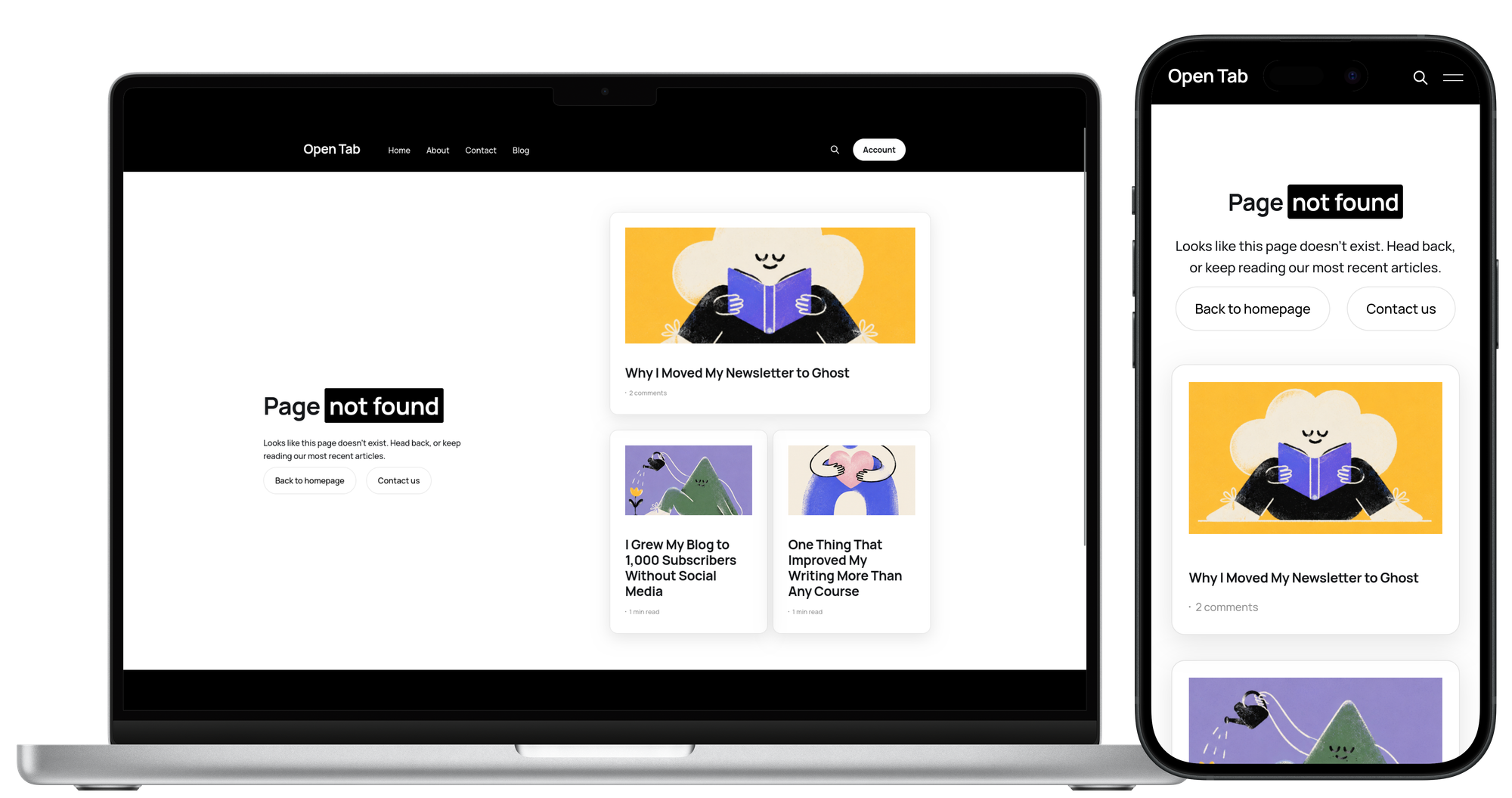
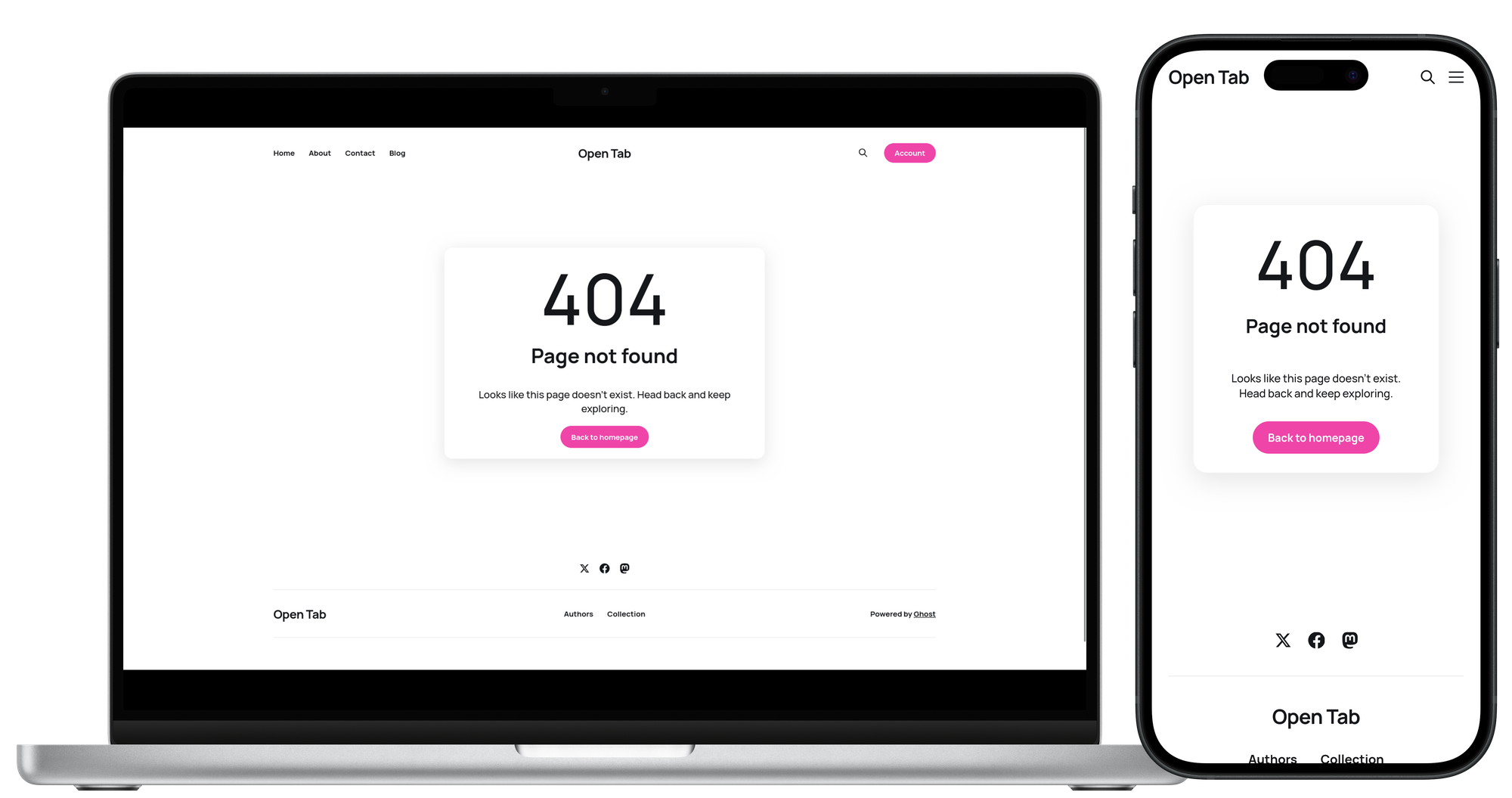
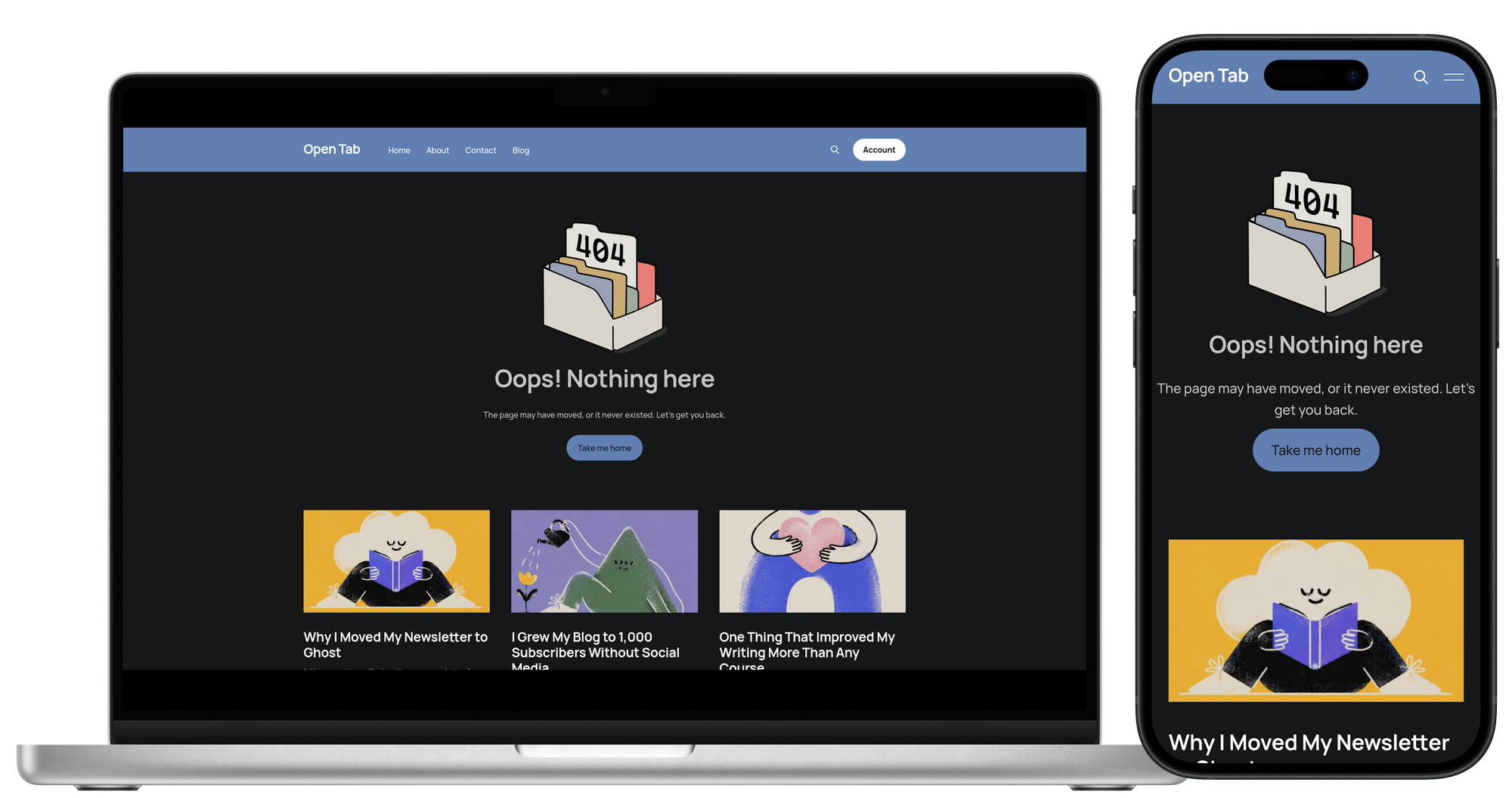
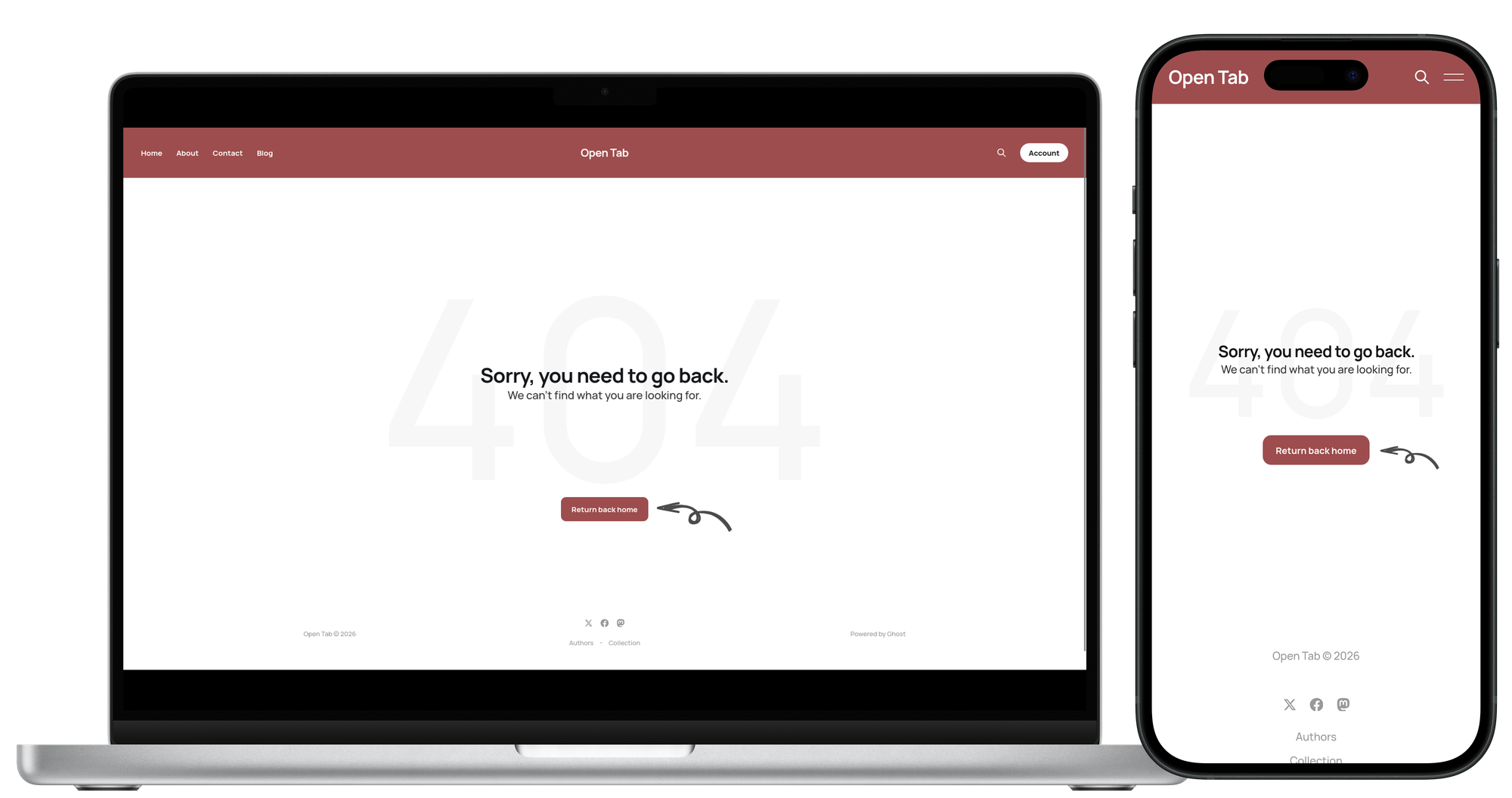
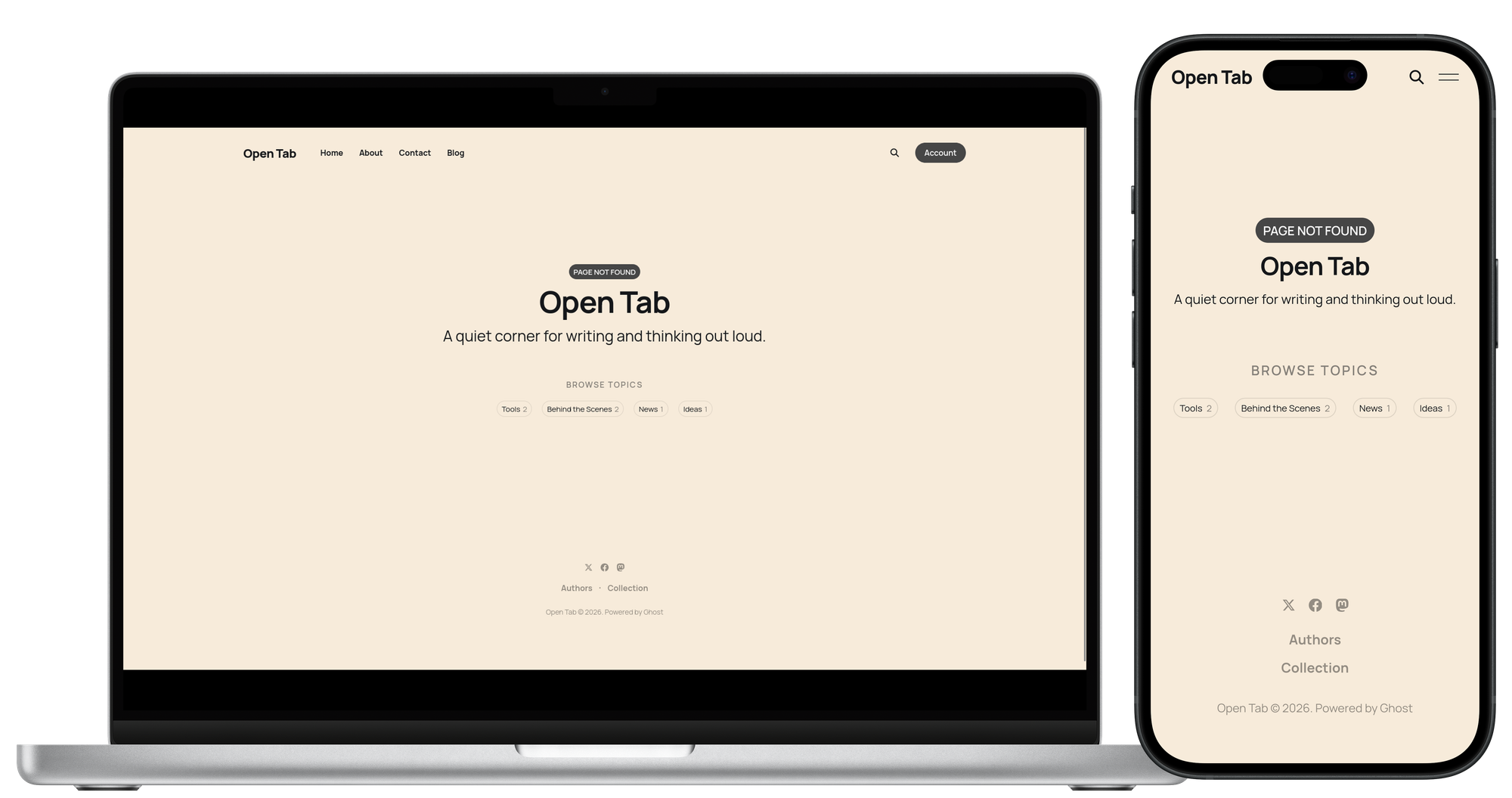
Note that some of Ghost's default themes already include an error-404.hbs. If yours does, you don't need to create a new one – just edit it directly. To see how your 404 page looks at any point, visit a URL on your site that doesn't exist, like yoursite.com/this-page-is-not-real.
How Ghost handles 404
Whenever someone visits a URL that doesn't exist, Ghost looks in your theme's root folder for a file called error-404.hbs. If it doesn't find one, Ghost falls back to its own built-in default. The .hbs template format is generally used to build every page on your Ghost site. This way, all we need to do is create one and put our content in it.
Open your Ghost admin settings and navigate to Theme, then click the three dots next to your active theme and choose Edit code. Once you're in the theme editor, hit + to create a new file and type error-404.hbs exactly – nothing in front of it, so it sits in the theme root.
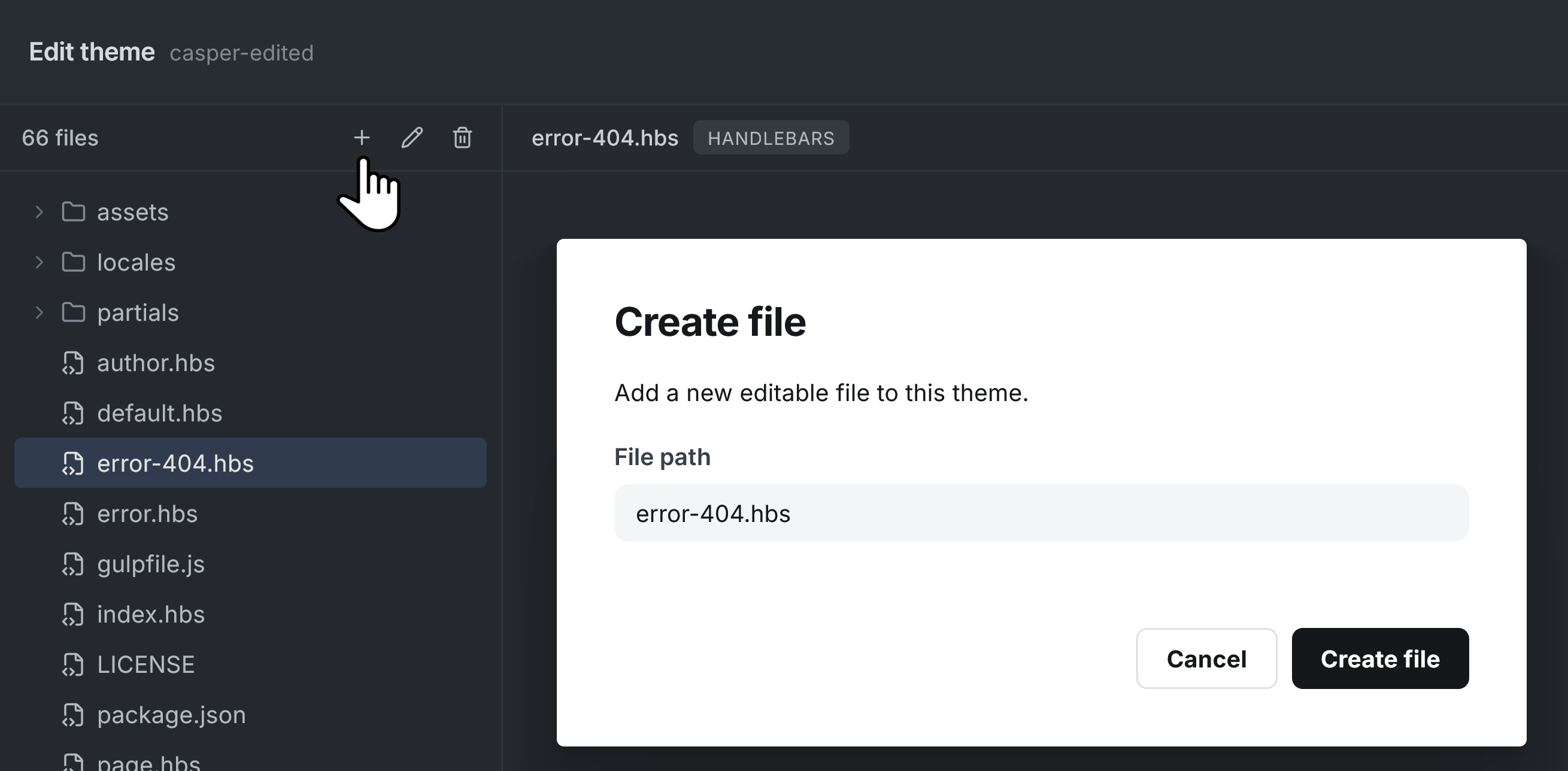
If you'd rather work locally, you can add the ready to use file to your theme folder, zip it, and re-upload it by clicking on Change theme -> Upload theme in Ghost admin settings.
How to give it a personal touch
When experimenting with these templates, everything is easy to tweak. The accent color updates automatically based on your site's design settings. All the headings and body text are plain HTML, so you can edit them directly in the.hbs file.
An illustration or image is also a nice way to keep your template from feeling like a generic error screen. If you don't have one, sites like unDraw, Open Doodles or similar offer free 404 illustrations you can use and tweak. And if you're up for drawing your own, tools like Inkscape or Krita work well – both are free and open source.
And the easiest way to host your image is through Ghost itself. Drop it into any draft post using the image card, then copy the URL Ghost gives back – it'll look like .../content/images/your-file.png. Use that in the src attribute.
Or, if you'd rather bundle the image with your theme, add it to the theme's assets/images/ folder and reference it with the {{asset}} helper instead. That said, skipping the image is fine too. Plenty of good 404 pages skip it entirely and lean on typography, colour, or content instead.
Breaking down the code
Even though the five templates look and behave differently, they all lean on a small set of Ghost building blocks. Understanding these means you can mix, remix, and build your own templates from scratch too.
{{!< default}} — the one line that keeps you on-brand
Every template starts with this. It tells Ghost to render the 404 inside default.hbs, your theme's main layout, so your header, navigation, and footer come along automatically. Without it, the page renders naked, no navigation, no way back to the rest of your site. It's the single most important line in the file.
var(--ghost-accent-color) — your theme's accent color
Every template pulls its accent color from this variable. It's tied to the color you set under Settings → Design & Branding, so changing your brand color updates every button, badge, and highlight across all five templates without touching a line of CSS.
{{@site.url}}, {{@site.title}}, {{@site.description}} — dynamic site data
Instead of hard-coding your homepage link or blog title, these Handlebars helpers pull the values from your Ghost settings. Use these to turn the 404 into a mini site intro, showing your publication's title and tagline right on the error page.
{{#get}} — the underused helper for 404 templates
This is the one that makes a 404 more than just an error screen. {{#get "posts"}} pulls in your latest articles as post cards. {{#get "tags"}} pulls your most popular tags. You can adjust the limit, change the order, or filter by tag. It's the same helper that powers homepages and archive pages in most Ghost themes.
All five templates are in the GitHub repository linked below, ready to drop into your theme. Two of them are tuned for Casper-based themes, since they rely on the built-in post-card partial to render the recent posts block. The other three work with any Ghost theme out of the box. And if you want to go deeper, Ghost's theme documentation is a good place to start.
 magicpages