How to Set Up Your Custom Domain Without 'www' On Magic Pages
Setting up your Magic Pages site to load without www. subdomain requires routing your DNS through Cloudflare. This guide covers the full setup for any DNS provider, using GoDaddy as the example.
 Sviatoslav Huzel
If you want your Magic Pages site to load at yoursite.com rather than www.yoursite.com, this guide walks you through every step to achieve it. You will move your DNS management to Cloudflare, the only DNS provider that supports a feature called CNAME flattening, which Magic Pages needs to handle your domain reliably.
The guide covers both options whether you are connecting your domain to Magic Pages for the first time or switching an existing setup from www to apex.
A few things to know before you start:
Your domain registration stays where it is. You are not transferring your domain to Cloudflare. Only the DNS settings move, and Cloudflare's DNS service is free.
The whole process takes around 20 minutes of active work, plus some waiting time for Cloudflare to verify the changes. That waiting time can be anywhere from a few minutes to a few hours.
Your website and email keep working throughout the entire process. Brief interruptions are possible during the DNS changeover, usually no more than a few minutes.
It is also worth understanding why Magic Pages uses www subdomains by default:
 Jannis Fedoruk-Betschki
If you already have a live site with us, I'd recommend reading through the article first and reaching out if you're unsure about any of the steps.
Step 1: Create a free Cloudflare account
Open cloudflare.com in a new tab and sign up. You will need to verify your email address.
The free plan includes everything you need. You do not need to pay for anything.
Step 2: Add your domain to Cloudflare
Once you are logged in to Cloudflare, go to Domains -> Overview and click Add domain.
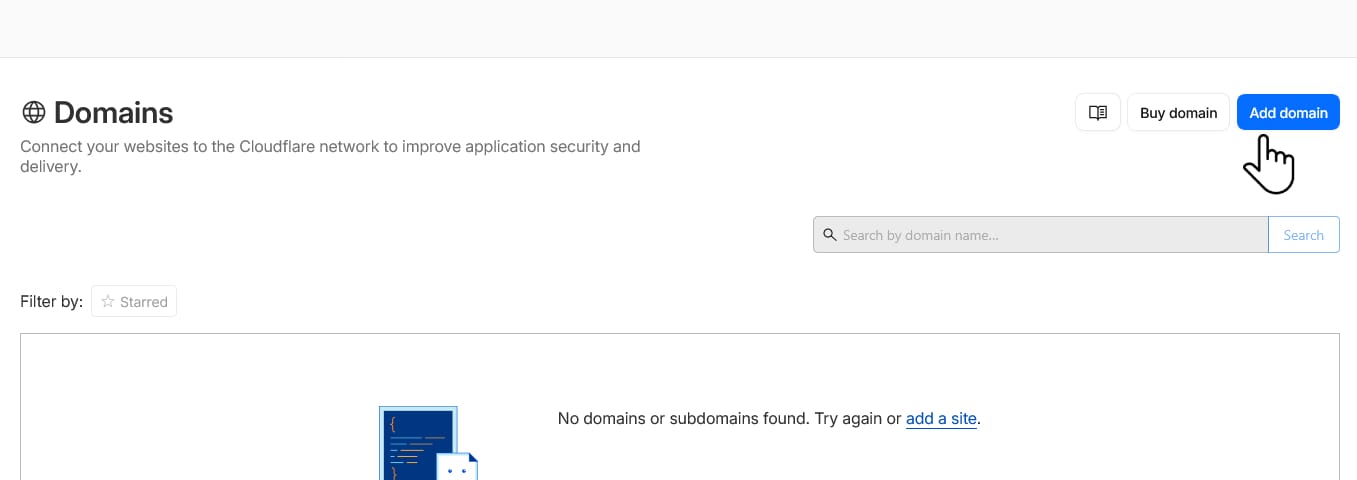
On the next screen, you will see three options: Connect, Transfer or Buy a domain. Choose Connect a domain. This keeps your domain registered at your current DNS provider and only moves the DNS settings to Cloudflare.
In the Domain name field, type your domain without www. or https://. For example, if your site is https://www.yoursite.com, just type yoursite.com.
You will also see two settings further down the page:
How should DNS records be imported? Leave this on Import DNS records automatically. You'd need to double-check the imported records in the next step.
AI crawler settings. Any choice here is fine. Since we also provide you with an option to block/allow AI crawlers for your site, you can leave this disabled and manage it from your Magic Pages customer portal.
Click Continue.
Step 3: Review your imported DNS records
Cloudflare's automatic import works reliably for common records, but it does not always catch everything. Subdomains, less common record types, and more complex DNS setups can be missed or imported incorrectly. Open your current DNS provider's dashboard in a separate tab and compare the two lists side by side. This is the only way to be sure nothing important was left behind.
Pay special attention to:
Records for your website: You should see both A and CNAME records for your domain.
Records for your email: If you use a custom sending domain, you should see records with type MX, TXT and CNAME (in case you use a subdomain). These keep your email working.
Subdomains. Any subdomains you have set up, such as shop.yoursite.com, should appear in the list. Subdomain records are the most commonly missed during automatic import, so check them carefully.
Any other services you use: If you use any services like Google Workspace, Mailgun, or anything else connected to your domain, their records should be in the list too.
If anything is missing in Cloudflare, click Add record and add it manually.
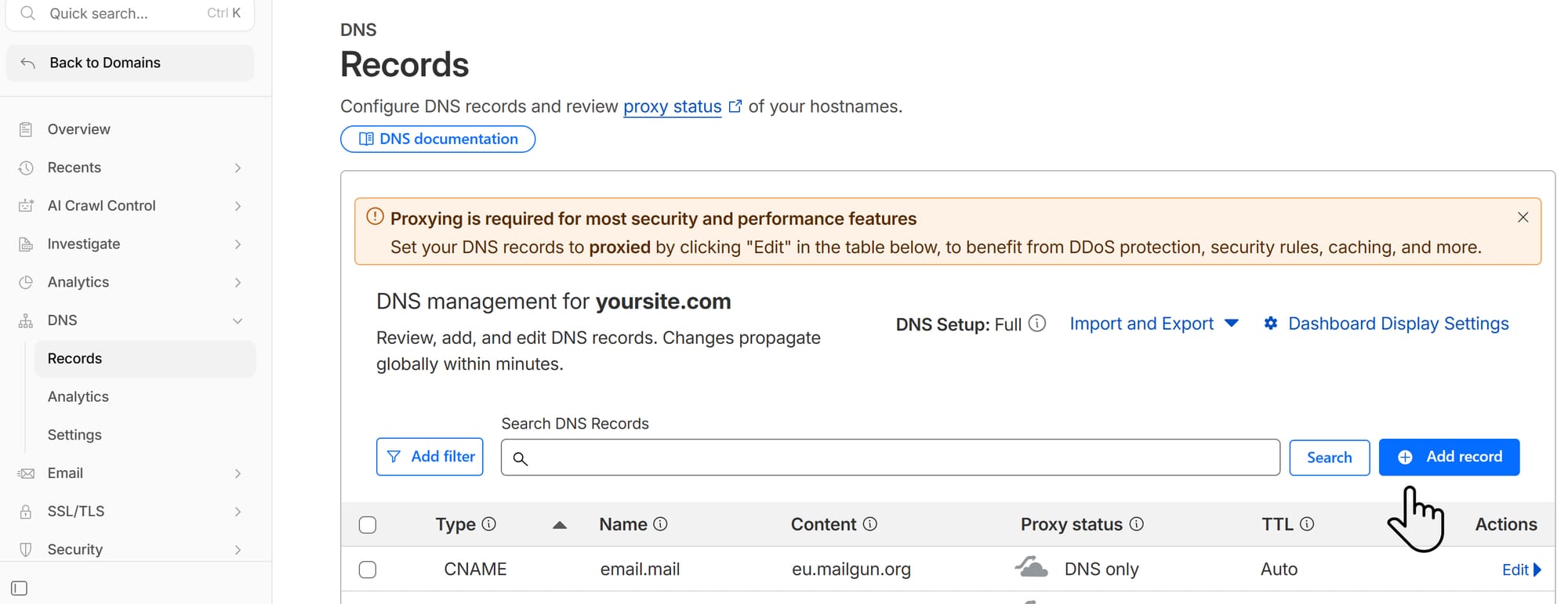
Once you are confident the list is complete, continue to the next step.
Step 4: Set all records to DNS only
In your list of records, you will see some have an orange cloud icon labelled Proxied and others with a grey cloud icon labelled DNS only.
For Magic Pages websites to work correctly, every record must be set to DNS only (grey cloud).
To change a record from Proxied to DNS only, click on "Edit" for the needed record, toggle the Proxy off and save the changes.
This matters because we already handle proxying on our end, so leaving your Cloudflare's proxy on top would cause the two systems to clash.
Here's a reference:
 Jannis Fedoruk-Betschki
Step 5: Update your nameservers at your DNS provider
After you confirm the records, Cloudflare may show you a warning that "your site is not fully protected" because everything is set to DNS only. Click I'll do this later.
Cloudflare will give you two nameservers - something like alice.ns.cloudflare.com and bob.ns.cloudflare.com. The exact names are unique to your account. Copy them.
In a separate tab, log in to your DNS provider dashboard, go to the domain settings and find the section to change your nameservers.
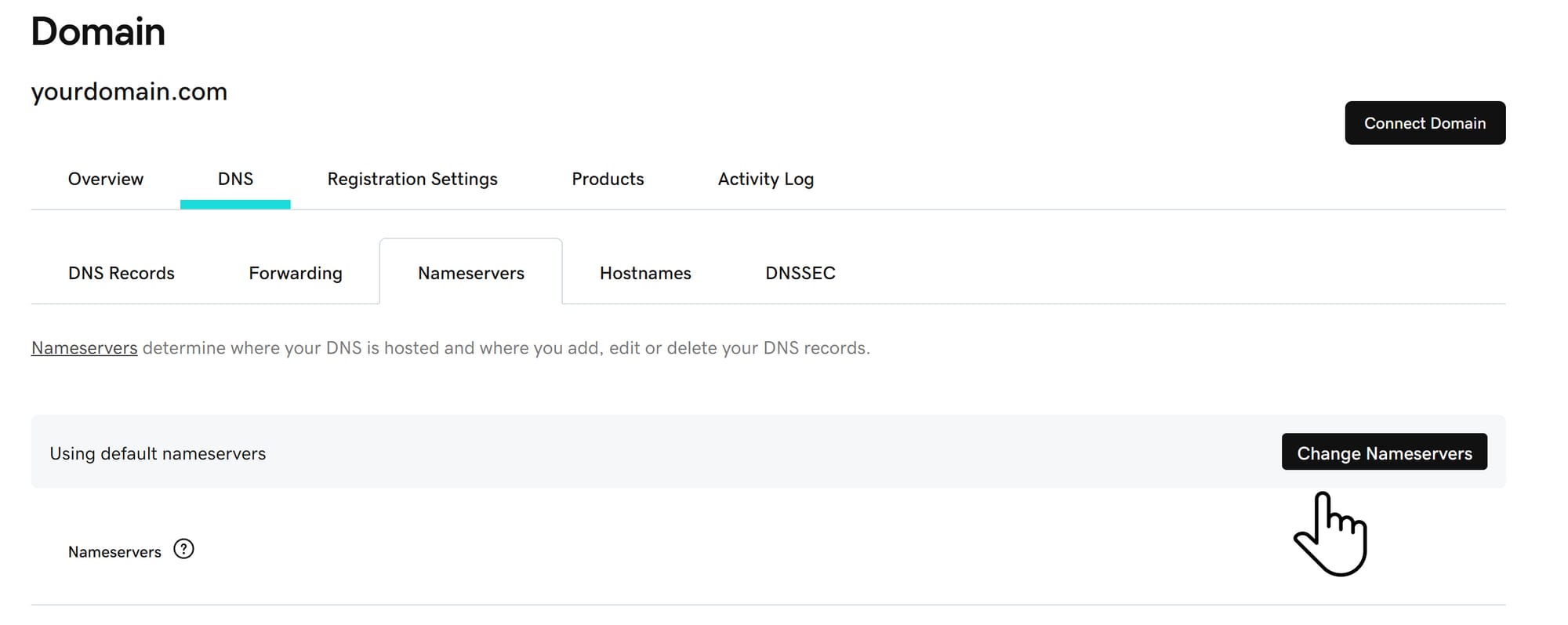
For the GoDaddy dashboard: Go to DNS -> Nameservers and click Change Nameservers. GoDaddy will ask whether you want to use GoDaddy's nameservers or your own. Choose I'll use my own nameservers.
A box will appear where you can enter both Cloudflare's nameservers. You may see a warning that this will change how your DNS works. That is expected, you can confirm the change.
Step 6: Finish up in Cloudflare and wait
Go back to your Cloudflare tab and click I updated my nameservers. This tells Cloudflare to start checking whether your change has taken effect.
Your site continue to work during this time. Cloudflare imported all your settings, so visitors reach the right place no matter which DNS system they hit. And if you are connecting your domain to Magic Pages for the first time, none of this applies to you yet. Your domain is not pointing to a live site during this wait, and that is perfectly fine.
Cloudflare needs to confirm that your nameserver change has spread across the internet. This usually takes anywhere from a few minutes to a few hours. In rare cases it can take up to 24 hours.
If you want to check progress yourself, you can use a free tool at dnschecker.org. Select NS from the dropdown, enter your domain, and click search. You will see results from DNS servers around the world. As they gradually start showing your new Cloudflare nameservers instead of the previous ones, you know things are moving along.
Step 7: Get your CNAME records from Magic Pages
Log in to your Ghost admin and go to customer portal -> Domain tab. If your domain is not connected yet, start the process to add it now. If it is already connected, choose an option Change domain.
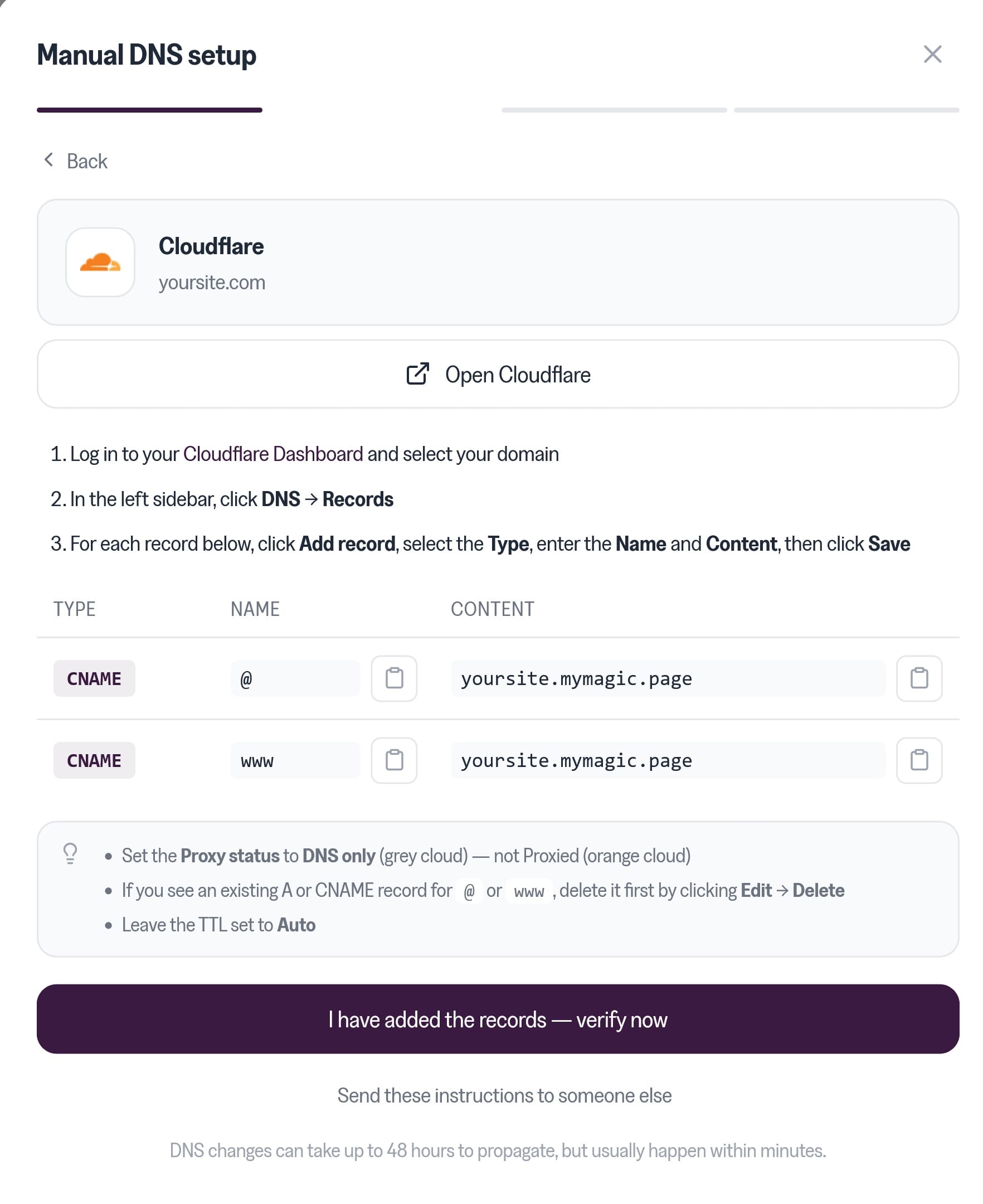
Enter your custom domain without www. and you will see a manual DNS setup screen with two CNAME records to add in Cloudflare. They look like this:
Switch back to the Cloudflare tab and go to DNS → Records.
If you currently have an A record at your apex (@) that points to a Magic Pages IP address, you need to remove it firstly. Then add a new CNAME @ record with your mymagic.page subdomain as a "Content".
If you don't have any existing records yet, just add both CNAME records.
Step 8: Confirming in customer portal
After both records are saved, return to the customer portal -> Domain tab and click on "I have added the records - verify now".
In the meantime, your DNS records get checked to confirm they're pointing to the right place. You should see Domain connected, followed by an "Activating your domain" status. Things are setting up now in the background, including issuing your SSL certificate.
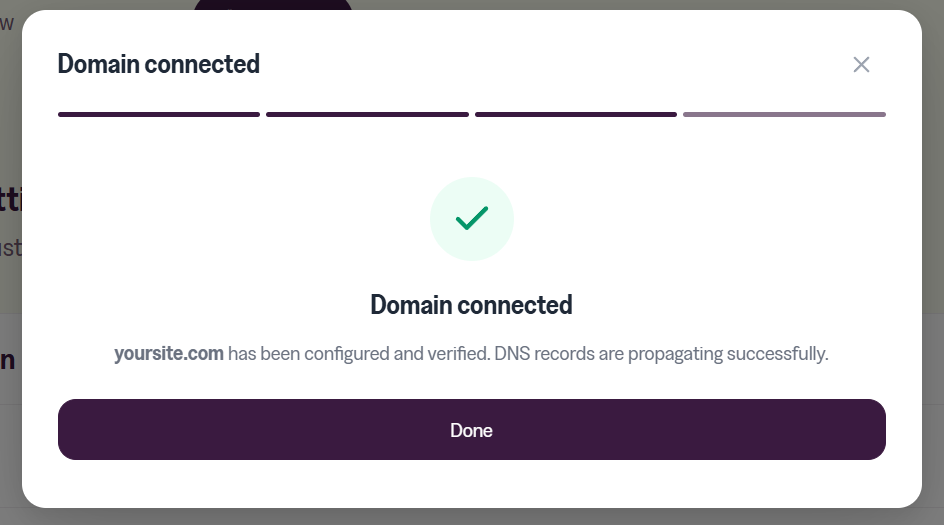
Wait for the activation email from us. It usually arrives within a few minutes. The email confirms your custom domain is connected and active.
Step 9: Refresh and log back in to Ghost admin
Once you get the activation email, your site is live at the new address.
Because your site's URL has changed (from www.yoursite.com to yoursite.com, or just from a mymagic.page subdomain to your custom one), Ghost admin needs to reload at the new URL. Refresh the page and log in again to your Ghost admin. Your dashboard will now load at yoursite.com/ghost instead of wherever you were logging in before.
That is it. Your site now works at your apex domain, without www, with Cloudflare handling CNAME flattening in the background.
If anything does not work as expected, go back through the steps to check nothing was missed. If you are still stuck, contact us and share what you have tried so far. We will help you get it sorted.
My site does not load after connecting to Magic Pages
Wait up to 15 minutes. DNS changes can take a few minutes to settle even after Cloudflare and Magic Pages both report success. Besides that, double-check that both CNAMEs in Cloudflare have a grey cloud (DNS only).
Site loads but shows a certificate error
Magic Pages issues your SSL certificate after activation, which can take a few minutes. If it persists for more than 15 minutes, contact us via email or in a live chat.
"The page isn't redirecting properly"
If your posts won't open and your browser shows "The page isn't redirecting properly" (or ERR_TOO_MANY_REDIRECTS) this is almost always a leftover cache issue. Please reach out to us and we'll purge Cloudflare's cache for your site to resolve it.
More in this section

Didn't find your answer?
Ask us anything — a real person reads every message, usually the same day.
