How to cancel your Magic Pages subscription
This guide walks you through cancelling your Magic Pages subscription from saving your data to closing the account. Following the steps in order makes sure your content is preserved, your custom domain is freed up to use elsewhere, and your subscription is closed seamlessly.
 Sviatoslav Huzel
If you’ve decided to cancel your Magic Pages subscription, thank you for giving us a try. We want to make wrapping things up as easy as possible and guide you through the whole process seamlessly. Go through the steps in order and you'll keep your content safe, free up your custom domain to use elsewhere, and close your subscription cleanly.
1. Download your backups
Even if you're sure you won't need them, it's a good idea to save copies of your site data. You can always come back to them later if something changes.
To do that, go to your Ghost admin (yoursite.com/ghost) -> Customer portal → Support tab and download both backups:
- The MySQL database backup, which contains your posts, pages, members, and settings.
- The content folder backup, which contains your images and other media.
Keep these somewhere safe. If you ever want to restore your site or move your content to another Ghost host, these two files are all you need.
2. Remove your custom domain (if you have one)
If your site is running on a custom domain and you plan to use that domain somewhere else, remove it from Magic Pages before you cancel.
Go to Customer portal → Domain tab and click Remove domain.
Doing this before you switch the domain over to your new host avoids DNS conflicts and makes the move much smoother.
After the domain is removed, your site URL will change back to your mymagic.page subdomain. You may need to refresh the page for the new URL to load properly.
And don't forget to remove your current DNS records pointing to mymagic.page/Magic Pages IP at your DNS provider.
3. Cancel your subscription
Once your backups are saved and your domain is sorted, head to Customer portal → Billing and click Cancel subscription.
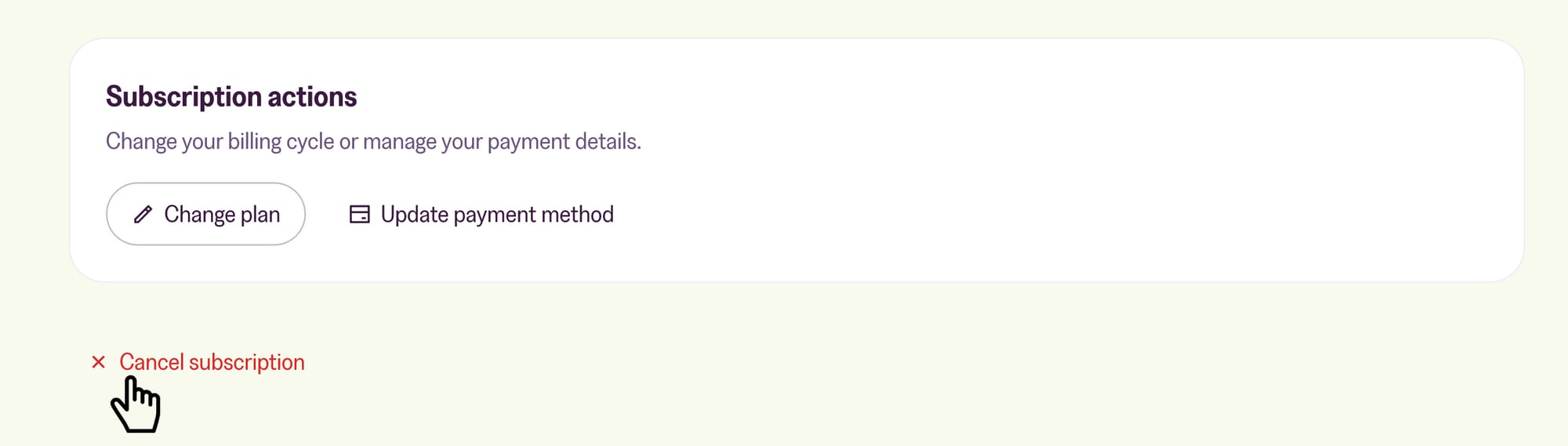
You'll see a quick window pop up asking why you're cancelling. The reason is optional, but if you have a moment to share what didn't work for you, we'd love to hear about it. It genuinely helps us improve Magic Pages for everyone.
After the cancellation is done your site stays online until the end of your current billing period. You can keep using it normally during that time, log back in, edit content etc.
If you run into any issues during the process, you can email help@magicpages.co or reach out via live chat at any time.
More in this section

Didn't find your answer?
Ask us anything — a real person reads every message, usually the same day.
