How to see who sends email as your domain
Add a DMARC record and the Newsletter tab shows every server that sends email as your domain, and whether each one proved it came from you.
 Jannis Fedoruk-Betschki
Your customer portal shows it. Open the Newsletter tab and scroll to Who sends as your domain, below the sending domain. Once your domain's DMARC record sends its daily reports to us, the card lists every server that sent email with your domain in the From line, and whether each email proved it really came from you.
The card needs a sending domain of your own that's verified. A site that still sends from mymagic.page doesn't have one, so it doesn't show the card.
What a DMARC record does
Anyone can put your domain in the From line of an email, and most phishing works that way. A DMARC record is a short DNS setting that lets inbox providers like Gmail and Outlook check whether an email really came from you. It also tells them where to send a daily summary of what they saw.
The card reads those summaries for your main domain, example.com, rather than for a sending subdomain like send.example.com. Your subscribers see the main domain in the From line, so that's the one people pretend to be.
Adding the record changes nothing about how your newsletters are sent. Gmail and Yahoo also require one from anyone sending email in bulk.
What the label on the card means
| Label | What's going on | What to do |
|---|---|---|
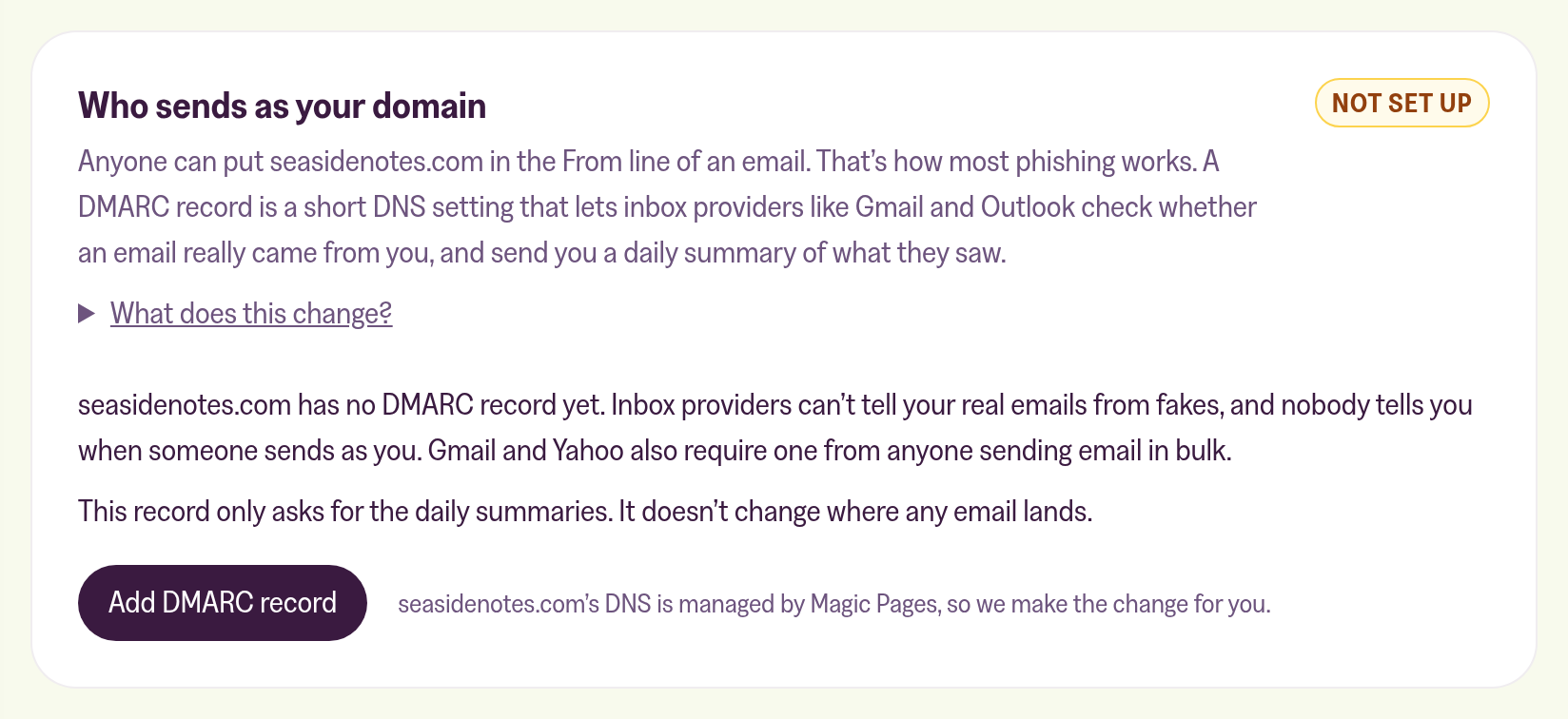
| Not set up | Your domain has no DMARC record. | Add the record the card shows. |
| Update needed | Your record still sends its summaries to the reporting address we used before. | Make the one change the card shows. |
| No reports | You have a DMARC record, but it doesn't ask for the daily summaries. | Add our address to it. Your policy stays as it is. |
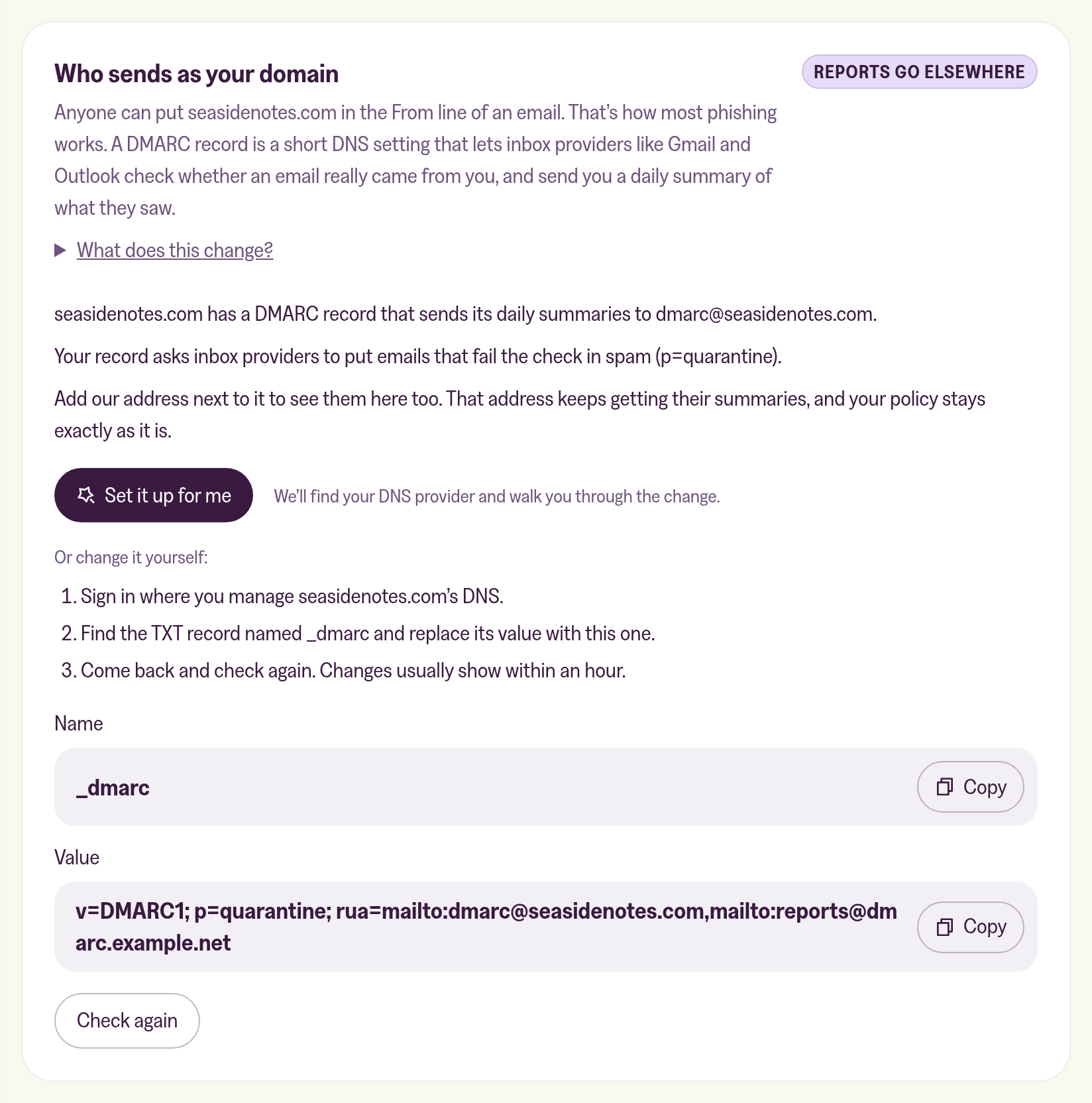
| Reports go elsewhere | Your record sends its summaries to addresses of your own, which the card names. | Add our address next to them. They keep getting their summaries. |
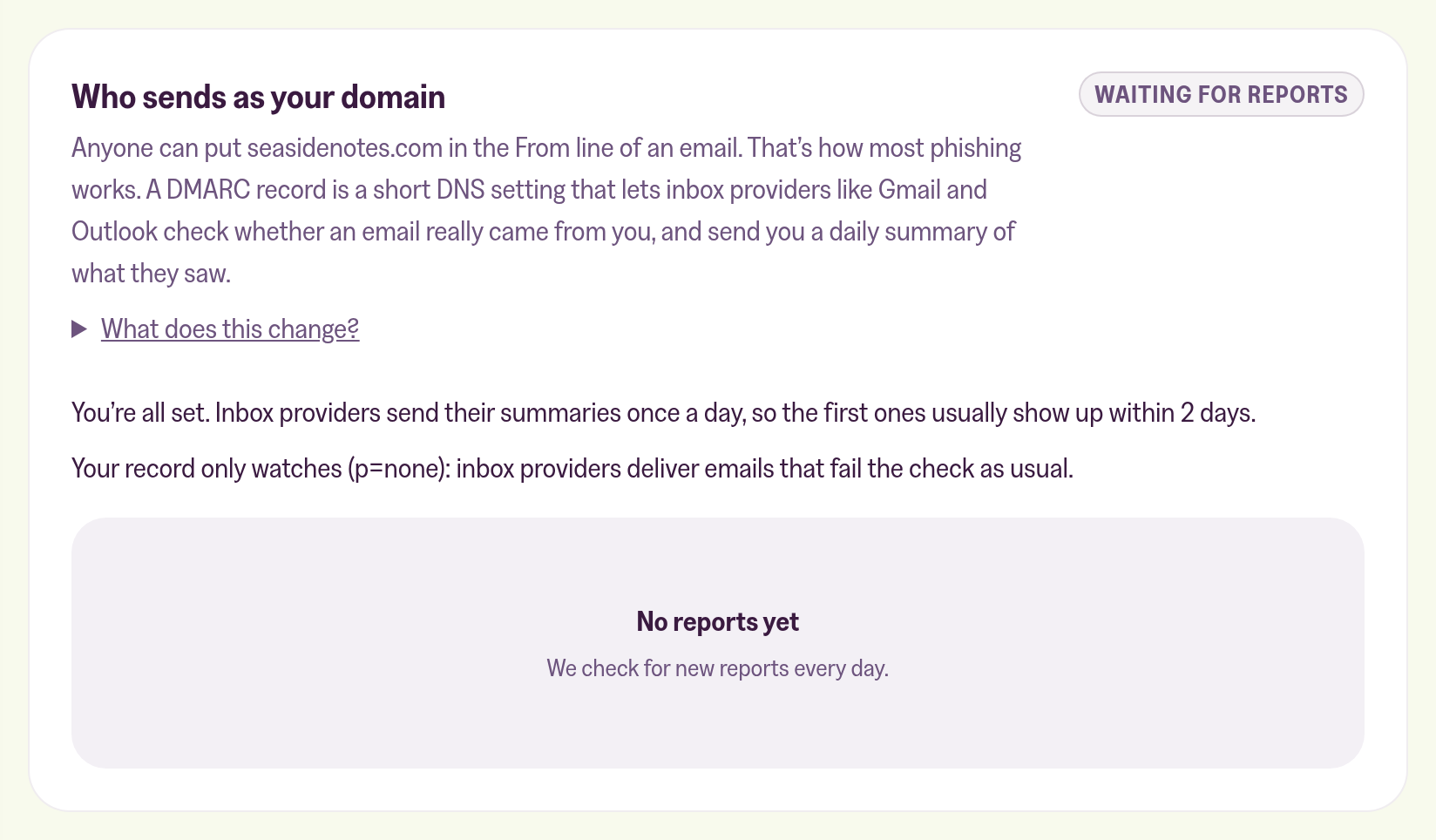
| Waiting for reports | The record is in place. | Nothing. The first summaries usually show up within 2 days. |
| Needs fixing | Your domain has more than one DMARC record, so inbox providers ignore all of them. | Delete all but one. |
Once the first summaries are in, the label gives way to the report itself, marked Last 30 days.
Adding the record when Magic Pages manages your DNS
If we manage your domain's DNS, the card says so next to its button.
- Click Add DMARC record. If your domain already has a record, the button reads Add our address instead.
- Check the record in the dialog and click Add record (or Add address).
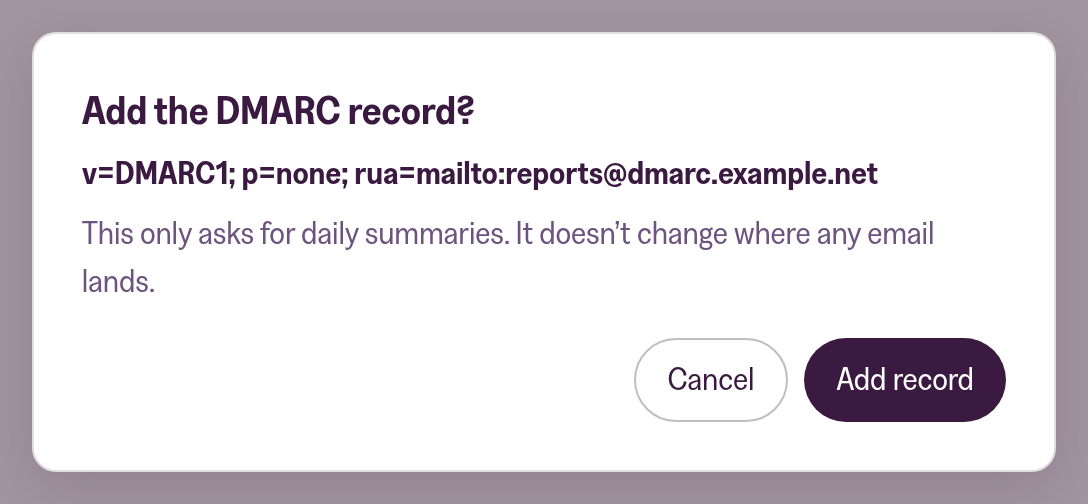
The card moves to Waiting for reports straight away. If you had a record, we keep your policy and every report address in it, and only add ours.
Only someone who can change the site's settings sees the button. Everyone else sees the record's value and a note to ask that person.
Adding the record at another DNS provider
If you can change the site's settings, the card offers Set it up for me. Click it and a window opens on the same page. It finds your DNS provider and shows the steps for it: the TXT record named _dmarc to add and, if your domain already has one, the old record to delete so you don't end up with two. A button in the window opens your provider's dashboard. Once you've made the change, click the verify button at the bottom of the window.
If someone else looks after your DNS, Send these instructions to someone else in the same window gives you a link for them.
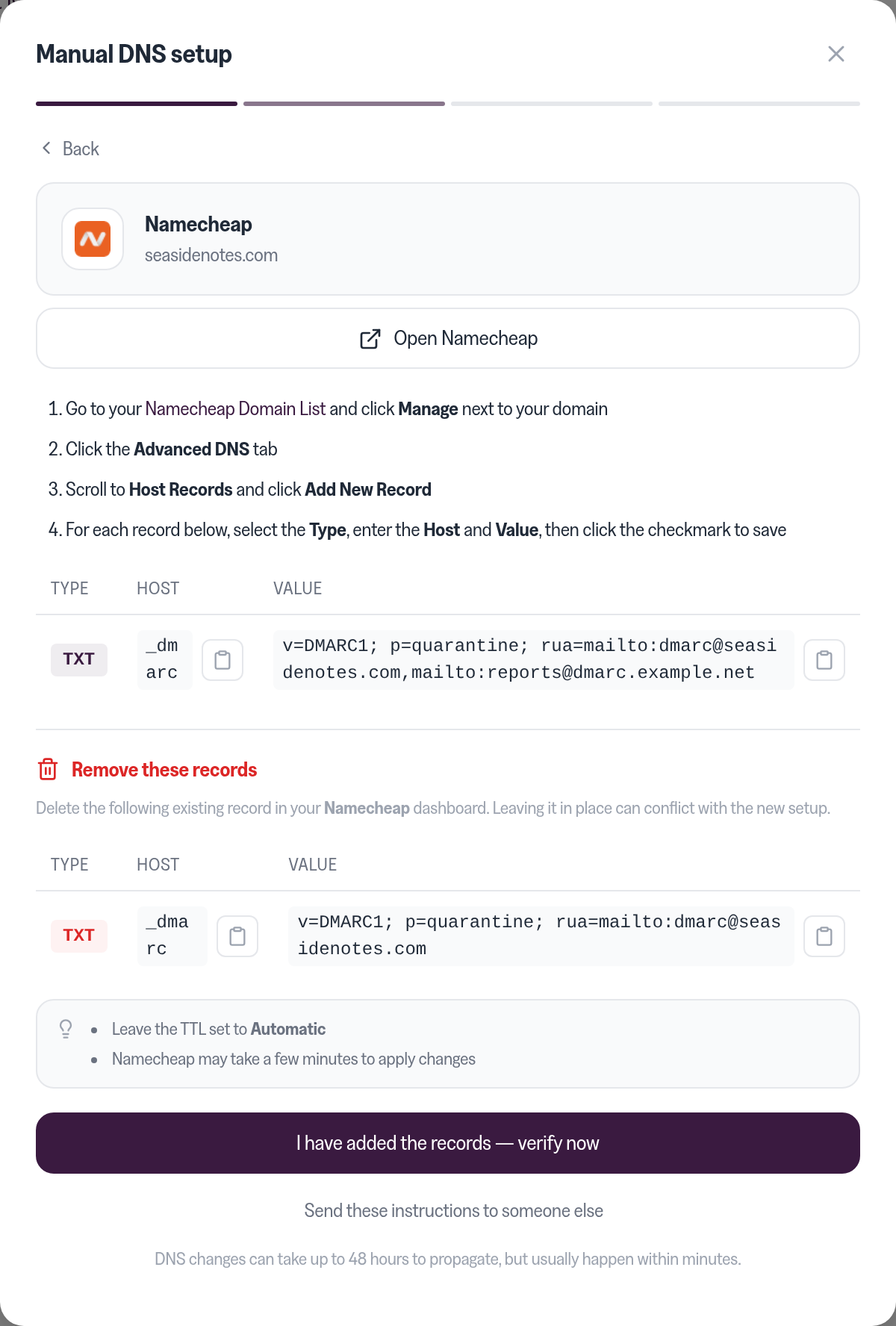
You can also make the change by hand. The card shows the steps and the two values to copy:
- Sign in where you manage your domain's DNS. That's often your domain registrar, or Cloudflare.
- Add a TXT record with the card's Name (
_dmarc) and Value. If a TXT record named_dmarcalready exists, replace its value with the card's instead of adding a second record. - Come back and click Check again. Changes usually show within an hour.
Some DNS providers want the full name, _dmarc.example.com, instead of _dmarc. If yours adds the domain for you, _dmarc is enough.
The value is your current record with our report address added: dmarc@reports.magicpages.co. Your policy and any addresses you already use stay in it.
If the card says Update needed
Your record still names the reporting address we used before we started reading the summaries ourselves. Those reports no longer reach the card. The fix swaps our old address for the new one and leaves your policy and your own addresses alone.
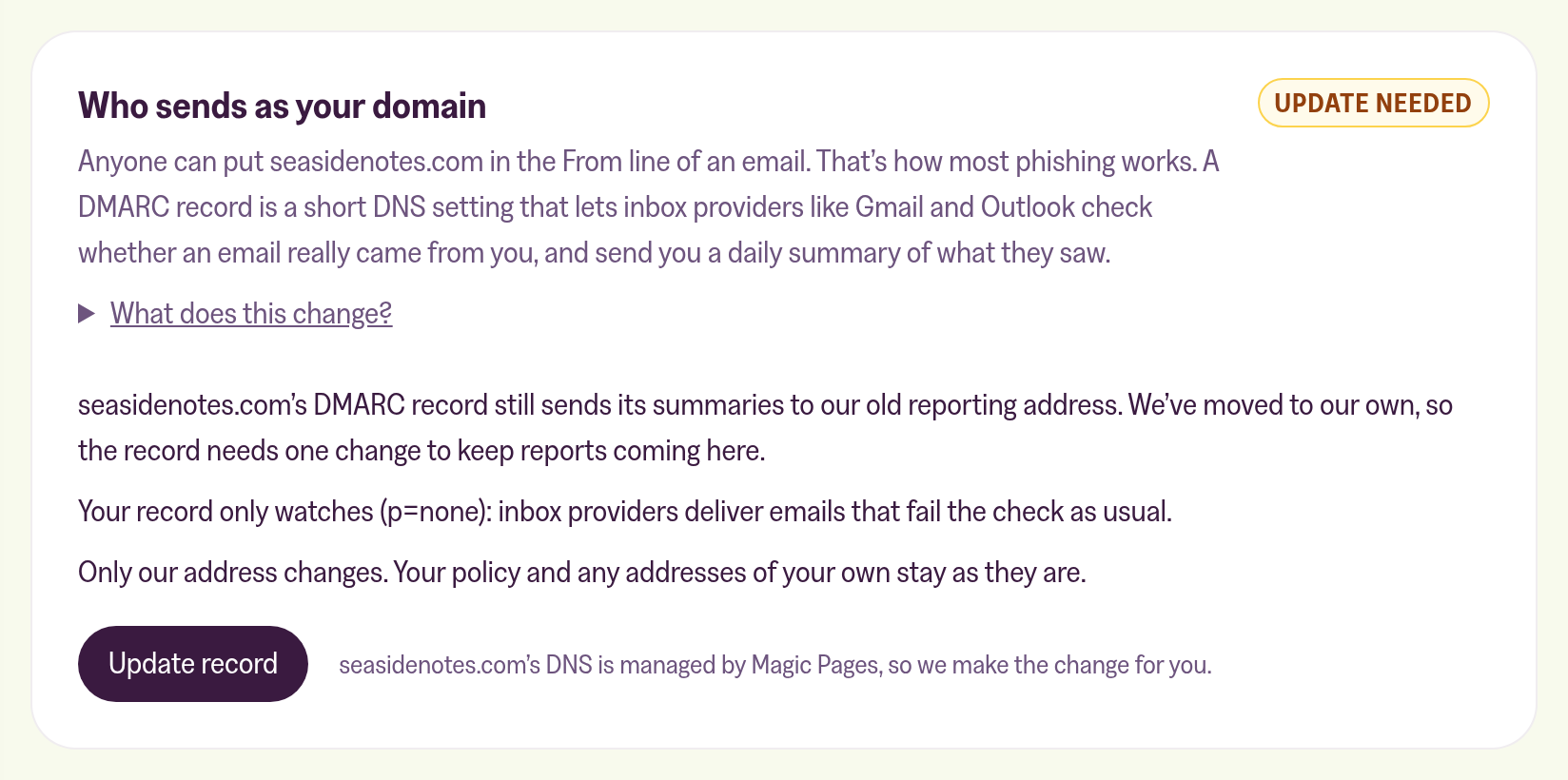
On DNS we manage, click Update record, then Update record again in the dialog. On another DNS provider, use Set it up for me or replace the record's value by hand, as above.
If the card says Needs fixing
Inbox providers ignore every DMARC record on a domain that has more than one, so right now nothing is checked. Keep one TXT record named _dmarc and delete the others.
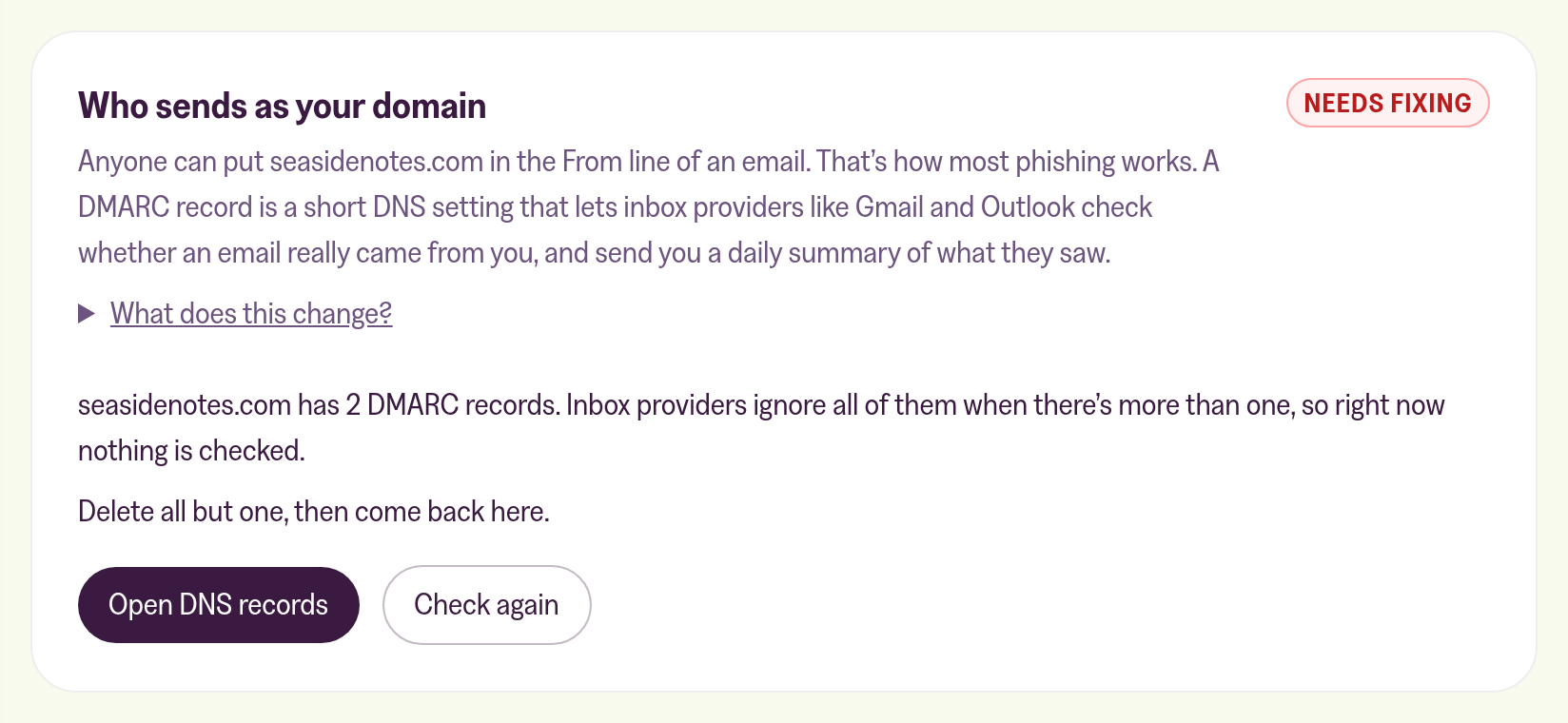
If we manage your DNS, Open DNS records takes you to the Domain tab, where you can delete them. Then come back and click Check again.
If you already get DMARC reports
Nothing changes for them. If your record sends its summaries to your own address, or to a service like Cloudflare, those keep coming. Ours goes next to them, so you can read the same information on the card instead of in zipped XML attachments.
To stop the summaries reaching us, remove mailto:dmarc@reports.magicpages.co from your record. The card then shows No reports or Reports go elsewhere.
Once the first summaries are in, this explains what the report shows:
 Jannis Fedoruk-Betschki

A sending domain of your own comes first, and this covers the setup:
 Jannis Fedoruk-Betschki

More in this section

Didn't find your answer?
Ask us anything — a real person reads every message, usually the same day.
