How to read your DMARC report
What the numbers, the chart and each sender on the Who sends as your domain card mean, and what to do when a sender can't prove it came from you.
 Jannis Fedoruk-Betschki
The report is the Who sends as your domain card on the Newsletter tab, once inbox providers have sent their first daily summaries for your domain. It covers the last 30 days: how many emails used your domain in the From line, which servers sent them, and whether each one proved it came from you.
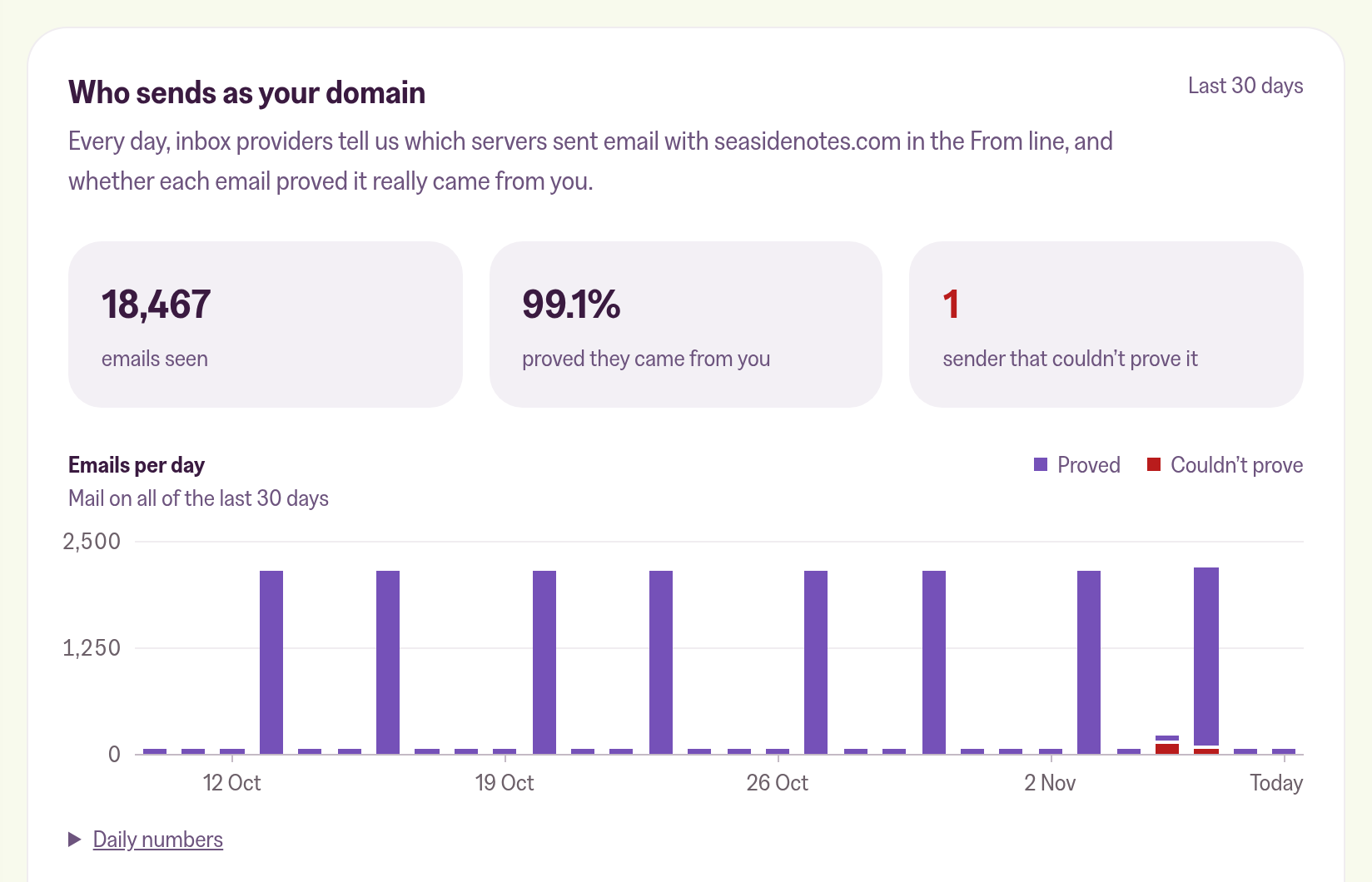
The three numbers
The numbers at the top count what inbox providers reported for your domain in those 30 days. emails seen is every email with your domain in the From line, yours and anyone else's. proved they came from you is the share of those that passed the DMARC check. The third number counts the senders marked Can't prove it further down, and it turns red when it's above zero.
Emails per day
The chart shows each day of the 30, split into emails that proved they came from you and emails that couldn't. Hover over a day to see its exact numbers, or tab to the chart and use the arrow keys. Daily numbers below the chart opens the same figures as a table.
Inbox providers send their summaries up to a day late, so today is usually still empty.
Senders
Below the chart, every sender gets a row with its email count, the share that proved it came from you, and a verdict:
| Verdict | Share that proved it |
|---|---|
| Proves it | 99% or more |
| Mostly proves it | 50% to 99% |
| Can't prove it | under 50% |
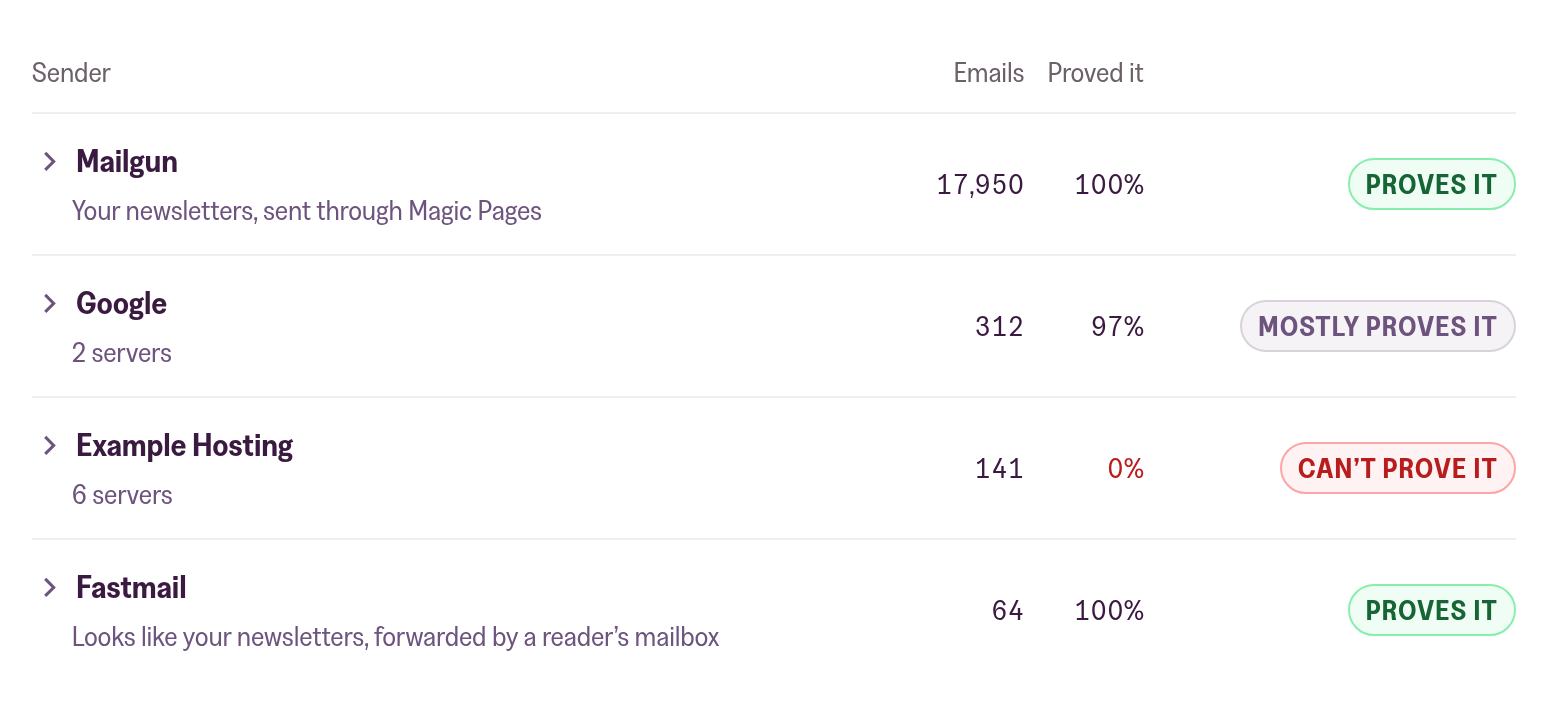
The Mailgun row is us, and reads "Your newsletters, sent through Magic Pages". Mailgun is the service that sends your newsletters.
A row that reads "Looks like your newsletters, forwarded by a reader's mailbox" is your own newsletter, which a subscriber forwards to another inbox through Gmail or Fastmail, for example. The forwarding server isn't allowed to send for your domain, but the signature we add to every newsletter survives the trip, so it still passes.
Every other row is a server you'd have to recognise yourself, like the tool you send invoices with or your own mailbox.
Servers and IP addresses
Click a sender to see its servers, listed by host name. For each one, SPF and DKIM show the share of its emails that passed those two checks. A pass only proves an email came from you when the check was for your domain, so a server can pass SPF for its own domain and still be marked Can't prove it.
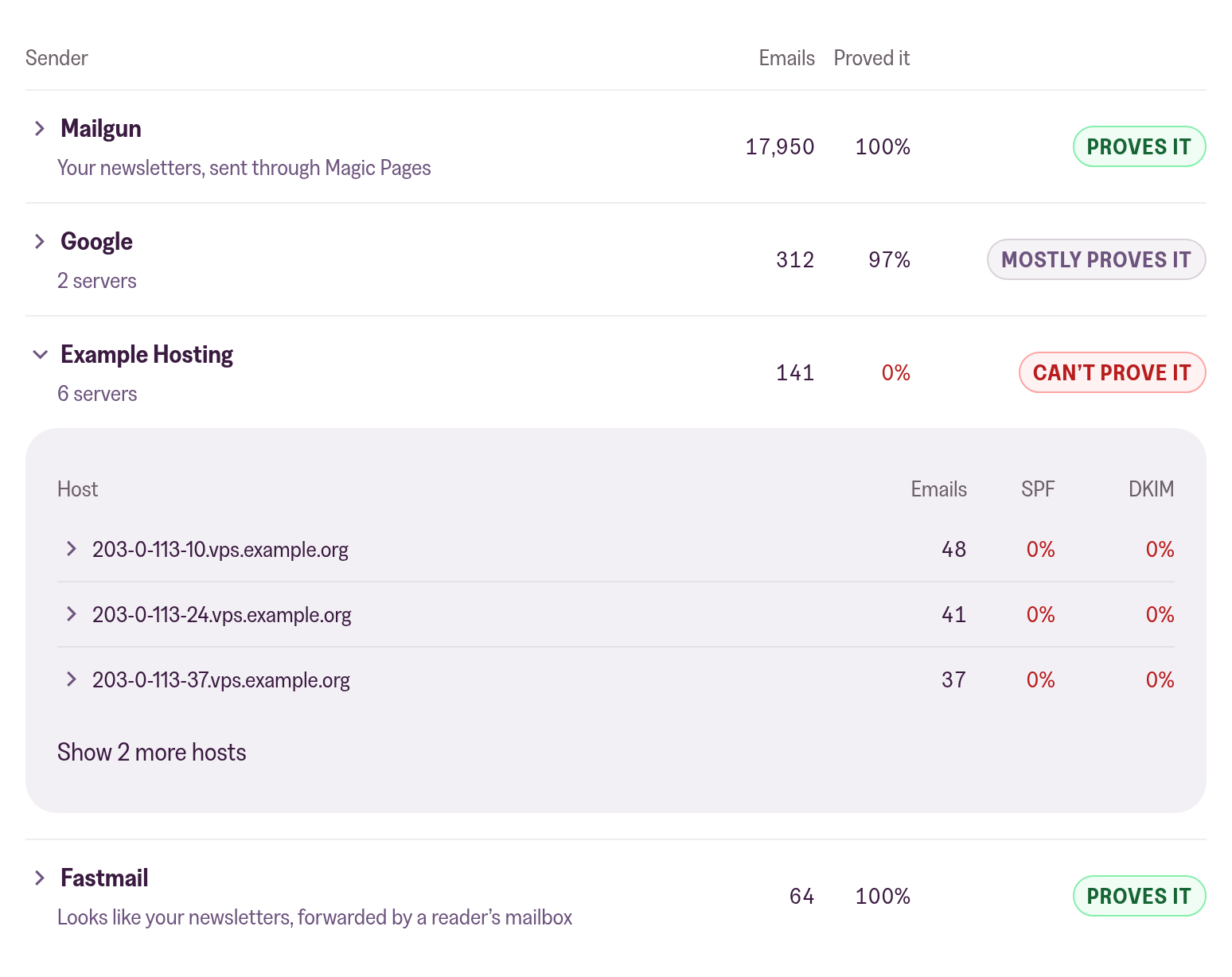
Click a server to see its IP addresses and how many emails each one sent. A server without a host name shows up as its IP address.
When a sender can't prove it came from you
A sender marked Can't prove it sent email with your domain in the From line, and inbox providers couldn't confirm it was you. Most of the time that's someone pretending to be you. Mailing lists and some forwarding services can cause it too, because they change the email on the way.
If it's a service you use, it needs permission to send for your domain. Its help pages call that SPF and DKIM setup, and it usually means adding a DNS record or two that the service gives you. Emails it sends after that pass, and its share in the report climbs as the older failures drop out of the 30 days.
If you don't recognise the sender, there's nothing to set up. Your policy decides what inbox providers do with those emails, and the card spells it out at the bottom:
p=none: they deliver them as usual and only report themp=quarantine: they put them in spamp=reject: they refuse them
Moving to a stricter policy
The card never changes your policy. If you want failing email stopped, wait until every sender you actually use shows Proves it, then change p=none to p=quarantine in your DNS. Moving sooner can send your own invoices or support replies to spam.
p=reject goes one step further and refuses failing email outright.
How long we keep the reports
We keep each daily summary for 90 days. The card always shows the most recent 30.
If one of your own emails can't prove it came from you, its headers show which check failed:
 Jannis Fedoruk-Betschki

Setting up the record, and what each label on the card means, is covered here:
 Jannis Fedoruk-Betschki

More in this section

Didn't find your answer?
Ask us anything — a real person reads every message, usually the same day.
