Off-site backups to your own storage
Send a copy of every backup to storage you control: S3-compatible providers, SFTP, Google Drive, OneDrive or Dropbox. Who can use it, what gets sent, and what happens when a copy fails.
 Jannis Fedoruk-Betschki
Every Magic Pages site is backed up daily, and those backups are kept away from the server running your site. That happens whether you do anything or not.
Some people want a copy somewhere they control as well: their own storage, their own retention rules. That's what off-site backups are for.
Who can use them
Off-site backups are part of the Pro plan and custom plans, and you can try them during your trial. On the Starter plan the tab shows an upgrade prompt instead.
There's no extra charge for them. Your storage provider bills you for the space, as usual.
Where you can send them
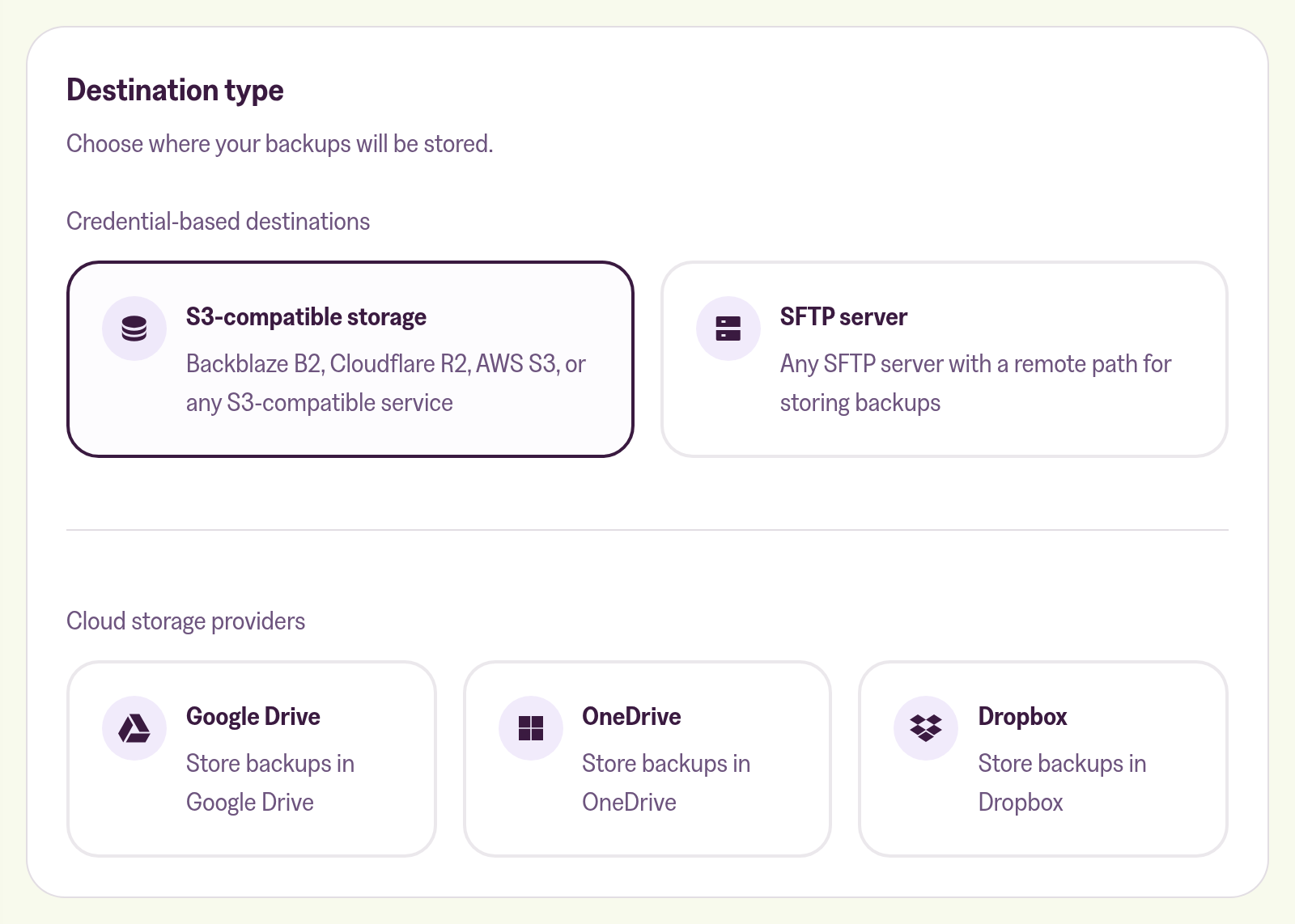
- S3-compatible storage: AWS S3, Cloudflare R2, Backblaze B2, or anything else that speaks the S3 API. Setting it up.
- An SFTP server you can log into. Setting it up.
- A cloud drive: Google Drive, OneDrive or Dropbox. Setting it up.
One destination per site. If you switch to a different one, the new one takes over from the next backup.
What gets sent
After each backup, the same two files you'd get from downloading a backup go to your destination:
yoursite-mysql-backup-2026-10-06T02-14-09-512Z.sql.gz, the databaseyoursite-content-backup-2026-10-06T02-14-09-512Z.tar.gz, the content folder
The first part of the name identifies your site, and the end is the time of the backup in UTC. That's two files a day. You can't change how often it runs.
Backups you take by hand from the Support tab are copied too, and so is the database backup we take before you publish staging changes.
The files arrive as they are, not encrypted by us. If you need them encrypted at rest, turn that on in your storage. The credentials you give us for your destination are stored encrypted.
Setting it up
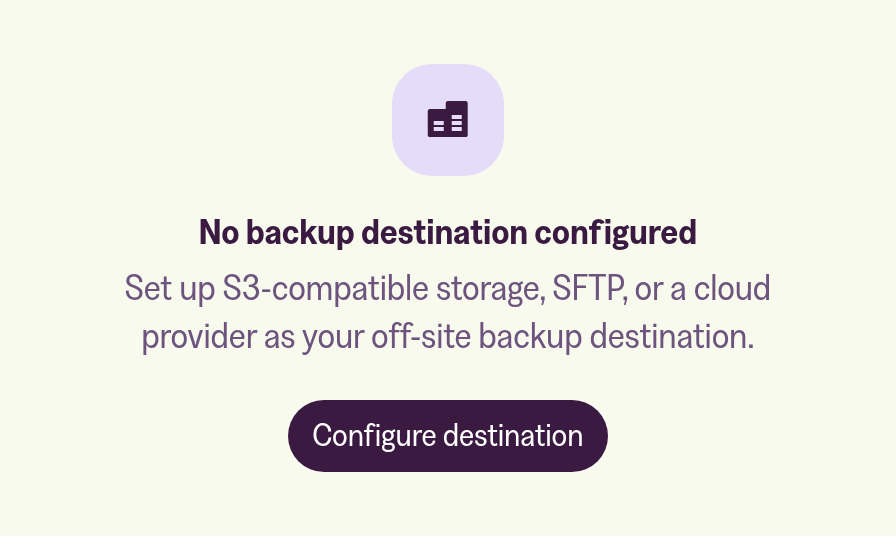
- In the Customer portal, open the Off-site backups tab and click Configure destination.
- Pick a destination type and fill in the details. Each type has its own article, linked above.
- For S3 and SFTP, click Test connection. Save only becomes clickable after a test passes. For a cloud drive, you sign in with the provider instead.
The next backup is the first one that gets copied. There's no button to send one straight away, but Create backup on the Support tab does the same job.
How many copies are kept
The Backup retention (days) field decides how many copies stay in your storage. After each upload we delete the oldest ones, so that the newest 7 database backups and the newest 7 content backups remain, if you left it at the default of 7.
It counts backups, not days. With one backup a day that comes to the same thing. If you also take backups by hand, each one counts, and the oldest drop out sooner.
- Anything from 1 to 90 works.
- 0 keeps everything, and we never delete a thing. Your storage then grows by two files a day.
We only ever delete files whose names match your site's backup files. Anything else in the same bucket, folder or drive is left alone.
When a copy fails
Credentials expire, buckets get renamed, and storage fills up. When that happens:
- First failure: you get an email titled "Off-site backup didn't reach …", with the reason.
- Second failure in a row: no email. We try again with the next backup.
- Third failure in a row: we pause off-site backups and email you again, so you're not getting an alert every day.
Problems on our side don't count towards the three. Those we fix ourselves. One successful copy resets the count.
Once they're paused, the Off-site backups tab shows the last error and a Re-enable button. Fix the cause first, for example new credentials under Edit configuration, then click Re-enable. The next backup tries again.
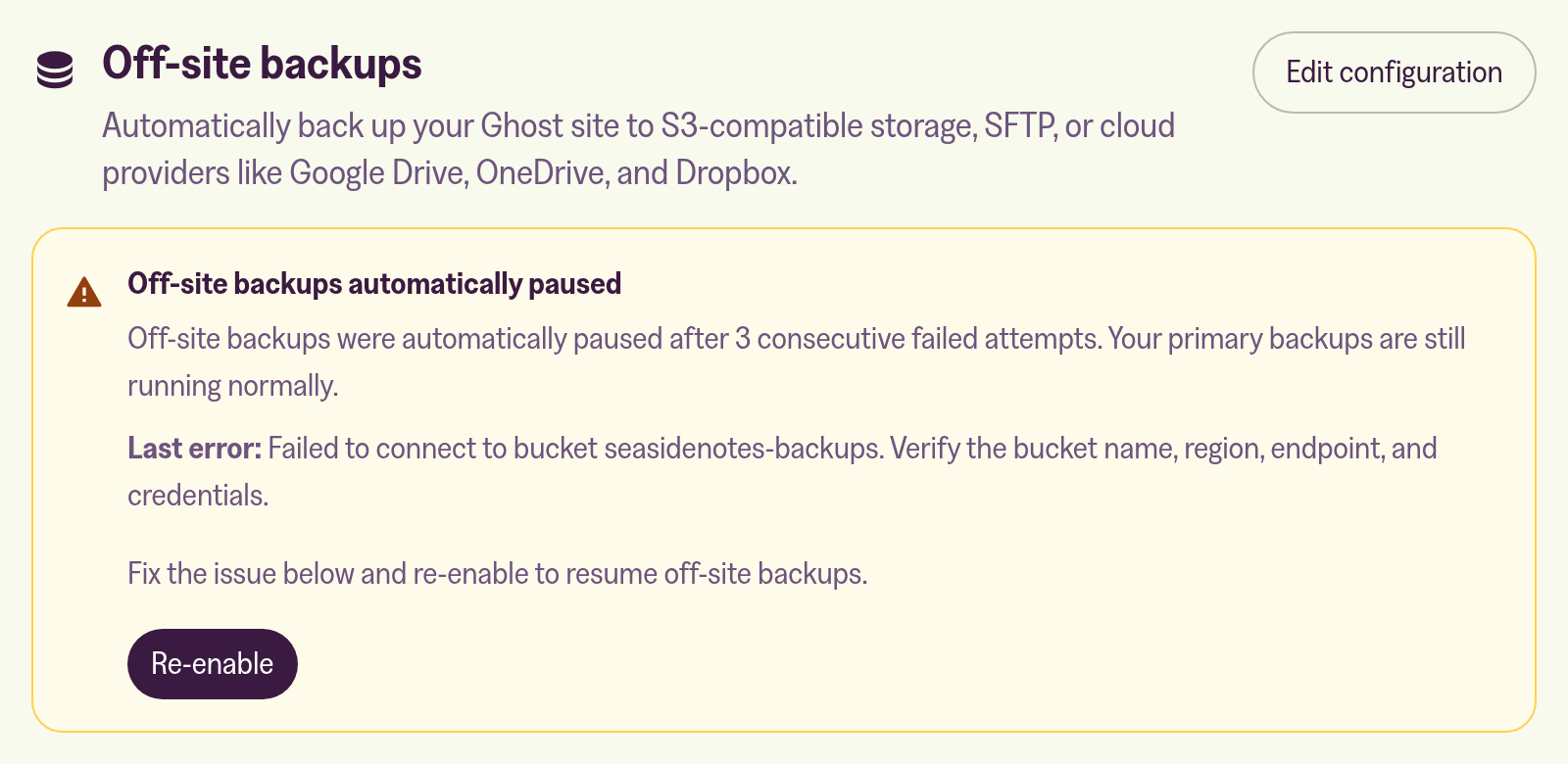
Your normal backups keep running the whole time. Pausing the off-site copy never touches the backups we hold for you.
Turning it off
The switch next to your destination pauses the copy and keeps your settings. Remove (or Disconnect, for a cloud drive) deletes the settings.
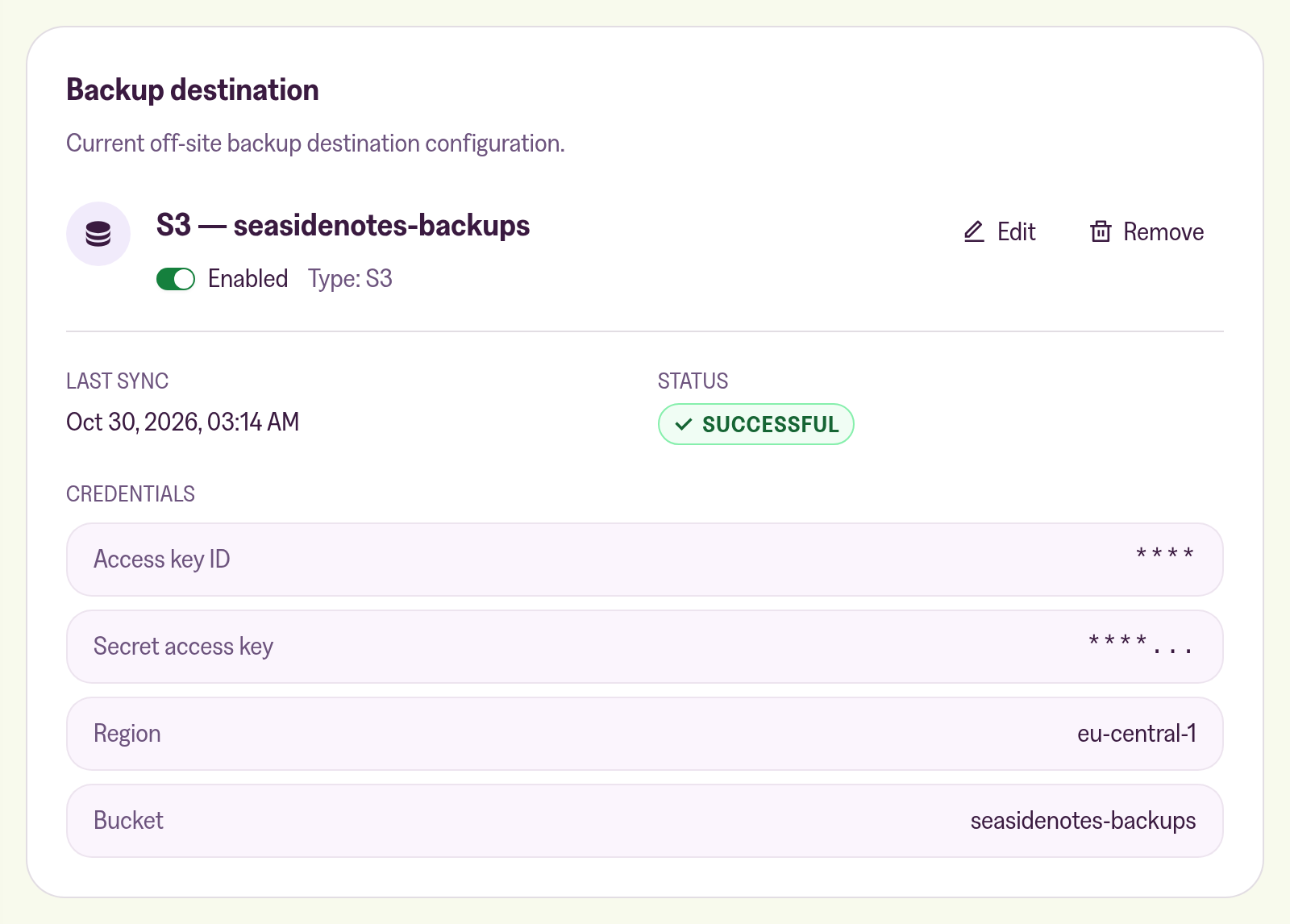
Neither one deletes the files already in your storage. Those are yours to keep or clear out.
Do you need this?
No. The backups included with your plan already cover you: they're stored away from your server, and each one is locked against deletion for at least 30 days. Most sites never turn this on. It's here for the cases where you want a copy under your own control: a client site, an archive somewhere specific, or your own compliance rules.
If you're not sure whether it's worth setting up for your site, ask me and I'll tell you honestly.
More in this section

Didn't find your answer?
Ask us anything — a real person reads every message, usually the same day.
