How to add emoji reactions to your posts
Switch on reactions, and readers can react to your posts with one click: no account, no cookies, no tracking.
 Jannis Fedoruk-Betschki
Reactions are a row of emojis at the end of your posts. A reader clicks one instead of writing a comment, and needs no account for it. In the customer portal, you see which posts readers reacted to and how often.
You switch reactions on in the customer portal, under Reactions. Your site stays as it is until you do.
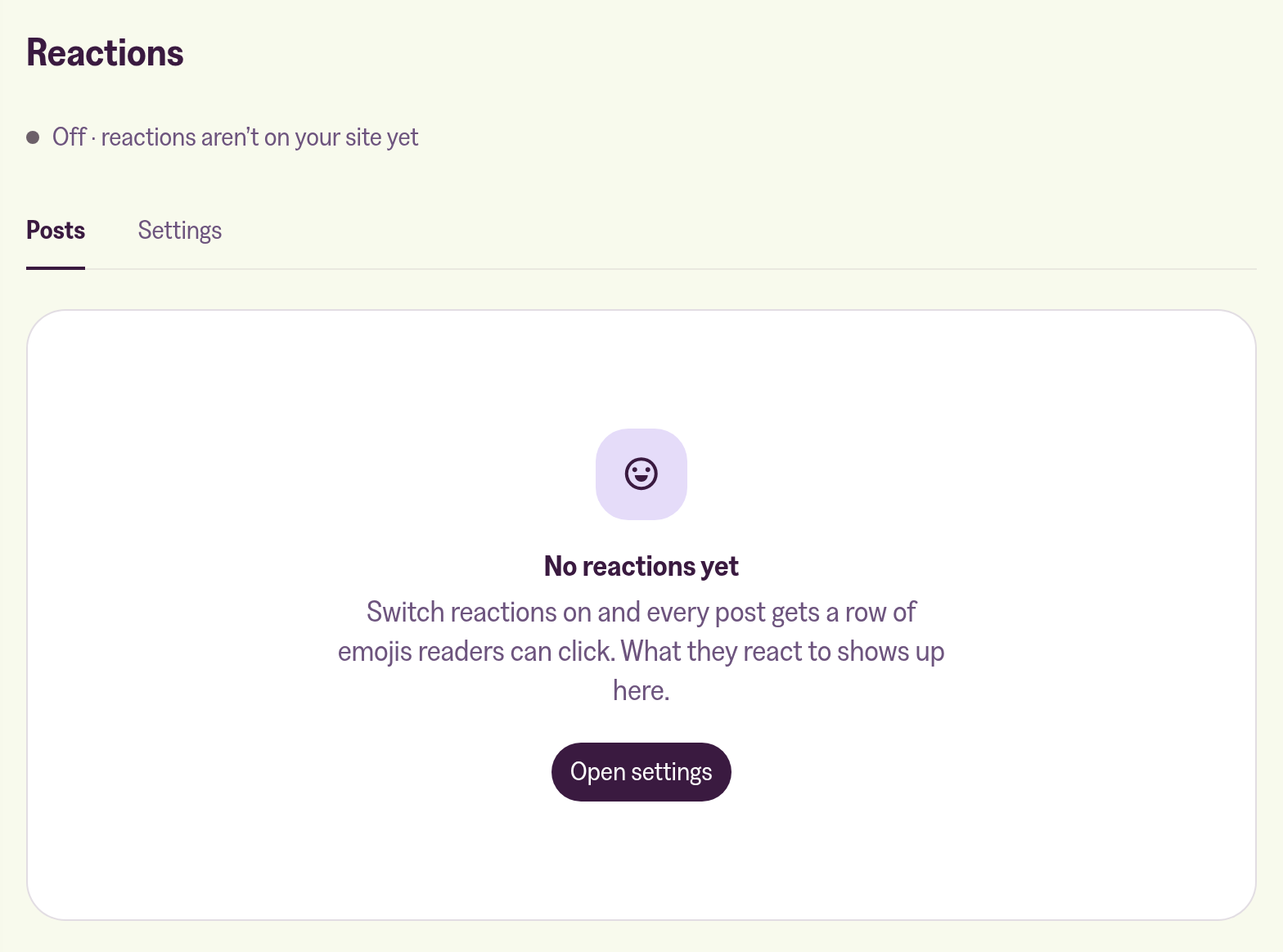
Switch reactions on
Open Reactions and go to Settings. Switch on On your site, pick where the emojis appear, and save.
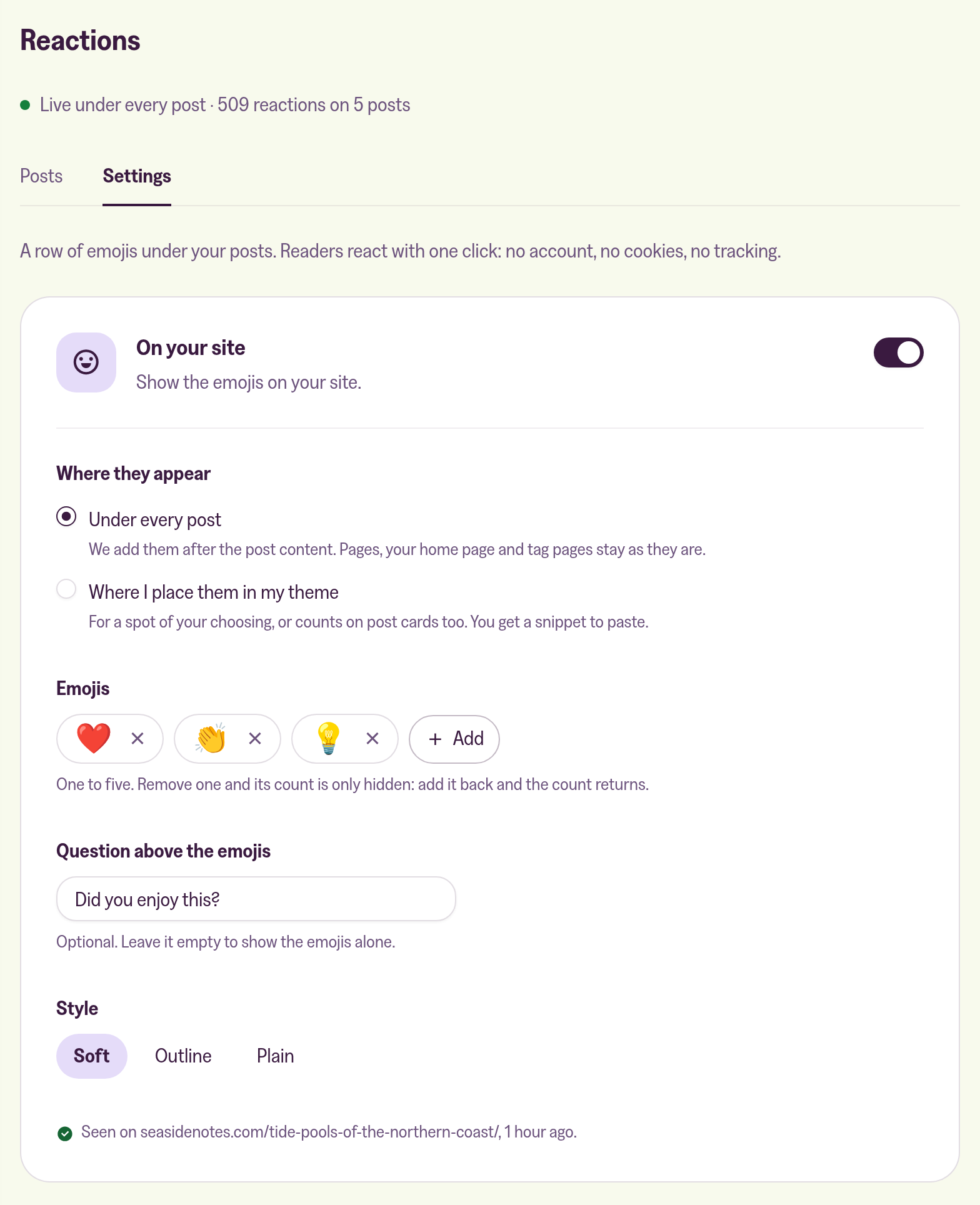
The rest is optional. Under Emojis you pick one to five, starting from ❤️ 👏 💡. Removing an emoji only hides its count, so adding it back brings the count back. The Question above the emojis is one line, such as "Did you enjoy this?", and you can leave it empty. Each Style (Soft, Outline or Plain) uses your theme's font and accent colour.
The What readers see preview shows the end of your latest post with these settings.
Where the emojis appear
Where they appear has two options. With Under every post, we add the emojis after each post's content from our side, and nothing is written into your theme or Ghost's Code injection. Only posts get them, so your pages and homepage stay as they are, and when you switch reactions off, the emojis leave your posts again.
Where I place them in my theme is for a spot of your own choosing, or for counts on your post cards. You get a snippet to paste into your theme:
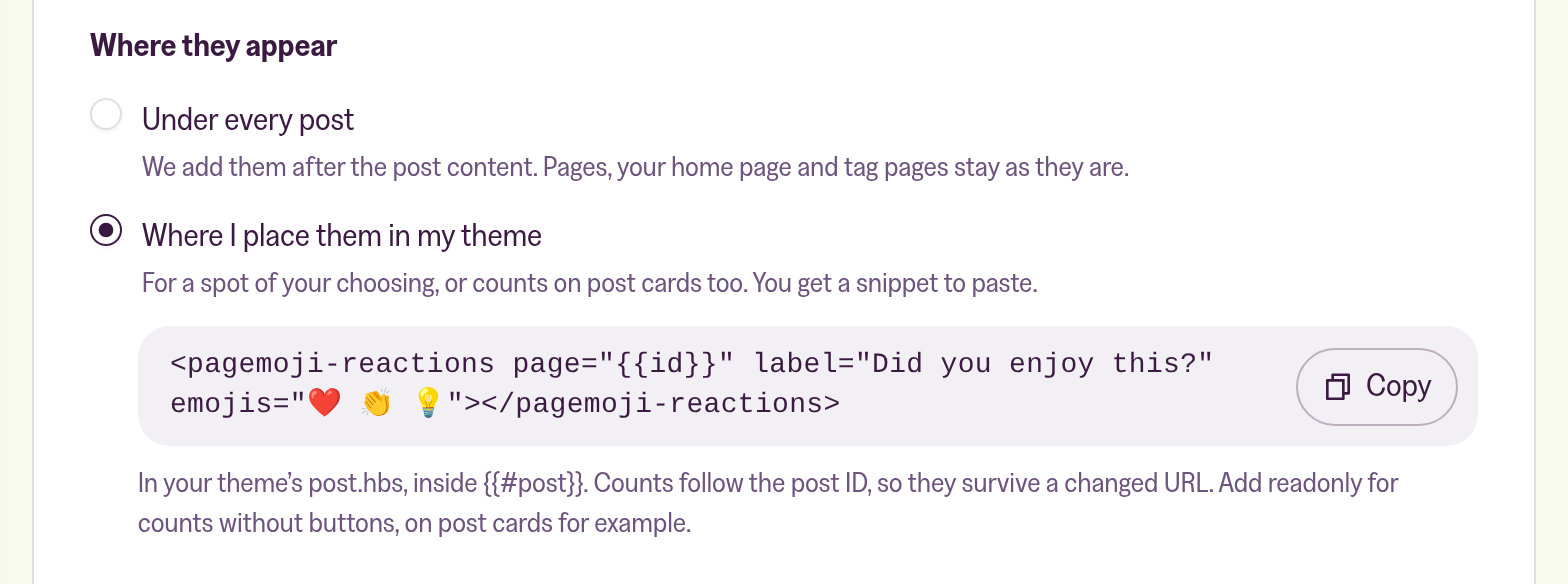
Paste it into your theme's post.hbs, inside {{#post}}. Counts follow the post's ID, so they survive a changed URL. Add readonly to the snippet to show counts without buttons, on post cards for example. If you change these settings later, copy the snippet again and replace the old one.
On a custom plan, the snippet also contains a script line, and placing the emojis in your theme is the only option. Switching reactions off in the portal can't take that snippet out of your theme: remove it from the theme yourself.
Check that they show up
Under the settings, a line tells you where the emojis were last seen on your site, for example Seen on seasidenotes.com/tide-pools-of-the-northern-coast/, 1 hour ago. If it says they haven't been seen yet, open one of your posts and look again.
The emojis load together with Ghost's search. If your theme leaves search out, or your site loads search from a fixed address, they don't show, so write to us and we'll set them up another way.
See what readers reacted to
Posts lists every post readers reacted to, with the count for each emoji and the total. Posts with new reactions come first, and Find a post searches by title.
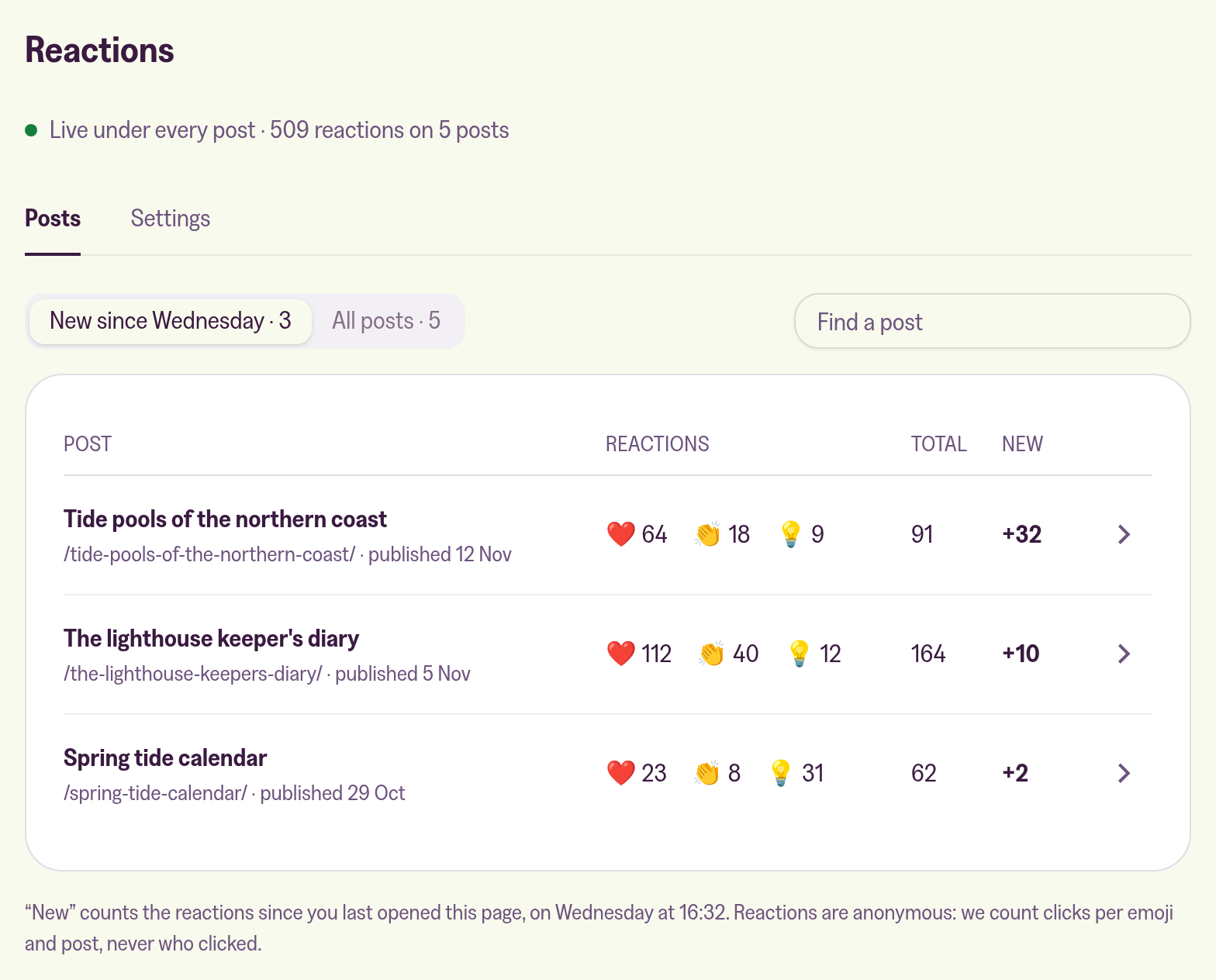
"New" means new since anyone last opened this list. The first filter, for example New since Wednesday · 3, shows only the posts that got reactions since then; All posts shows every post. Opening the list marks what it shows as seen. The last look is shared by everyone who manages the site, so a colleague opening the list moves it for you too. People who can only view the site in the new portal don't move it.
Why there are no emails or badges
We don't send an email when someone reacts, and the tab shows no count of new reactions, because a reaction doesn't need an answer. A count would sit next to the one for contact messages, which do need one, and teach you to skim past both. Open the list whenever you want to see how your posts landed.
What readers share with you
Readers react with one click, without an account or cookies. We count clicks per emoji and post and never store who clicked, so neither you nor we can tell which reader picked which emoji.
If you already pasted Pagemoji into your site
If you added reactions from Pagemoji before, by pasting a script into Code injection or your theme, your reactions carry over. Once you switch reactions on in the portal, Posts shows the counts your readers already left.
While the pasted script is on your site, it wins: we don't add a second row of emojis, and the emojis, question and style you pick in the portal don't apply. The portal's off switch can't remove a pasted script either, so the portal shows a notice when it finds one in your Code injection.
To let the portal take over:
- In the portal, switch reactions on, pick the same emojis you used in the script so their counts show, and save.
- In Ghost Admin, open Settings, then Code injection, delete the Pagemoji
<script>line from Site footer, and save.
From then on, the portal controls the emojis. If the script had an emoji you didn't pick, we keep its count, and adding it in the portal shows it again.
More in this section

Didn't find your answer?
Ask us anything — a real person reads every message, usually the same day.
