Setting up Advanced Search
Switching to Advanced Search takes two clicks and a short wait while the index builds. Read on for what the first build does, when you'd need to re-index, and how results get ranked.
 Sviatoslav Huzel
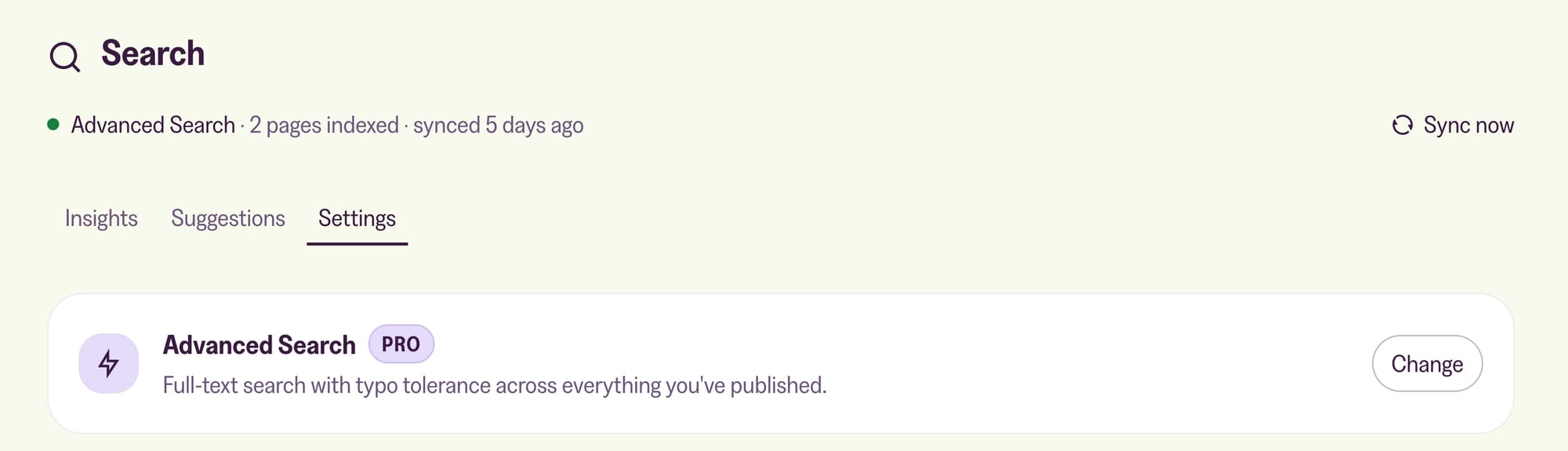
Turning Advanced Search on takes two clicks and a short wait while the index builds. Open the Search tab in the Customer Portal, click Change on the integration row, pick Advanced Search, and save.
Everything after that is tuning you can do later. This article covers the first index build, when to re-index, what readers can find, and how results get ordered.
Advanced Search is included only on the Pro plan, and on custom plans.
The first index build
Saving starts the first index. Everything you've published gets read and handed to the search engine, which takes a few minutes on a small site and longer on a large archive.
The status strip under the page title is where you watch it. It names the integration you're on, counts the pages indexed, and says when the last sync finished.
You don't need to touch your theme. The search box your readers already use is the one that gets upgraded.
Re-indexing
The status strip has a Sync now button. Press it when what readers can find doesn't match what's on your site:
- You've imported or bulk-edited a lot of posts at once.
- You've changed one of the switches below, so what belongs in the index has changed.
- Something looks stale and you'd rather not wonder about it.
A sync runs in the background so you can leave the page while it works. The strip updates when it's done. If it fails it says so, and you can try again.
What gets searched
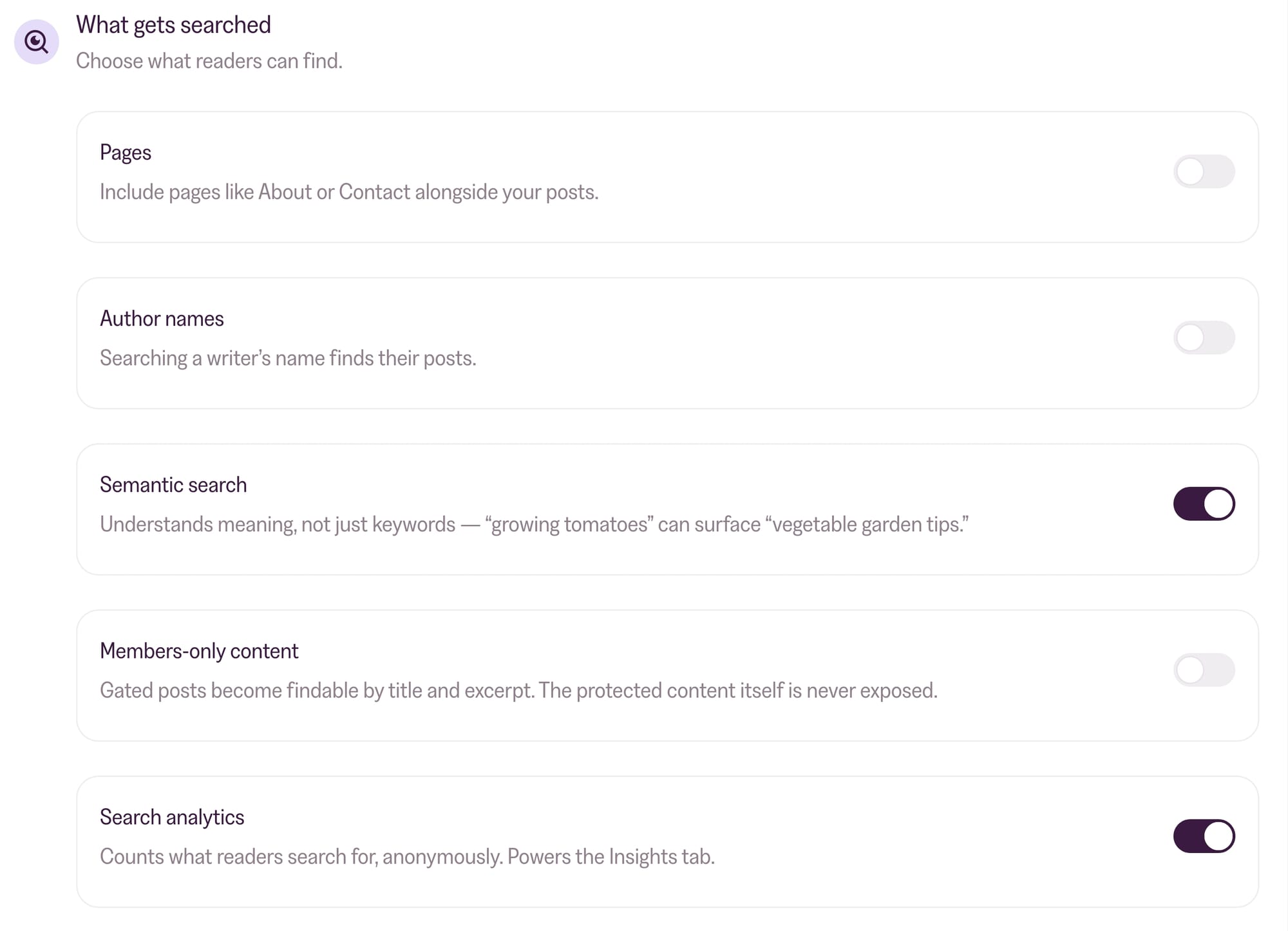
The What gets searched card decides what readers can find. It has six switches, turn them on or off depending on what you want included:
- Pages: include pages like About or Contact alongside your posts.
- Author names: searching a writer's name finds their posts.
- Tag names: searching a tag name finds posts with that tag.
- Semantic search: matches meaning as well as keywords, so "growing tomatoes" can surface "vegetable garden tips".
- Members-only content: gated posts become findable by title and excerpt. The protected content itself is never exposed, so this doesn't leak anything from behind your paywall. Results are labelled by which gate they sit behind: Members for posts any signed-up reader can open, Paid members for paid and tier-restricted ones. A free subscriber can tell before they click.
- Search analytics: counts what readers search for, anonymously. The data will then be displayed in the Insights tab.
Changing any of the first five changes what belongs in the index. Press Sync now afterwards so the change reaches your readers.
How results are ranked
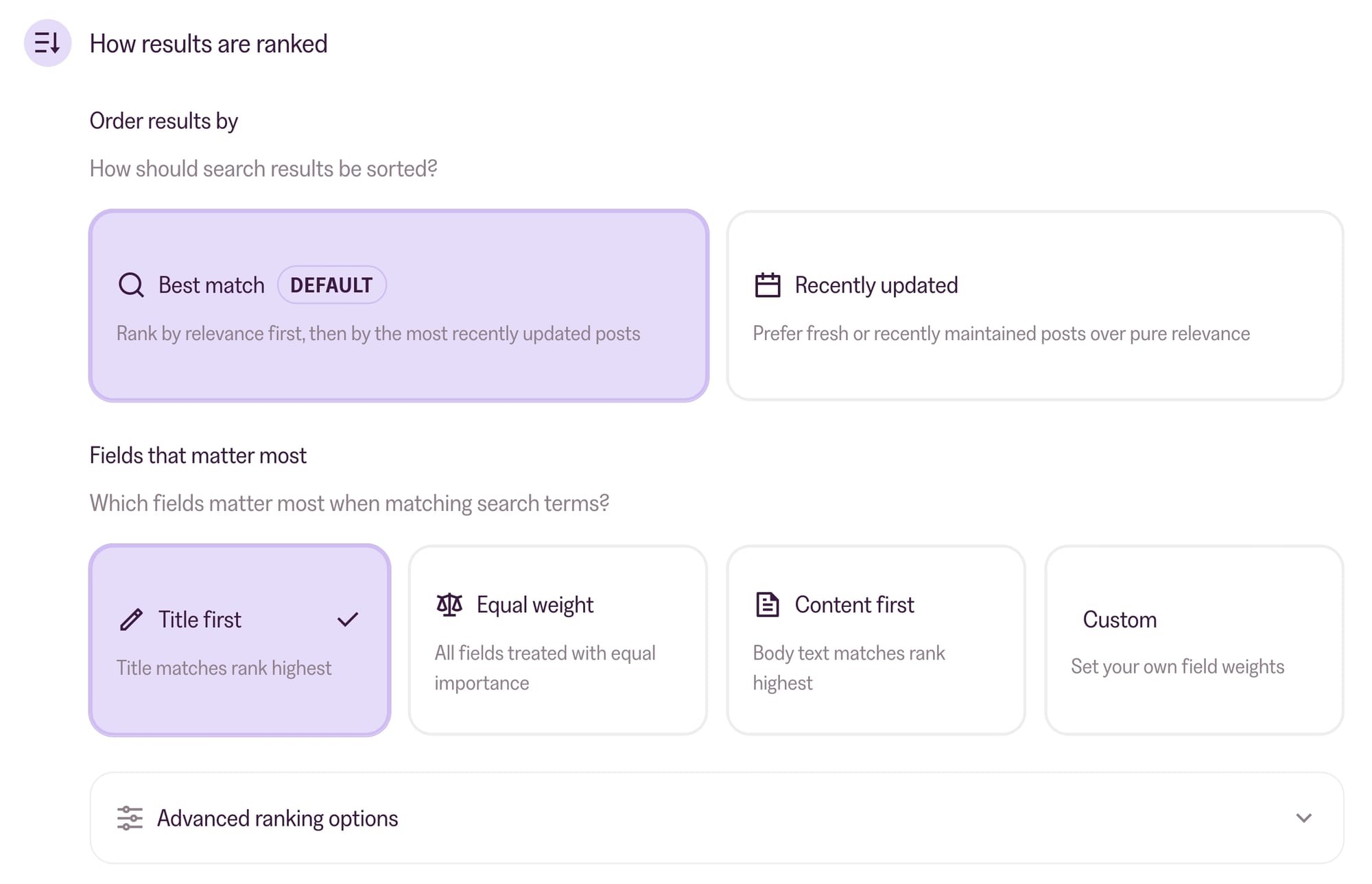
Two controls sit under How results are ranked.
Order results by decides what wins when several posts match. There are two choices:
- Best match ranks by relevance first, then by the most recently updated posts. It's the default, and it's the right answer for most sites.
- Recently updated prefers fresh or recently maintained posts over pure relevance. Pick it if your archive dates badly, like news or release notes.
Fields that matter most decides which part of a post carries the weight:
- Title first ranks title matches highest. Good for sites where the title says what the post is.
- Equal weight treats every field the same.
- Content first favours body text. It suits long posts where the useful answer is buried inside rather than announced in the heading.
- Custom lets you set your own field weights, in the per-field editor described below.
Advanced ranking options
Collapsed below the two controls above, and most sites never open it. It opens on its own if your field weights don't match one of the presets.
Three switches come first:
- Boost exact phrases ranks posts containing your exact search phrase above partial matches.
- Match as you type shows results while a reader is still typing the last word.
- Forgive typos finds matches even when a term is misspelled.
Four more controls sit underneath them, and they're easy to miss:
- Semantic tuning holds two settings, and both only apply while Semantic search is on. Semantic blend balances keyword matches against meaning-based ones, on a scale of Keywords first, Even mix, Meaning first. Match strictness decides how close a meaning-based match has to be to appear at all: Strict only shows very close matches (a search for "meditation" won't return "gardening tips"), Balanced allows moderately related results ("meditation" could surface "mindfulness practice"), and Relaxed casts a wider net ("meditation" might also find "stress management").
- Searchable fields sets how much each field counts, each one Low, Normal or High. Title, Body, Excerpt and Meta Description are there by default, and you can add Tags, Authors or Slug. Changing anything here switches Fields that matter most to Custom.
- Custom sort order is a text box for writing the sort expression by hand, if the two presets don't cover what you want.
- Results per page sets how many results the search window shows, between 1 and 100. The default is 10.
What's left
Search works at this point, and you could stop here.
The rest of the Search tab is presentation and reading. Appearance and Internationalization change how the search window looks to readers and what language it speaks. The Insights and Suggestions tabs show you what people search for and let you put terms in front of them. Both have their own articles.
More in this section

Didn't find your answer?
Ask us anything — a real person reads every message, usually the same day.
