How to sign the data processing agreement (DPA)
You sign the DPA in the customer portal. We email you a link, you sign on sign.magicpages.co, we countersign, and the signed PDF lands in your portal.
 Jannis Fedoruk-Betschki
You sign it in the customer portal. We email you a link, you sign on sign.magicpages.co, we countersign, and the signed PDF ends up in your portal and your inbox.
The GDPR asks for a written agreement with every company that handles personal data for you (Article 28). For your site, that's us: we store your members' names and email addresses, and we send your newsletters. The data processing agreement, or DPA, sets out how we do that.
Sign the agreement
- Log in to your Ghost admin and click Customer portal in the left sidebar.
- Open the Account tab and scroll down to Legal agreements.
- Click Email me the signing link.
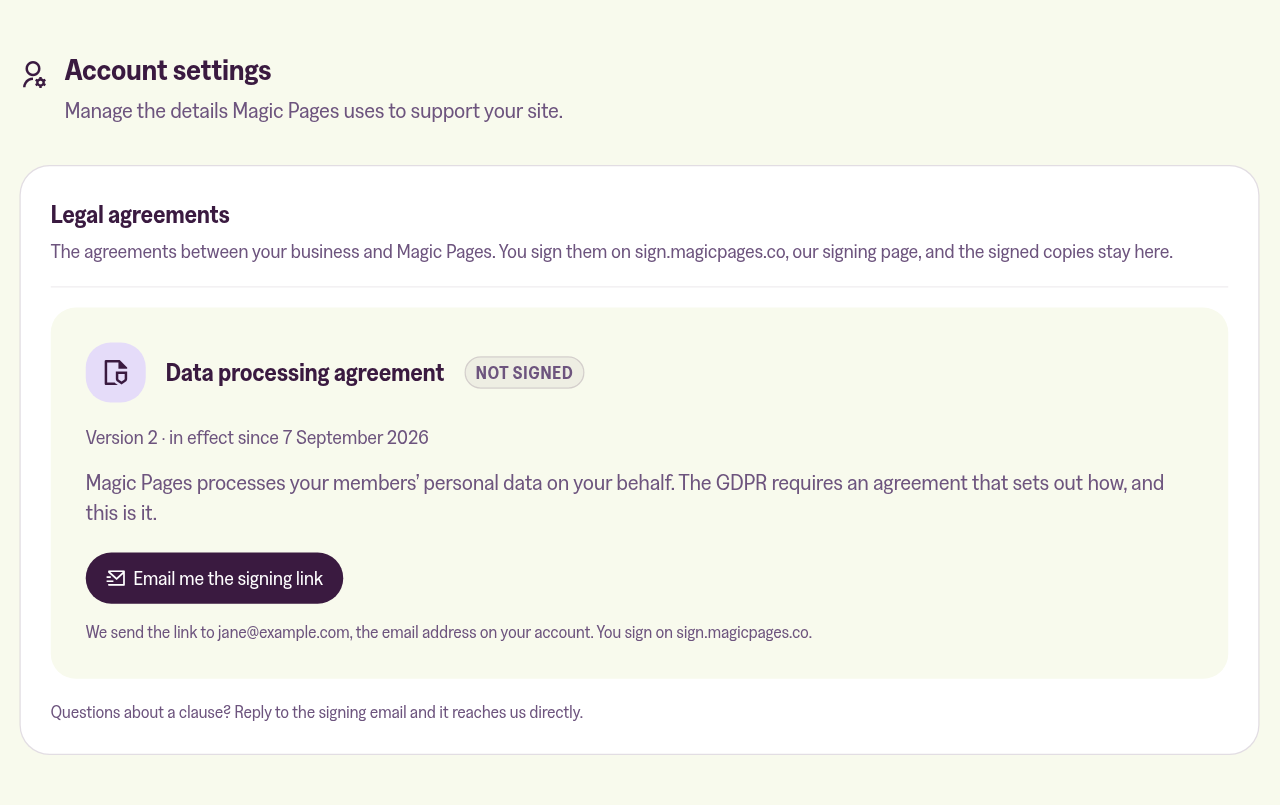
The link goes to the email address on your Magic Pages account, and the line under the button shows which one. If that isn't you, change it under Account email on the same page first.
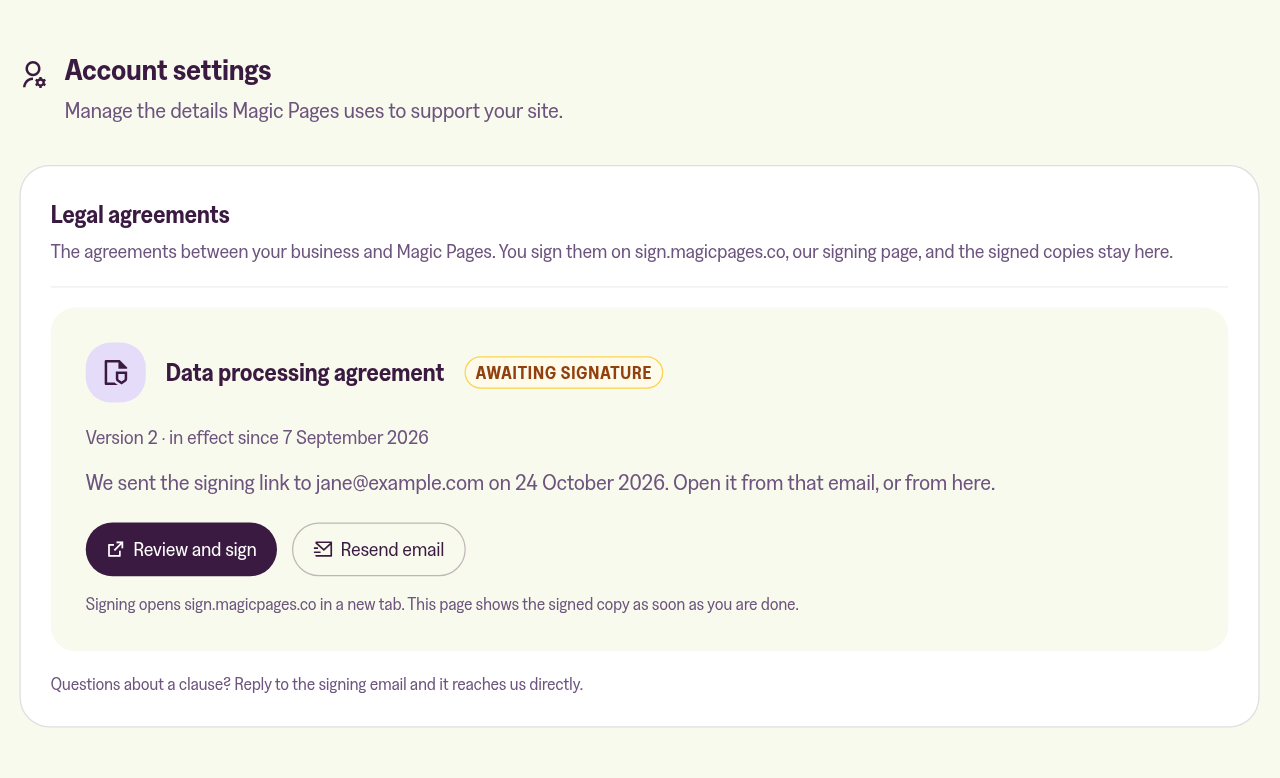
The email can take a minute to arrive. If it doesn't show up, check your spam folder, then click Resend email in the portal. That sends the same link again, and you can do it once a minute.
- Open the email and click the link. You can also click Review and sign in the portal, which opens the same page in a new tab.
- On the signing page, fill in your name or your company's name and address on the first page. Add your initials where the pages ask for them.
- Sign at the end. You can type your signature, draw it, or upload an image of it.
If the fields on the signing page don't respond to clicks, a browser privacy feature is getting in the way. In Brave, click the lion icon in the address bar and turn off Shields for sign.magicpages.co. Anti-tracking extensions in other browsers do the same, so pause them for the page, or sign in a different browser or on your phone.
What happens after you sign
The portal shows Awaiting our signature until we've countersigned. You don't need to do anything in the meantime.
Once we've signed too, the card switches to Signed. We email you the signed PDF, and Download signed PDF gets you the same copy from the portal at any time. The PDF includes the signing certificate, which records who signed and when.
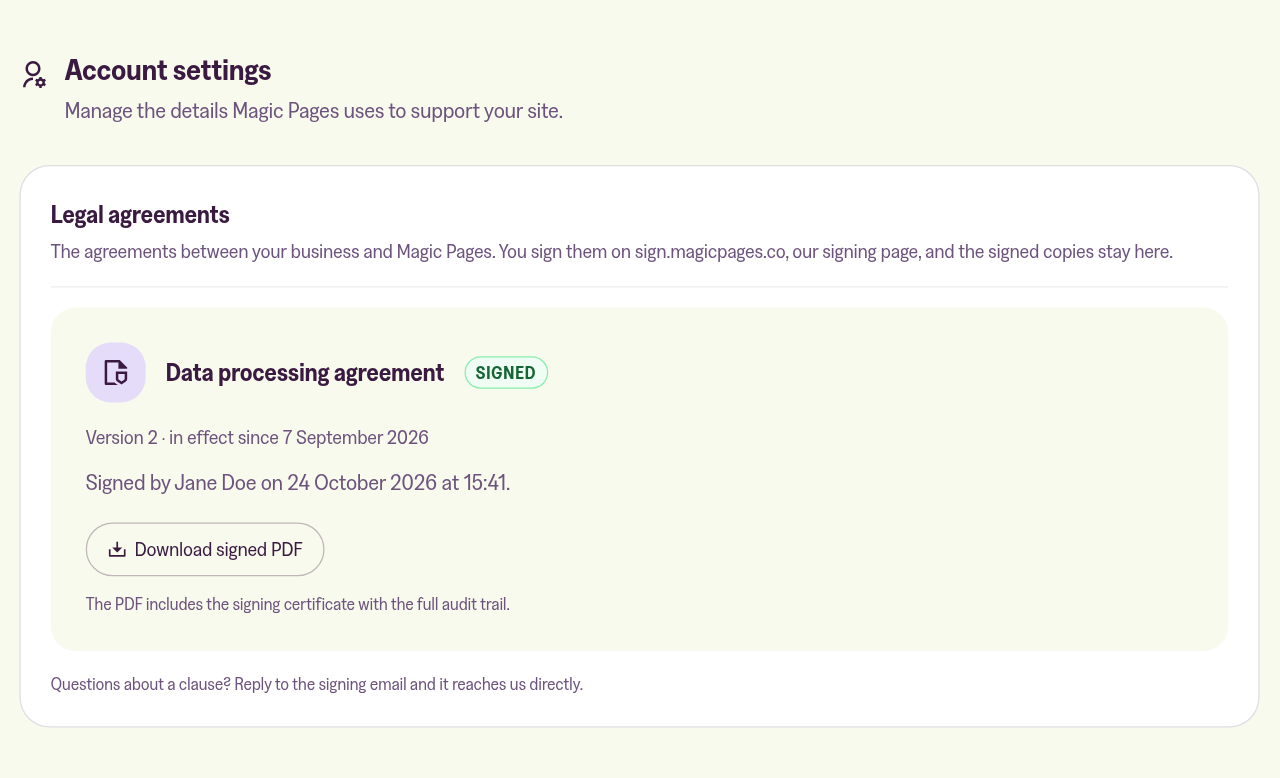
If you signed our DPA on sign.magicpages.co before it moved into the portal, that signed copy is already here.
Check our seal
We seal every signed agreement with our own certificate, so any later change to the PDF breaks the seal. Your PDF reader shows the signer as unknown or not trusted, because the certificate is ours and not from a certificate authority. That's expected.
To confirm the seal is ours, open the signature's certificate details and compare its SHA-256 fingerprint with ours:
- Sealed from 24 October 2026:
EE 03 ED 36 85 AD CA 9B D0 2B 15 F1 6F AC 5B 3B EF EE 04 AA ED 02 7E F5 F0 D4 49 A2 CA E0 56 E2 - Sealed before that:
21 5B 75 AD FF B1 A6 AD 0F 33 A6 76 AB 4F B2 5E CD F3 C9 99 1F 0F A2 89 8A EE C6 48 AD A5 13 81
Agreements sealed from 24 October 2026 also carry a timestamp from DigiCert, which proves when we sealed them.
When we update the agreement
The card shows New version. Your signature on the old version stays valid for what it covered. Click Email me the signing link to sign the new one, and the download button next to it keeps your copy of the old version.
If a clause doesn't work for you
Reply to the signing email. It comes straight to us, and we'll go through the clause with you.
If you decline on the signing page, the card shows Declined. When you're ready, Email me a new signing link starts over.
You can read the full agreement before you ask for the link:
 Jannis Fedoruk-Betschki
And this covers where your site and your members' data actually sit:
 Jannis Fedoruk-Betschki
More in this section

Didn't find your answer?
Ask us anything — a real person reads every message, usually the same day.
