How to choose what your posts look like on the social web
Share each post in full, as a preview, as a short note or not at all, with exceptions for tags and for posts for members.
 Jannis Fedoruk-Betschki
With Network turned on in Ghost, every post you publish goes out to the people who follow your site from Mastodon, Bluesky, Threads or another Ghost site. Ghost shares the whole post. The Social web tab in the customer portal lets you choose something else: a preview, a short note, or nothing at all. You can also make exceptions for certain tags and for posts for members.
Until you save rules of your own, nothing changes. Posts go out exactly as Ghost shares them.
Turn on Network first
Your site joins the social web through Ghost's Network setting. While it's off, the Social web tab shows Turn on Network in Ghost first. Its Open Network settings button takes you to Ghost Admin → Settings → Network.
Once Network is on, the top of the tab shows your follower count and the handle your followers see, such as @index@yoursite.com.
Pick a format
Under How new posts appear, pick the format every post gets unless an exception says otherwise:
- Full post shares the whole post. That's what Ghost does on its own. Ghost's Network shows all of it, and Mastodon shows a long post as its title and a link.
- Preview and link shares the title, the excerpt and the feature image, with a link to read the rest on your site. The body stays on your site.
- Short note shares a regular social post instead of an article: the title, a line or two and the link. It shows in full in your followers' home feeds.
- Don’t share keeps new posts on your site. You can still follow people, reply and post notes in Ghost.
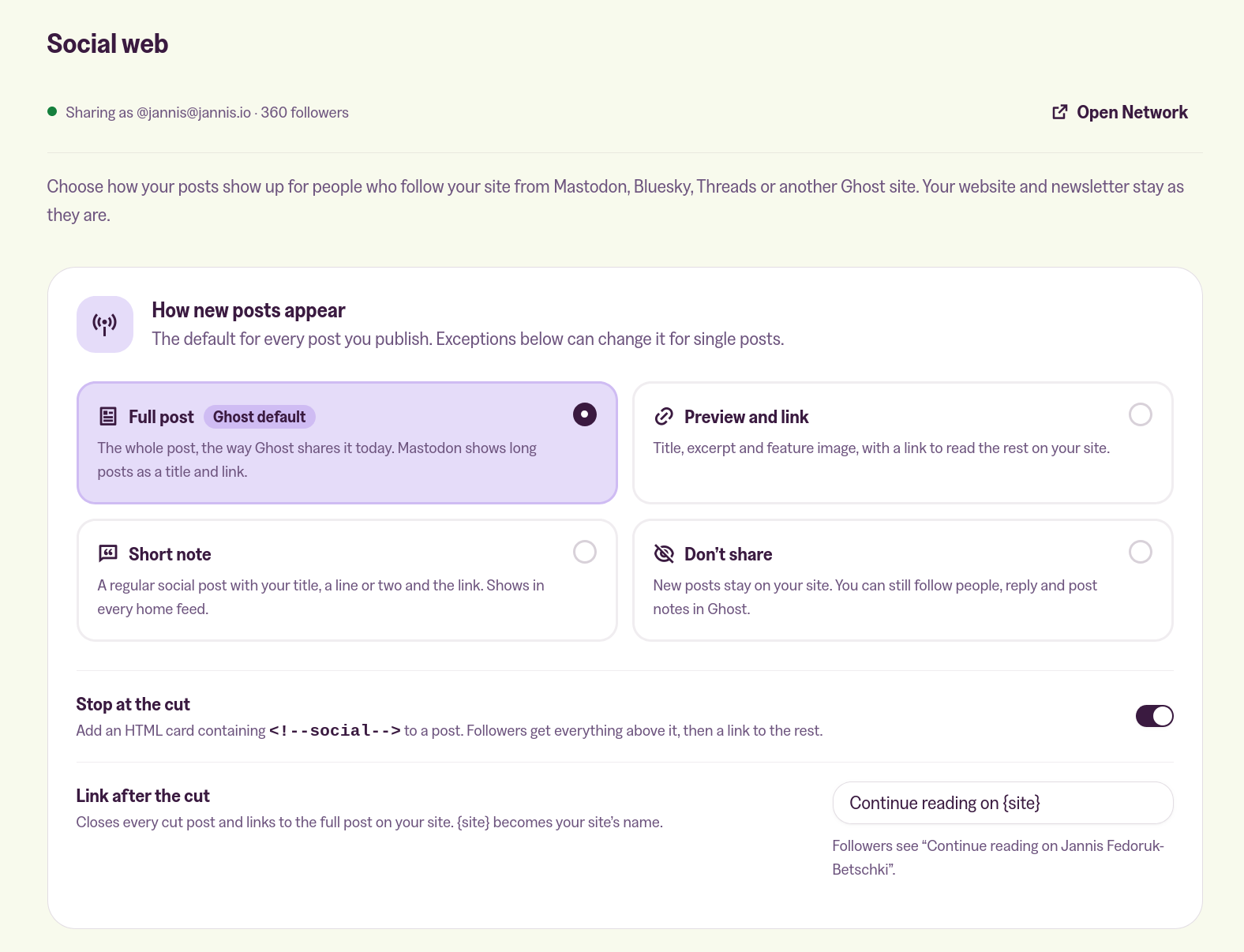
A preview uses your custom excerpt if the post has one. If not, we take the first 500 characters or so, cut at a word and ending in "…". The link underneath reads "Continue reading on" and your site's title, unless you reword it.
What followers see, at the bottom of the tab, shows your latest post as your followers would get it. It follows the rules on screen, so you can try a change before you save it.
Make exceptions
Under Exceptions, click Add rule. Then pick which posts it covers under When a post:
- has the tag covers posts with a certain tag. Type the tag's name or pick it from the list. It can be a tag you haven't created yet.
- is for paid members covers posts for paid members, including posts for specific tiers.
- is for members covers posts for all members. Posts for paid members have their own exception, so they don't count here.
Pick the format under Share it as and click Add rule.
A post follows the first exception in the list that matches it. Posts that match none follow your default, shown as Everything else at the bottom. Use the arrows next to an exception to move it up or down.
Say a paid podcast episode meets both of these:
- has the tag
podcast, shared as a short note - is for paid members, shared as a preview and link
It goes out as a note. The tag exception comes first.
Internal tags work too. Tags that start with # never show on your site, which makes them a handy switch for single posts. Add an exception for #social-note, and every post you tag #social-note goes out as a note.
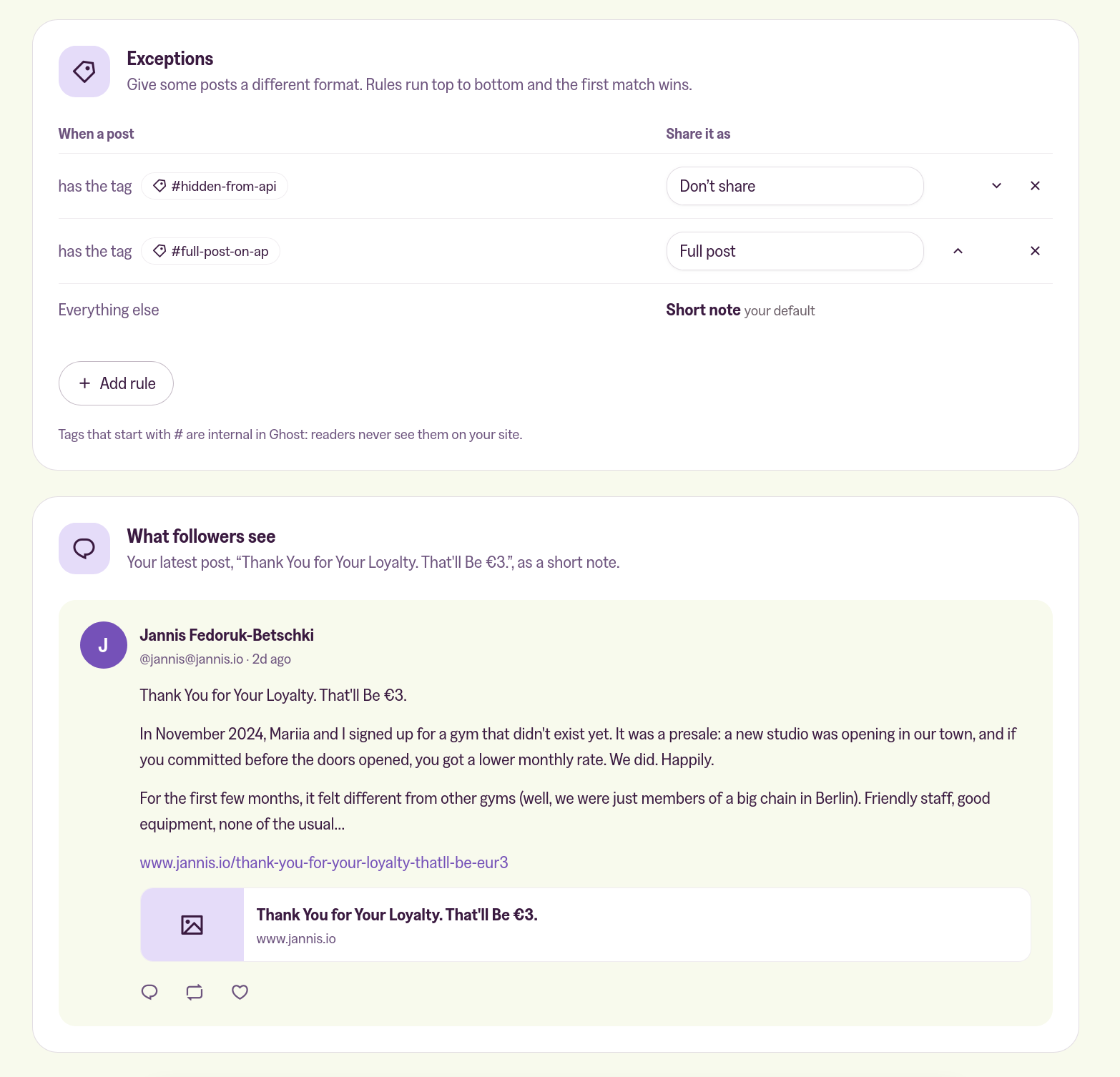
When you're done, click Save changes. Your rules apply to posts you publish from about a minute later.
Share only the opening of a post
Sometimes you want followers to read the start of a post and come to your site for the rest. In Ghost's editor, add an HTML card where the shared part should end. Put exactly this in it:
<!--social-->
Readers on your site don't see the card. With Full post and Stop at the cut on, followers get everything above it, then a link to the rest. Posts without the card go out whole.
You can reword that link under Link after the cut. It starts out as Continue reading on {site}, where {site} becomes your site's title. Previews end with the same link.
Both settings only show while Full post is your default. The cut is on unless you turn it off, and it applies to every post shared in full, including through an exception. So if your default is something else, switch to Full post to reword the link. Then switch back before you save.
Write the note yourself
A short note holds the post's title, its excerpt and the link. It's at most 500 characters. If it runs longer, we shorten the excerpt at a word, and never the link.
Write the note yourself swaps the excerpt for the text above a <!--social--> card. That way you decide exactly what your followers read. Posts without the card still use the excerpt.
Attach the feature image adds the post's feature image to the note. Turn it off and apps show your post's link preview instead. The image is also left off when it isn't stored on your site, like one picked from Unsplash in Ghost's editor. The same goes for an image over about 5 MB.
Both switches are on unless you turn them off. They only show while Short note is your default. But they apply to every note, including posts an exception turns into one.
Posts for members and paid members
Ghost only shares a post for members up to its public preview, which you set with the Public preview card in the editor. Your rules never share more:
- A Full post goes out up to the public preview, followed by a notice that the rest is for subscribers. A post for members without a public preview isn't shared at all.
- A Preview and link uses your custom excerpt or the text above the public preview, then the same notice. With neither, it's the title, the link and the notice.
- A Short note uses your custom excerpt or the text above the public preview. Nothing below it goes out.
Posts keep the format they went out in
A post's format is set the moment it's first published, and it stays. Changing your rules later doesn't touch posts that are already out.
When you edit a published post:
- A Full post or Preview and link post is updated for your followers, in the same format.
- A Short note stays as it was. A note isn't updated once it's out.
- A post you didn't share stays unshared.
Unpublishing or deleting a post removes it from the social web, note included. To share a post again under your current rules, unpublish it and publish it again. It's then treated as a new post.
Posts you published before saving any rules keep going out the way Ghost shares them, edits included.
If a post went out differently than you expected, the likely causes are here:
 Jannis Fedoruk-Betschki
More in this section

Didn't find your answer?
Ask us anything — a real person reads every message, usually the same day.
