Can I get SFTP or FTP access to my site?
No. Ghost reads your theme into memory at startup, so files changed on disk never reach your site. Ghost's built-in code editor does the job instead.
 Jannis Fedoruk-Betschki
No, and it isn't on our roadmap.
The reason is worth knowing, because it isn't about locking a door. Ghost reads your theme into memory when it starts up. If a file on disk changes after that, your site carries on serving the version it already has. Through (S)FTP you could upload a fixed template, reload your site, and see nothing change, with no error message telling you why.
That's a worse experience than not offering it at all. This is about how Ghost works rather than a limit we've put on your plan.
Whatever you were going to use SFTP for, there's a route that works. Here they are, most common first.
Editing theme code
Ghost has a code editor built in, so most theme work needs no file access at all. Go to Settings → Design & branding, click the menu beside your active theme, then Edit code.
You get the theme's whole file tree and an editor in the browser. Saving repackages the theme and reinstalls it, which is the step that makes your changes show up.
 John O’Nolan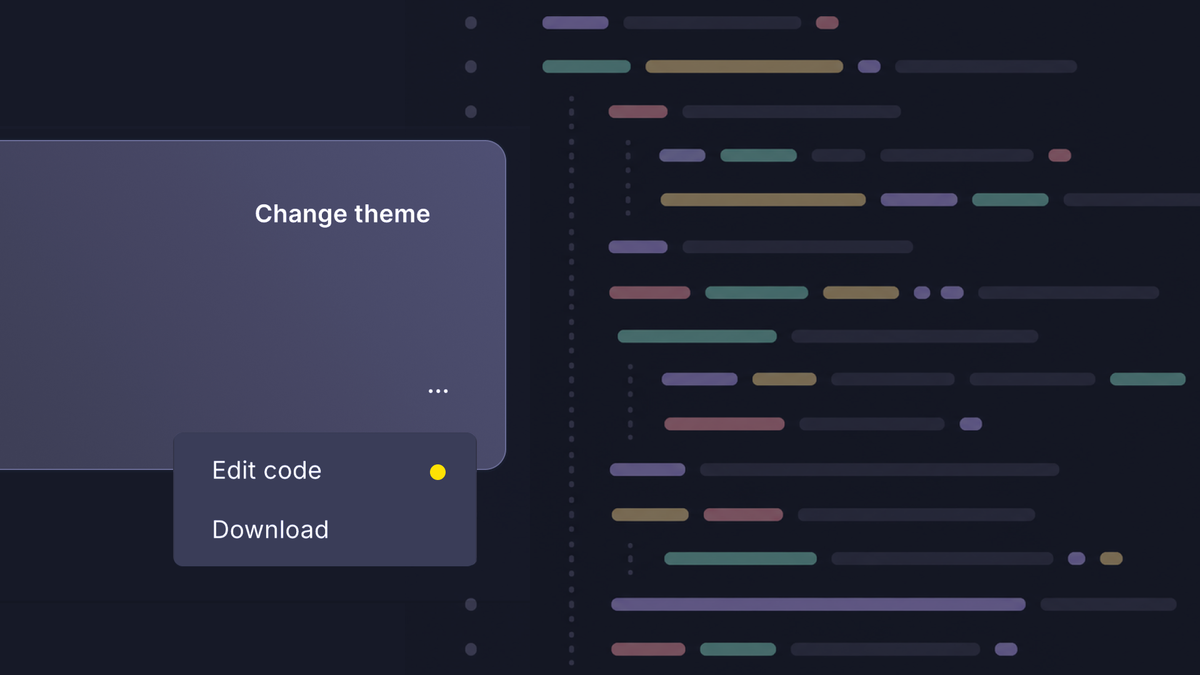
Casper and Source can't be overwritten, so editing one of those asks you to save it as a new theme first.
If you'd rather work in your own editor, run a copy of your site on your own computer. Nothing you try there can reach your readers, and you see each change as you save it.
 Sviatoslav Huzel
When the theme is ready, zip the folder and upload it in your Ghost admin: Settings → Design & branding → Change theme → Upload theme.
Adding images, video or files
Upload them in the editor, wherever you want them to appear. Ghost stores them and hands you the URL, so there's no folder to put them in yourself.
Getting a copy of your files
Everything is downloadable from your customer portal, under Backups on the Support page.
Content Backup is your content folder: images, media, uploaded files and your theme files. Database Backup is your posts, pages, members and settings.
Would a staging site help?
For trying a different theme, new settings or a batch of draft posts, yes. It's a private copy of your site, and publishing the result to your live site is one button.
 Jannis Fedoruk-Betschki
Theme code works there too, and staging is the safest place for it. Edit code is available on your staging site the same way, so you can change a template, look at the result on your staging address, then publish to your live site when it's right. We compare staging and a local copy here.
Moving a lot of files at once
Sometimes the upload itself is the slow part of the job. A large media library coming over from another host is the usual case.
Tell us what you're working with and we'll move it on the server for you, straight onto your site.
More in this section

Didn't find your answer?
Ask us anything — a real person reads every message, usually the same day.
