How to Block AI Crawlers on Your Ghost CMS Website
Step-by-step: where to find the AI crawler toggle in the Magic Pages Customer Portal, how to confirm it's working, and how to switch it back off.
 Jannis Fedoruk-Betschki
Blocking AI crawlers on a Magic Pages-hosted site takes one toggle. The Customer Portal then lets you test it instantly and see how many crawler requests we've stopped over the last seven days.
Open the Customer Portal
From inside Ghost Admin, open the left sidebar and click Customer Portal. The portal loads inline.
 Jannis Fedoruk-Betschki
Go to the Configuration tab
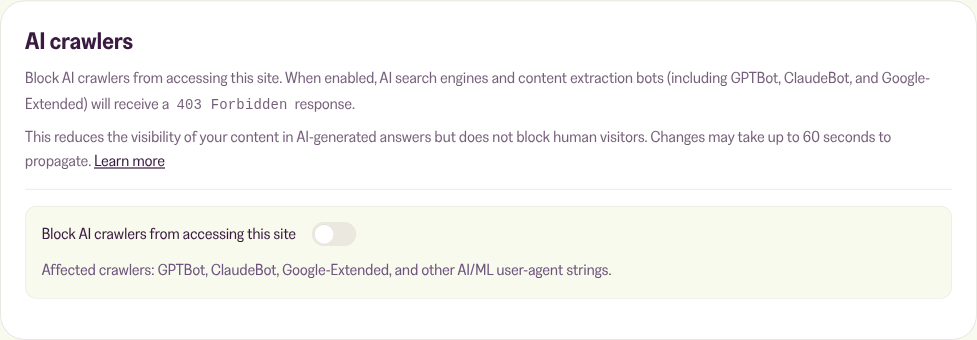
In the portal's top navigation, click Configuration. Scroll until you reach the AI crawlers section – it sits between Twitter API and the cache-purge action.
By default, the toggle is off:
Flip the toggle
Click the toggle next to Block AI crawlers from accessing this site. The portal saves the change immediately and confirms it with a message.
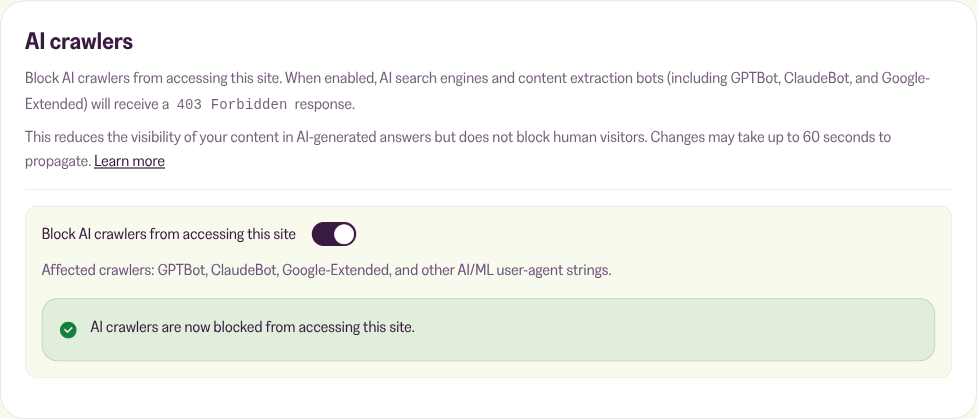
Changes typically reach Cloudflare's edge within a few seconds. We allow up to 60 seconds in the worst case.
Test it from the portal
Once blocking is on, the Test it button next to the toggle lights up. Click it, and the portal sends a real request to your site pretending to be an AI crawler, and a second one pretending to be a normal visitor.
If everything's working you'll see two green confirmations:
- AI bot was blocked from your site – exactly what we want.
- A real visitor would see your site as normal – your readers are unaffected.
If anything looks off, the portal will tell you and we'll already have the failure logged on our side. Just drop us a line at help@magicpages.co and we'll take a look.
See what's being blocked
While blocking is on, the AI crawlers card also shows AI crawlers blocked in the last 7 days: a running count of requests we've turned away, with a breakdown of the top crawlers we've seen hitting your site.
The first time you turn blocking on, you'll see "No blocks recorded yet — check back tomorrow." Stats roll up once a day, so give it 24 hours before you start watching the numbers climb.
Prefer the terminal?
If you'd rather verify it yourself, you can run a quick curl from any machine – replace yourdomain.com with your site's address:
curl -I -A "GPTBot/1.0" https://yourdomain.com/The response should start with HTTP/2 403. A normal browser request still returns 200:
curl -I https://yourdomain.com/Turn it off again
Flip the same toggle. AI crawlers can access your site again within about a minute. Nothing else changes – your content, search indexing, and human visitors are untouched throughout.
Background
For why this exists, what's blocked, and what isn't, see AI Crawler Controls on Magic Pages.
More in this section

Didn't find your answer?
Ask us anything — a real person reads every message, usually the same day.
