How to Configure Your Newsletter Sending Domain
Configure your newsletter sending domain in Magic Pages to improve email deliverability and trust. Choose between default, custom sub
 Jannis Fedoruk-Betschki
Your newsletter sending domain determines how your newsletter gets delivered to your subscribers. Getting this right is crucial for email deliverability and building trust with your audience.
I went into a bit more detail here on the background:
 Jannis Fedoruk-Betschki
This article should help you understand the options within the Magic Pages customer portal.
Magic Pages offers two sending domain configurations to match your needs:
1. Default mymagic.page Domain (Recommended for beginners)
- Format:
yoursite@mymagic.page - Setup: No configuration required
- Best for: New newsletters, trials, or when you want hassle-free setup
2. Your Own Domain
- What subscribers see:
newsletter@yourdomain.com - Sending domain: a subdomain such as
send.yourdomain.com, configured behind the scenes - Setup: a few CNAME records (added automatically for supported providers)
- Best for: established brands who want newsletters to come from their own domain while protecting its reputation
newsletter@yourdomain.com) — that’s what your subscribers see. Behind the scenes, the technical sending domain is a subdomain like send.yourdomain.com, because your main (apex) domain can’t hold the records email providers need.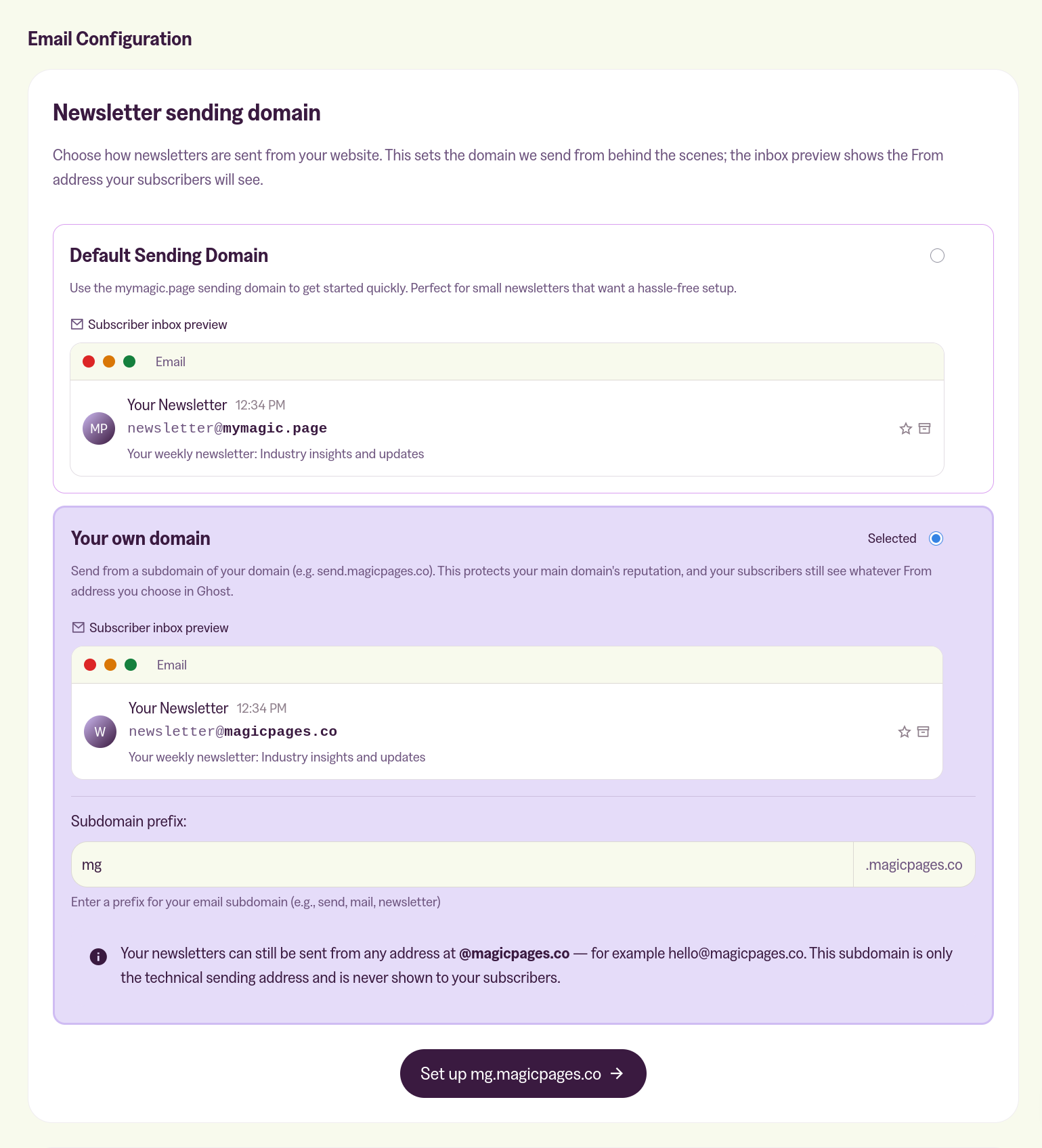
How to Configure Your Sending Domain
Step 1: Access Newsletter Settings
- Log into your Magic Pages customer portal
- Navigate to the Newsletter tab
- Find the "Email Configuration" section
Step 2: Choose Your Configuration
Select the option that best fits your needs:
- Trial accounts: Only the mymagic.page option is available
- Paid accounts without custom domains: Can use mymagic.page (no setup required)
- Paid accounts with custom domains: Both options available
Step 3: Configure DNS (Custom Domain Only)
If you chose your own domain:
- Click Set up [your domain] to open the DNS Setup Guide
- Your DNS provider will be automatically detected (e.g. Namecheap, Cloudflare, GoDaddy)
- Click Open [provider] to jump straight to your provider's dashboard
- Copy and add the provided DNS records to your domain's DNS settings
- Return to Magic Pages and click Verify now
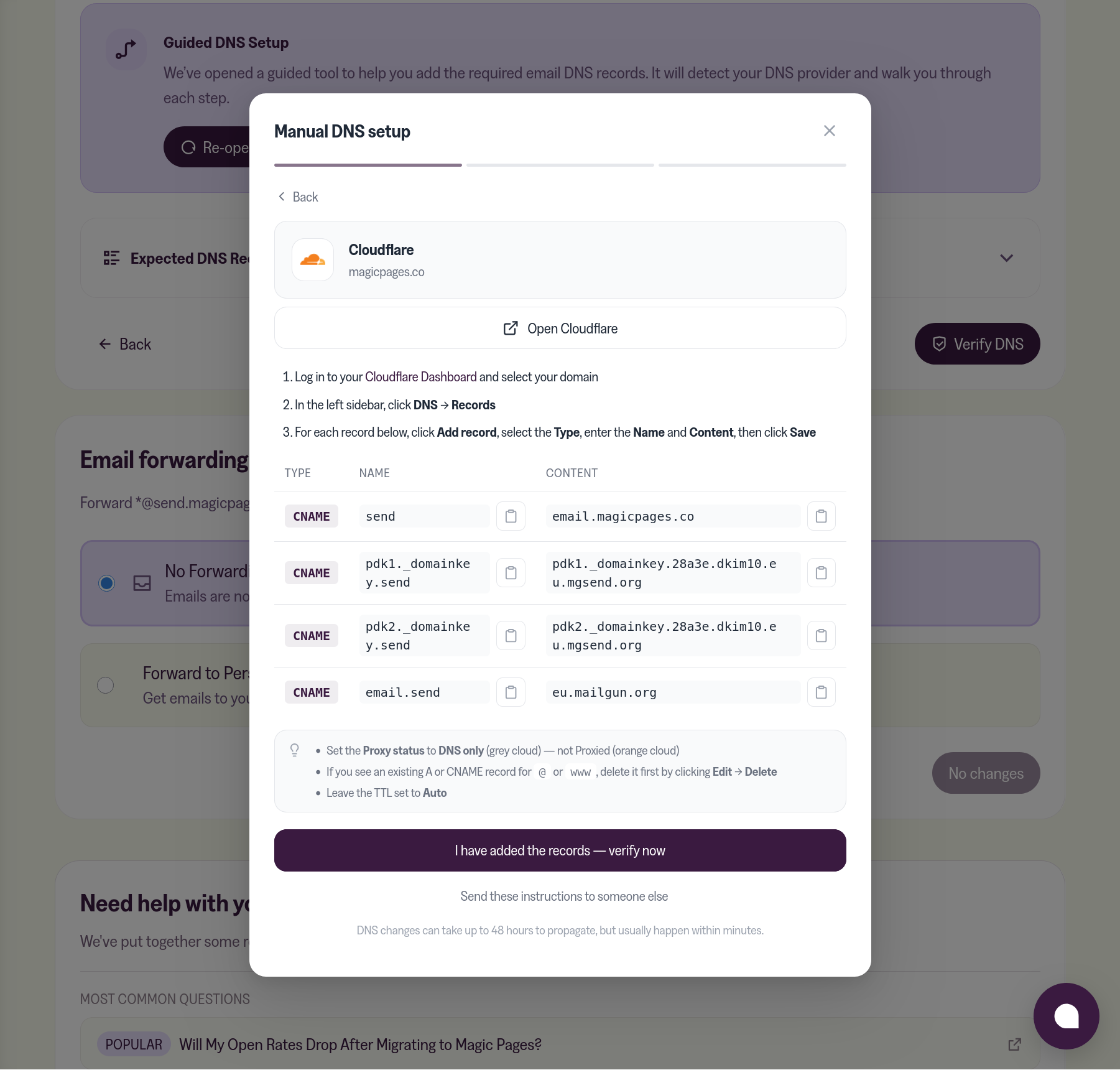
The setup is now entirely CNAME records — there are no TXT or MX records to add by hand:
- A CNAME at your sending subdomain (e.g.
send.yourdomain.com) pointing toemail.magicpages.co. This publishes SPF for you, so there’s no SPF TXT record to maintain. - Two DKIM CNAME records (
pdk1._domainkey…andpdk2._domainkey…) pointing to Mailgun. These use 2048-bit keys that rotate automatically. - An optional tracking CNAME for open and click analytics.
No SPF TXT record, no DKIM TXT blob, and no MX records on your side.
Step 4: Send a Test Email
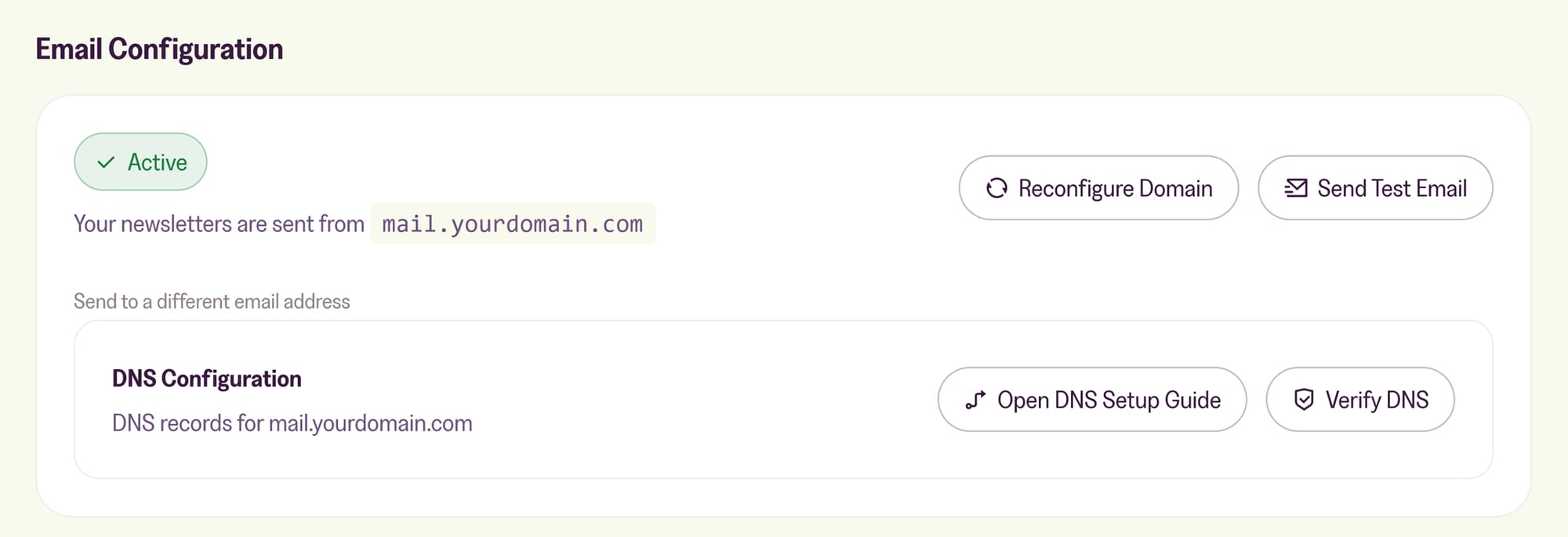
Once your domain is active, click Send Test Email to confirm everything is working end-to-end.
You can also reconfigure your domain, verify your DNS records or Open DNS Setup Guide to double-check that all the records are added correctly.
Step 5: Configure Ghost Newsletter Settings
Once your sending domain is verified:
- Go to your Ghost admin panel → Settings → Newsletters
- Update your newsletter's "From address" to use your configured sending domain.
- You can also update your "Sender email" for the welcome emails and "Support email address" for signup portal.
- Save your changes
Your sender (“from”) address can be any address at your main domain — for example, newsletter@yourdomain.com — even though the technical sending domain is a subdomain like send.yourdomain.com. Your subscribers only ever see your main domain.
Domain Warming Period
New custom sending domains may experience lower deliverability for the first few days while email providers learn to trust your domain. This is normal and will improve over time as you send consistent, quality content to engaged subscribers.
Set Up DMARC (Recommended)
We recommend adding a DMARC record for every custom sending domain. Gmail, Yahoo and Outlook now require DMARC for anyone sending more than 5,000 emails a day, and it protects your domain from spoofing. Use our DMARC Generator to create a policy in a couple of clicks.
More in this section

Didn't find your answer?
Ask us anything — a real person reads every message, usually the same day.
